
This is the print version of this page. All content is copyright Indezine.com 2000-2026.
Thoughts and impressions of happenings in the world of PowerPoint and presentations, continuously updated since 2003.
See Also:
PowerPoint and Presenting Notes
PowerPoint and Presenting Glossary
A column chart is probably the most simple chart type that you can create in PowerPoint. What makes a column chart the most preferred chart type is that it follows human thinking — we are all used to identifying a taller column as representing more success, more sales, more profits, more reach, etc. And column charts fit in perfectly with such human thinking! No wonder they are so popular.

Learn about Column Charts, and how you can use them within PowerPoint.
Filed Under:
PowerPoint All Versions
Tagged as: Charting, PowerPoint
Comments Off on Column Charts in PowerPoint
The shadow effect in PowerPoint adds more depth to your selected shape — and you may get the perfect shadow effect the very first time you use PowerPoint’s default shadow options. However, you may want that shadow to be a wee bit longer, or just a little less pronounced. Or maybe you want the shadow to sport a color that’s different. Fortunately, these shadow effects are quite easy to achieve.
Learn how you can work with advanced Shadow effect options in PowerPoint 2013 for Windows.
Filed Under:
PowerPoint 2013
Tagged as: Effects, PowerPoint 2013, Shapes, Tutorials
Comments Off on Learn PowerPoint 2013 for Windows: Advanced Shadow Effect Options
PowerPoint’s effects are used to enhance the look of your shapes — and with PowerPoint 2013 providing a vast repertoire of effects, you can easily get busy playing with all the options available! To save time, you can apply any of the Preset shape effects. If you choose to apply individual effects, the time involved may be more but the results can be distinctive. For example, even with something as simple as the Shadow effect, there is no dearth of options available.

Learn how you can apply Shadow Effects to shape(s) in PowerPoint 2013 for Windows.
Filed Under:
PowerPoint 2013
Tagged as: Effects, PowerPoint 2013, Shapes, Tutorials
Comments Off on Learn PowerPoint 2013 for Windows: Apply Shadow Effects to Shapes
PowerPoint 2013 provides six types of Shape Effects — and more than one of these effects can be applied to a selected shape. It goes without saying that some combinations of these effects look better than others — the restraint to not go overboard is always a good thing. On the other hand, trying out all the effect combinations may take a lot of time — fortunately, the Presets option comes to your rescue. This option lets you use pre-combined combinations of the different effects — these work well almost always.

Learn how to apply Preset effects to shape(s) in PowerPoint 2013 for Windows.
Filed Under:
PowerPoint 2013
Tagged as: Effects, PowerPoint 2013, Shapes, Tutorials
Comments Off on Learn PowerPoint 2013 for Windows: Apply Preset Effects to Shapes
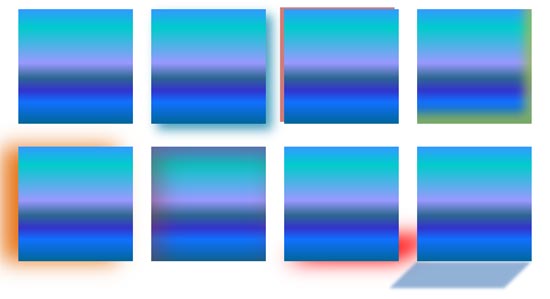
So what are effects? Effects are different than fills and outlines — with the plethora of effects available in PowerPoint, you can make a shape stand apart with a drop shadow. Other effects allow you to create convincing reflections, spreading glows, 3D bevel effects, and even moth-eaten soft edges. Even better, all these effects are not destructible and can be turned on and off at your will.
Learn about Shape Effects that can be applied to selected shapes in PowerPoint 2013 for Windows.
Filed Under:
PowerPoint 2013
Tagged as: Effects, PowerPoint 2013, Shapes, Tutorials
Comments Off on Learn PowerPoint 2013 for Windows: Shape Effects
Microsoft and the Office logo are trademarks or registered trademarks of Microsoft Corporation in the United States and/or other countries.