
This is the print version of this page. All content is copyright Indezine.com 2000-2026.
Thoughts and impressions of happenings in the world of PowerPoint and presentations, continuously updated since 2003.
See Also:
PowerPoint and Presenting Notes
PowerPoint and Presenting Glossary
Although charts are a visual medium, they still contain some text in the form of data labels, titles, legend, axis labels, etc. You may need to format the chart text to suit your requirements. While PowerPoint 2011 makes it simpler to access text formatting options than in previous PowerPoint versions, there’s still some learning involved. That sort of learning is exactly what this tutorial aims to provide.

Learn about formatting fonts within charts in PowerPoint 2011 for Mac.
Filed Under:
PowerPoint 2011
Tagged as: Charting, Office for Mac, PowerPoint 2011, Tutorials
Comments Off on Learn PowerPoint 2011 for Mac: Changing Fonts and Other Text Options for Charts
There are plenty of opportunities to use a less restrained background for your slides — your choice for a slide background should complement the content of your presentation. For example, you’ll want a flashier background for slides created for kindergarten students — or if you were creating a PowerPoint greeting card. On the other hand, you may want a washed out, faded, or even a subtle patterned picture for a typical business presentation. PowerPoint 2010 does provide you with 12 default slide Background Styles which can be applied to both the Slide Master and individual Slide Layouts — other than these default background styles, you can also opt to change the slide background to a solid color, a gradient, a pattern or texture, or even a picture.

Filed Under:
PowerPoint 2010
Tagged as: Masters, PowerPoint 2010, Templates, Tutorials
Comments Off on Learn PowerPoint 2010 for Windows: Custom Backgrounds for Slide Master and Layouts
If your chart includes only one series and several categories, then by default individual chart segments will use the same fill color (such as individual columns in a column chart) or varying colors (such as segments in a pie chart), depending upon the chart type you are working with. For all charts, you can always change the color of the entire series but that works best if you have multiple series in your chart. The same is not true for a chart that has only one series — in that case displaying all individual elements of a chart series in the same color can make your chart look dull — it also does not provide a proper way for your audience to compare the individual series’ elements. PowerPoint 2011 lets you resolve this limitation by using the Vary color by point option.

Filed Under:
PowerPoint 2011
Tagged as: Charting, Office for Mac, PowerPoint 2011, Tutorials
Comments Off on Learn PowerPoint 2011 for Mac: Vary Color by Point in Charts
Welcome to 2013’s first issue of your PowerPoint and presenting newsletter. We wish you a great new 2013 — do take a look at our New Year goodies and clip art to get started. David Klein discusses SlideShark’s newly announced support for hyperlinks — and we teach you how you can fool PowerPoint to consider any MP3 as a WAV file so that you can use them for animation and transition sounds. Learn also about Account Management options in PowerPoint 2013. Our regular tutorials’ series walks you through the topics of Slide Masters and Charts.

Read all this and more in Indezine News.
Filed Under:
Ezine
Tagged as: Ezine, Indezine, News, PowerPoint
Comments Off on Indezine News: January 1, 2013
Tomorrow is a new year — 2013 to be precise. And Office 2013 is expected to be released sometime soon in the first quarter of 2013. Conventional wisdom in such a scenario is to postpone any decision to buy the existing version of Office — and wait for the new one to be released. Yet, there’s a compelling reason to ignore that conventional wisdom and take the plunge now! Even if you already have Office 2010 for Windows — or Office 2011 for Mac, it makes sense to get a license today.
Here are a few reasons:
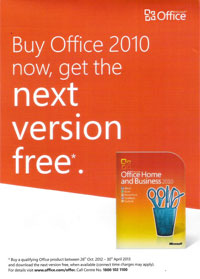


Do note though that you should read the fine print on Microsoft’s site to confirm if you are eligible — also find out if this offer is valid in your country. Once you find you are eligible, you will have to install and activate your Office 2010 or 2011 now — then send an easy e-mail reminder to Microsoft who in turn will let you know how to download your license for Office 2013 or Office 365 once the new product is available — you then download and install the new version for free!
Filed Under:
Microsoft Office
Tagged as: Office 2010, Office 2013, Office for Mac
Comments Off on Buy Office 2010 or 2011, and Get Office 2013 Free!
Microsoft and the Office logo are trademarks or registered trademarks of Microsoft Corporation in the United States and/or other countries.