
This is the print version of this page. All content is copyright Indezine.com 2000-2026.
Thoughts and impressions of happenings in the world of PowerPoint and presentations, continuously updated since 2003.
See Also:
PowerPoint and Presenting Notes
PowerPoint and Presenting Glossary
We have already explored how you can add Headers and Footers to your slides — additionally, you can also add Headers and Footers to your Notes and Handout pages. Unlike slides which are primarily presented through a display device such as a monitor, TV screen, or projector — Notes and Handouts are essentially intended for printing. In this tutorial we will explore how you can add Headers and Footers to make your printed Notes and Handouts more professional and useful.

Learn how add Header and Footer to Notes and Handout pages in PowerPoint 2010 for Windows.
Filed Under:
PowerPoint 2010
Tagged as: PowerPoint 2010, Tutorials
Comments Off on Learn PowerPoint 2010 for Windows: Add Headers and Footers to Notes and Handout Pages
These city skyline slides show combined or sectional panoramas of a typical city’s skyscrapers and architectural structures against the sky. The sample presentation that you download includes 3 city skyline silhouettes that can also be used as conceptual graphics. As shown in one the slides in the presentation you will download, you can easily layer and overlap various skyline silhouettes to create a denser city graphic. You just need to copy and paste those graphics into your presentation.


Download and use these Skyline silhouette graphics in your slides.
Filed Under:
Presentation Bank
Tagged as: Design, Graphics, PowerPoint, Presentation Samples
Comments Off on Silhouettes: City Skylines for PowerPoint – 02
Once you insert a chart on your PowerPoint slide, you can enhance it by applying a new style, selecting different chart elements and by changing the position of elements such as the Legend, etc. Other than these options, you can also change the type of the chart altogether. PowerPoint 2011 provides all the basic chart types such as Column, Bar, Line, Pie, etc. — and also some advanced charts like Radar, Surface, Bubble, Doughnut, etc. To change a chart type from one to another, you first need to have a chart in your presentation. Then follow these steps to change the chart type in PowerPoint 2011.

Learn how you can change the chart type from one to another in PowerPoint 2011 for Mac.
Filed Under:
PowerPoint 2011
Tagged as: Charting, Office for Mac, PowerPoint 2011, Tutorials
Comments Off on Learn PowerPoint 2011 for Mac: Changing Chart Types
 Alex Salop is director of enterprise product marketing for Brainshark, Inc. Brainshark’s cloud-based software lets users create online and mobile video presentations — using simple business tools like PowerPoint and the phone or computer microphone — and share and track their content. Thousands of companies use Brainshark to improve the reach and results of their business communications, while dramatically reducing costs.
In this conversation, Alex discusses the new Brainshark Mobile Player, which Brainshark recently announced.
Geetesh: What is the new HTML5-based “Brainshark Mobile Player,” and how is it different from the regular Brainshark app on mobile and tablet devices?
Alex: We’re very pleased to unveil a new player, based on the HTML5 standard. With the Brainshark Mobile Player, viewers on iOS and Android devices now have a more engaging and interactive experience when they watch Brainshark video presentations.
The Brainshark Mobile Player’s comprehensive feature set makes it easy for viewers to interact with mobile video presentations — with new and extended capabilities beyond those in our current apps. More important, the player’s availability makes downloading an app unnecessary. So when companies reach out to mobile audiences with, say, training or marketing materials, they know recipients will have the best viewing experience possible — able to answer questions, share content easily and more — without hoping those viewers will take the extra step of downloading an app to do so. In fact, when someone is sent a Brainshark presentation and opens it on an iPhone, iPad or Android smartphone or tablet, their device will automatically default to using the new player.

Some of the salient features in the Brainshark Mobile Player include the ability to:
Geetesh: What are the advantages of using the Brainshark Mobile Player?
Alex: The advantages are twofold. Viewers, as I mentioned, get a more interactive and engaging experience. It’s very easy for them to interact with mobile video — no downloads required — so the experience is intuitive.
Companies certainly benefit too, using mobile communications to reach more people, more effectively. Companies may already communicate using mobile video — and given the skyrocketing use of smartphones and tablets, they should — but now they can truly deliver superior and differentiating communications. In addition, the player provides comprehensive mLearning support — making it easy for organizations to deploy and track mLearning content — and supports enhanced video marketing. Brainshark also provides in-depth analytics, so organizations can see who viewed their content, when, what they saw, what type of device was used and more.
Brainshark’s “Create once, deliver anywhere” philosophy means that we make content creation easy for our customers, and then we handle all the formatting and behind-the-scenes work with content delivery. So after you’ve created Brainshark content — adding voice and interactivity to your PowerPoint slides to create an online video presentation — you can be confident it will be optimized for whatever type of device accesses it. The new Brainshark Mobile Player is an extension of this philosophy, and we’re so glad for the opportunity to discuss it with you.
Filed Under:
Interviews
Tagged as: Android, Brainshark, Interviews, iPad, iPhone, Online Presentations, PowerPoint
Comments Off on Brainshark Mobile Player: Conversation with Alex Salop
The terms Header and Footer typically come from word processing programs — these denote repeated elements that show at the top and bottom of every page. Headers and Footers work similarly on PowerPoint slides — the Footer is a line of text that usually appears at the bottom of a slide. By default, the footer appears on every slide in a presentation — but you can change that as required. You can also move the content within the Footer area to the top of your slide — by doing so, you change a Footer to a Header!
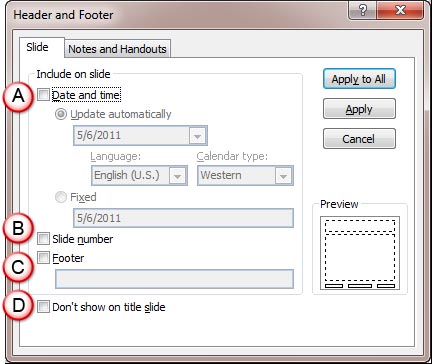
Learn how to add Headers and Footers to slides in PowerPoint 2010 for Windows.
Filed Under:
PowerPoint 2010
Tagged as: PowerPoint 2010, Tutorials
Comments Off on Learn PowerPoint 2010 for Windows: Add Headers and Footers to Slides
Microsoft and the Office logo are trademarks or registered trademarks of Microsoft Corporation in the United States and/or other countries.