
This is the print version of this page. All content is copyright Indezine.com 2000-2026.
Thoughts and impressions of happenings in the world of PowerPoint and presentations, continuously updated since 2003.
See Also:
PowerPoint and Presenting Notes
PowerPoint and Presenting Glossary
In this issue, you’ll find our exclusive coverage on the just concluded Presentation Summit — read about all the keynotes, and also the optional crash courses held a day before the Summit started. You also get two more PowerPoint concept slide sets this week: segmented heptagons and octagons. We then explore how you can edit your PowerPoint files using XML within Visual Studio. Read an exclusive conversation with Lisa Johnson of Brainshark about amazing new features in their SlideShark app for iPads and iPhones. There are plenty of other tutorials – learn about text fills in PowerPoint 2010 for Windows. And if you are a PowerPoint for Mac user, learn about font styles.
Filed Under:
Ezine
Tagged as: Ezine, Indezine, News, PowerPoint
Comments Off on Indezine News: October 16, 2012
Although you can fill text with a texture in PowerPoint, the appearance of the text depends upon the texture you use, and how well it contrasts with the slide background. For reasons of readability, make sure that the texture used is not too crowded or even multicolored — and as already stated, choose a texture that contrasts with your slide background.

Learn how to add a texture fill to the selected text in PowerPoint 2010 for Windows.
Filed Under:
PowerPoint 2010
Tagged as: Fills, PowerPoint 2010, Text, Tutorials
Comments Off on Learn PowerPoint 2010 for Windows: Texture Fill for Text
When you increase or decrease the font size of text in PowerPoint, you’ll discover that not only does this make a difference in the aesthetics of your slide, but the text itself uses more or less space than you may want. Sometimes, you may want the text to take just a wee bit lesser space so that all content can fit within two lines rather than three. If you want to alter the spacing between text characters, you can do so by using PowerPoint 2011’s Character Spacing option that influences the appearance and readability of both Title and Body text. Character Spacing is the amount of space in-between individual letters.
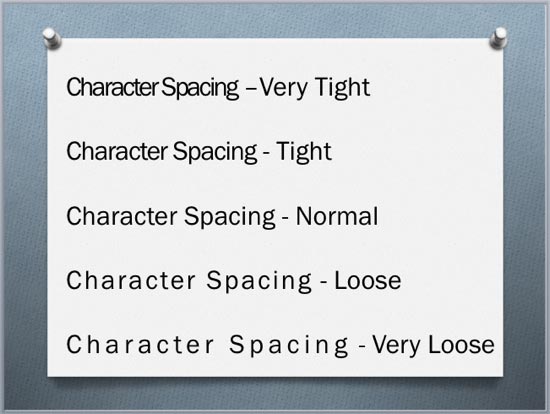
Explore various Character Spacing options in PowerPoint 2011 for Mac.
Filed Under:
PowerPoint 2011
Tagged as: Office for Mac, PowerPoint 2011, Text, Tutorials
Comments Off on Learn PowerPoint 2011 for Mac: Character Spacing
By Tom Mucciolo
Ever since PowerPoint began to dominate the market, more and more casual users entered the design arena, and a wide variety of “how to” books emerged. In October of 1998, I was asked to co-author a series of PowerPoint books with Patrice Rutledge under the Special Edition: Using Microsoft PowerPoint label of the current Pearson Publishing (QUE) group. I have contributed to several of these titles to match the multiple releases of PowerPoint, through 2007. Geetesh Bajaj was a contributing author in the 2007 book. This was one of the few PowerPoint series that went beyond teaching people how to use the software, as several chapters in the book were dedicated to developing, designing, and delivering the content. In these sections, I was able to share guidelines based on all our audience feedback over the years.
Filed Under:
Guest Posts
Tagged as: Guest Post, Opinion, PowerPoint, Presentation Skills, Tom Mucciolo
Comments Off on Slides and Speakers
As the name indicates, this Segment Heptagon graphic contains 7 equal segments. This concept slide is a part of our Segment Polygons series, which provides various segmented polygons that can enhance the impact of your presentations. This Segment Heptagon graphic can be used to illustrate a “seven-in-one” concept as in seven days of the week – or even a “one-for-seven” theme. In the example slide, we have used colorful pictures to fill all seven segments of the heptagon – try and use pictures that have a common theme to go well with your slide’s message. In this Segment Heptagon graphic, each individual segment is a separate triangle shape, and can be edited as required using PowerPoint’s shape editing options.


Download and use these slides in your presentations.
Filed Under:
Presentation Bank
Tagged as: Graphics, PowerPoint, Presentation Samples
Comments Off on PowerPoint Concept Slides: Segment Heptagon
Microsoft and the Office logo are trademarks or registered trademarks of Microsoft Corporation in the United States and/or other countries.