
This is the print version of this page. All content is copyright Indezine.com 2000-2026.
Thoughts and impressions of happenings in the world of PowerPoint and presentations, continuously updated since 2003.
See Also:
PowerPoint and Presenting Notes
PowerPoint and Presenting Glossary
Any font typeface that you use in your presentation should always support the purpose of your presentation. Most of the time, you may be constrained by company corporate policies or visual standards that dictate you use a particular font. Yet at times, you have the freedom to make a choice to change any font. To make the task of selecting the perfect font, PowerPoint 2011 offers you with the Font Collections option that segregates fonts into various categories. All you have to do is explore a particular category and choose fonts from within that category.

Explore Font Collections in PowerPoint 2011 for Mac that make choosing fonts easier.
Filed Under:
PowerPoint 2011
Tagged as: Fonts, Office for Mac, PowerPoint 2011, Text, Tutorials
Comments Off on Learn PowerPoint 2011 for Mac: Font Collections
This Segment Pentagon graphic is a part of our Segment Polygons series and includes a Pentagon divided into five equal segments. Each individual segment is a separate shape that can be filled in with a picture, a gradient, a solid fill, or any of the other PowerPoint fill types. This Segment Pentagon graphic can help you to illustrate a “five-in-one” concept.


Download and use these slides in your presentations.
Filed Under:
Presentation Bank
Tagged as: Graphics, PowerPoint, Presentation Samples
Comments Off on PowerPoint Concept Slides: Segment Pentagon
The default appearance of your text in PowerPoint depends upon its font type and size. By default, these choices are based on the Theme which is applied to your presentation. So if you use PowerPoint’s default Office Theme, then anything you type into a text object may be in the Calibri typeface. Still, you can easily change the Theme Fonts set altogether for your presentation, and all text instances will change to the default typefaces of the new Theme or Theme Fonts set. Also, you can override these defaults and choose a typeface that is different — or even a different font size. In this tutorial, we use the terms typeface and font type interchangeably – let us now explore how you can choose different font types and change the font size of the selected text on the slide.

Explore how you can change font types and sizes in PowerPoint 2011 for Mac.
Filed Under:
PowerPoint 2011
Tagged as: Fonts, Office for Mac, PowerPoint 2011, Text, Tutorials
Comments Off on Learn PowerPoint 2011 for Mac: Font Types and Sizes
As part of our Segment Polygons series, we bring you this Segment Square slide: a square divided into four equal triangles emerging from its center. Use this Segment Square in your presentation to illustrate a concept with four categories or sub-sections – or even a variation of the classic four square matrix. Each individual segment is a separate shape that can be filled in with a picture, a gradient, a solid fill, or any of the other PowerPoint fill types. In the example shown in the download presentation, we used all four pictures related to fauna. Use this Segment Squares graphic in your presentation and share your feedback with us!


Download and use these slides in your presentations.
Filed Under:
Presentation Bank
Tagged as: Graphics, PowerPoint, Presentation Samples
Comments Off on Concept Slides: Segment Square
Stylizing text is one of those features that is grossly overlooked or entirely over-used in PowerPoint — and either of those situations can be a shame since PowerPoint allows you to do so much to text with its powerful WordArt feature. Before we proceed further, you must know that WordArt has nothing to do with Microsoft Word and is a totally independent feature in PowerPoint. What WordArt does to the text is similar to what PowerPoint’s Shape Styles do to shapes. WordArt Styles are a collection of some prebuilt text styles which you can instantly apply to your text. These WordArt Styles are all Theme-specific, so if the presentation’s Theme is changed, any WordArt applied also reflects the changes accordingly.
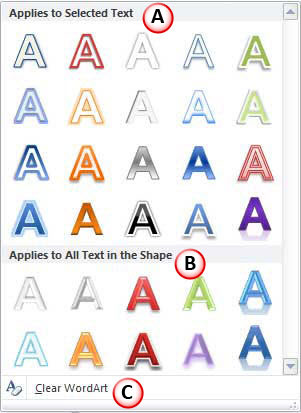
Learn how to stylize your text by applying WordArt Styles in PowerPoint 2010 for Windows.
Filed Under:
PowerPoint 2010
Tagged as: PowerPoint 2010, Text, Tutorials
Comments Off on Learn PowerPoint 2010 for Windows: WordArt Styles
Microsoft and the Office logo are trademarks or registered trademarks of Microsoft Corporation in the United States and/or other countries.