
This is the print version of this page. All content is copyright Indezine.com 2000-2026.
Thoughts and impressions of happenings in the world of PowerPoint and presentations, continuously updated since 2003.
See Also:
PowerPoint and Presenting Notes
PowerPoint and Presenting Glossary
Similar to Shape Styles that you apply to shapes, PowerPoint provides you with Video Styles for to your inserted video clips. These pre-built Video Styles add edges, shape, and effects to videos — and can be applied with just a single click. Your videos no longer need to be rectangular — some of the Video Styles change the video clip so that it plays within an oval or a rounded rectangle. Video Styles also transform the look of your inserted videos by applying borders, 3-D effects, shadows, frames, etc. around your video clip.

Learn how to apply preset Video Styles to video clips in PowerPoint 2010 for Windows.
Filed Under:
PowerPoint 2010
Tagged as: PowerPoint 2010, Tutorials, Video
Comments Off on Learn PowerPoint 2010 for Windows: Video Styles
Like earlier versions, PowerPoint 2011 continues to provide an amazing array of options to format your slide backgrounds. We have already explored how you can format the slide background, including options to use solid color fills for slide backgrounds. This tutorial builds upon what you have already learned, and shows how you can cover your slide’s background with a gradient fill. Gradient fills are typically blended fills between two or more colors that graduate from one color to another — they are sometimes also called fountain fills or blended fills in other programs.
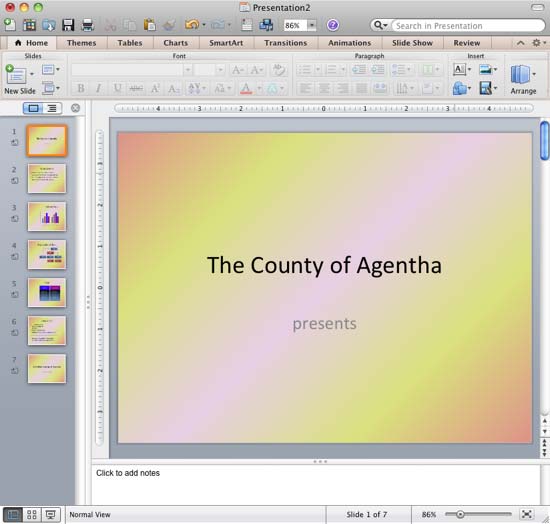
Learn how to use gradient fills for slide backgrounds in PowerPoint 2011 for Mac.
Filed Under:
PowerPoint 2011
Tagged as: Background, Office for Mac, PowerPoint 2011, Tutorials
Comments Off on Learn PowerPoint 2011 for Mac: Gradient Fills for Slide Backgrounds
These businesswoman silhouette clip arts for PowerPoint are ready to use within your PowerPoint presentation slides. When you download the presentation, you will find these silhouette graphics provided in both black and white colors, within two separate slides. You will also find some more sample variations with different fills and effects to help you to start with. PowerPoint’s fills, lines, and effects provide you with plenty of options to make these silhouettes appear coordinated with your slides.

Copy the silhouettes graphics (clip arts) of your choice from the downloaded presentation, and paste them into your PowerPoint presentation slides. All these silhouette graphics can be used and customized with Shape Styles just like any other PowerPoint shape. You can also paste them into a Word document, an Excel worksheet, or any other program.
Download and use this presentation.
Filed Under:
Presentation Bank
Tagged as: Graphics, PowerPoint, Presentation Samples
Comments Off on Businesswoman Silhouettes for PowerPoint – 04
PowerPoint 2010’s Format Painter option does an absolutely amazing job of copying all the formatting attributes from one slide object to another. For instance, you can copy all attributes of a shape (and even the text that the shape contains) to another shape, text box, or even a text placeholder. However, this is an all-or-nothing option. Sometimes, you may want to just copy the text formatting attributes, without copying the shape fill or any of the other shape attributes. This can be even more confusing when the text itself is formatted in more than one style. Selecting the entire text box, and then copying its attributes to another text box using the Format Painter will never replicate two text styles — so clearly there has to be a better way! We explain the better way in this tutorial — read further to understand.

Filed Under:
PowerPoint 2010
Tagged as: PowerPoint 2010, Text, Tutorials
Comments Off on Learn PowerPoint 2010 for Windows: Copying Text Attributes with Format Painter
Welcome to this week’s issue of Indezine News — while last week we looked at the hot topic of iPad presenting, this time we will look at online presentations, an area that is getting increasingly crowded and full featured at the same time. One of our interviews this week is with Harman Singh of authorSTREAM, an online presentation site that has made spectacular improvements in their PowerPoint to video engine. Meanwhile, we already spoke about SlideShark last week when discussing iPad presenting solutions — SlideShark is from Brainshark, a company (and site) that has an impressive toe-hold in the area of online presentations.
Filed Under:
Ezine
Tagged as: Ezine, Indezine, News, PowerPoint
Comments Off on Indezine News: Online Presentations
Microsoft and the Office logo are trademarks or registered trademarks of Microsoft Corporation in the United States and/or other countries.