
This is the print version of this page. All content is copyright Indezine.com 2000-2026.
Thoughts and impressions of happenings in the world of PowerPoint and presentations, continuously updated since 2003.
See Also:
PowerPoint and Presenting Notes
PowerPoint and Presenting Glossary

David Klein is senior director of product management at Brainshark, Inc., leading the product team in developing innovative business solutions. Brainshark’s cloud-based software lets users create online and mobile video presentations – using simple business tools like PowerPoint and the telephone – and then share and track their content. Thousands of companies use Brainshark to improve the reach and results of their business communications, while also dramatically reducing costs.
In this conversation, David discusses new features in SlideShark, Brainshark’s free app for reliably viewing and sharing PowerPoints on the iPad, and in SlideShark Team Edition.
Filed Under:
Interviews
Tagged as: Brainshark, Interviews, iPad, PowerPoint
Comments Off on New Features in SlideShark Team Edition: Conversation with David Klein
 Susan Weinschenk has a Ph.D. in Psychology and over 30 years of experience as a behavioral psychologist. She applies research in psychology to predict, understand, and explain what motivates people and how they behave. Dr. Weinschenk is the author of several books, including 100 Things Every Presenter Needs To Know About People, 100 Things Every Designer Needs To Know About People, and Neuro Web Design: What makes them click? She is a consultant and keynote speaker for Fortune 1000 companies, start-ups, non-profit agencies, educational institutions, and conferences. Her clients include Walmart, Disney, The Mayo Clinic, Charles Schwab, and Best Buy. Her clients call her “The Brain Lady”, and she writes a popular blog, What Makes Them Click.
In this conversation, Susan discusses her new book, 100 Things Every Presenter Needs To Know About People.
Geetesh: Tell us about your new book, “100 Things Every Presenter Needs to Know About People” – and how is this book different than your hugely popular book for designers.
Susan: When I wrote the first book, 100 Things Every Designer Needs To Know About People I knew that the “Things” applied to more than design. Basically they were 100 Things to Know about People. I’ve been a teacher/presenter/coach my whole career. A friend asked to coach someone who was running for public office on presentation skills. I found myself talking to him about many of the “Things” in the design book, and so decided that I would write a different version of the 100 Things and aim the “Things” at presenters.
About half of the “Things” are the same as from the previous book, but applied to creating and delivering presentations. For example, I talk in both books about the idea that people don’t really multi-task, but they switch from task to task quickly. If you are designing software you need to take that into account, and if you are creating and delivering a presentation you also need to know that. But the particular do’s and don’ts are different based on whether you are designing a product or creating and delivering a presentation. People are the same whether they are using a website or listening to a presentation, so that’s why many of the principles hold for both situations. But what you as the designer or you as the presenter should do now that you know about what makes people tick is different. In both books I have “Take-aways” at the end of each “Thing”. The take-aways are really different even if the “Things” are the same.
Then about half of the “Things” in the new book are different. For example, I have a whole chapter on How People React To You that covers how people respond to tone of voice, hand gestures, body language, etc, that were not in the first book.
And, lastly, there is a chapter in the new book that isn’t “Things” at all, but is a method for structuring presentations for maximum impact and persuasion. Essentially in that chapter I give away all of my presentation secrets!

Geetesh: How do you research the fascinating ideas you put in your books, and then put these in words that are plain English?
Susan: I approach the content of my books from many angles.
At that point, I have a lot of research and a lot of ideas, but then I have to pull it altogether — the “plain English” you mention in your question. I usually will have a series of “a-ha” moments that inspire me and give me ideas about the type of approach I want to take — the overall structure and theme of the book. So I’ve got the overall structure (from insight and inspiration) and I’ve done the research. Then I have to sit down and actually write. In some ways figuring out how to write the book — exactly what to say — is the part that is the most fun, and also the part that is the hardest. It’s really hard work! I sit at my computer (my MacBook Pro laptop) for hours and hours and think and type. When I am writing I write for several hours every day. I have two favorite “writing chairs” in two different rooms in my house. I alternate from one chair to the other. It’s just a lot of thinking and typing! That’s the first draft… Then there is several months of editing, fact checking, and choosing or creating illustrations. It’s a lot of work, but it’s work I really enjoy.
The views and opinions expressed in this blog post or content are those of the authors or the interviewees and do not necessarily reflect the official policy or position of any other agency, organization, employer, or company.
Filed Under:
Interviews
Tagged as: Books, Interviews, Opinion, PowerPoint, Presentation Skills
Comments Off on 100 Things Every Presenter Needs to Know About People: Conversation with Susan Weinschenk
PowerPoint 2010 ups the ante for any adjustments you make to your inserted video clips. In the previous tutorial, we have already explored how you can correct the brightness and contract for an inserted video by using the Corrections option. Other than changing the brightness and contrast values of the video, you can also completely recolor your inserted video — so you can make your full color video appear as a grayscale video, or even like a duotoned video such as blue and grayscale — or any of the other Recolor options. Do remember that the video Recolor options work almost similarly to the picture Recolor options.
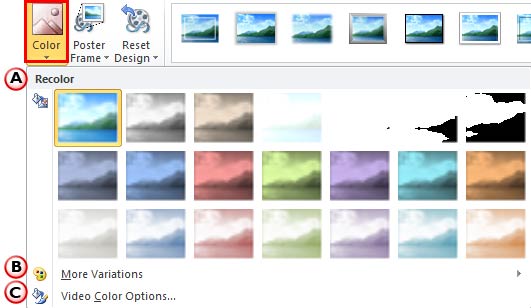
Learn about the Recolor options for videos in PowerPoint 2010 for Windows.
Filed Under:
PowerPoint 2010
Tagged as: PowerPoint 2010, Tutorials, Video
Comments Off on Learn PowerPoint 2010 for Windows: Video Recolor Options

Harman Singh is the Founder and CEO of two Internet platforms – authorSTREAM and WiZiQ. authorSTREAM is a PowerPoint sharing platform striving to make your presentations sharable on the Web — whether they are viewed from desktops, mobile phones or tablets like the iPad.
authorSTREAM’s PowerPoint to video engine has been extensively upgraded recently, resulting in several improvements — Harman discusses these improvements in this conversation.
Geetesh: Tell us about the new improvements in authorSTREAM’s PowerPoint to video engine, especially the ability to incorporate embedded videos.
Harman: These new improvements in PowerPoint to video conversion engine are geared towards enhancing the video conversion experience, much requested by our users.
We now have support for embedding videos (WMV and AVI) in PowerPoint 2010 for video conversions. The video output shows an in-slide video playing inside a video created out of a presentation. Through in-slide videos, users can provide more detailed information and with better visualization of their ideas.
The other improved feature is support for transition effects in video conversions. Users can now add transitions to their slides for eye-catching effects in their video presentations.
Take a look at this video with transition effects:
Earlier the video conversion took from several minutes to hours, but now we’ve decreased the conversion time. Other issues like sometimes missing audio, audio overlapping, audio out of sync and failure to insert audio are also addressed. Now, you can also use WMA audio format while converting your presentation to video. WMA audio format is Microsoft’s own audio format used quite extensively by Windows users.
Geetesh: You also added a feature that lets users create videos from presentations that have no timed animations and transitions. How does this work?
Harman: We realized that although a lot of users wanted to convert their presentations to videos, they didn’t know how to go about doing it — because typically, to create a video, the slides need to be timed or set to play automatically. Through our tutorials and posts we tried to educate them but most of them would still not understand why it was so important to have a rehearsed presentation to be able to convert to video.
This prompted us to add a new feature in our presentation to video conversion engine that enables conversion of ‘on-click’ or non-rehearsed presentations to video.
Now any presentation whether set to play automatically or not can be converted to video. For ‘on-click’ presentations, users just have to specify a fixed time duration to be spent on each slide before the conversion process starts for the video output on authorSTREAM. They can select WMV/AVI/FLV/MPEGII or MP4 as output video format. Once the presentation video is ready it can be sent to YouTube, viewed on desktop/laptop or even TV.
The views and opinions expressed in this blog post or content are those of the authors or the interviewees and do not necessarily reflect the official policy or position of any other agency, organization, employer, or company.
Filed Under:
Interviews
Tagged as: authorSTREAM, Harman Singh, Interviews, Online Presentations, PowerPoint, Video
Comments Off on authorSTREAM Video Improvements: Conversation with Harman Singh
PowerPoint 2011 provides plenty of options to style your slide backgrounds. Our earlier Format Slide Background tutorial provided a generic idea about changing the slide background to some of the available options such as a solid color, a gradient, a texture or a picture, or even one of PowerPoint’s built-in patterns. In this and other upcoming tutorials, you will learn how to choose these different types of background fill options. We begin this series with a tutorial that will show you how to choose solid fills for your slide background. A solid fill is essentially one color filling the entire slide area, as in a black, blue, or white slide — or a slide with any other color.

Learn how to use solid fills as slide backgrounds in PowerPoint 2011 for Mac.
Filed Under:
PowerPoint 2011
Tagged as: Background, Office for Mac, PowerPoint 2011, Tutorials
Comments Off on Learn PowerPoint 2011 for Mac: Solid Fills for Slide Backgrounds
Microsoft and the Office logo are trademarks or registered trademarks of Microsoft Corporation in the United States and/or other countries.