
This is the print version of this page. All content is copyright Indezine.com 2000-2026.
Thoughts and impressions of happenings in the world of PowerPoint and presentations, continuously updated since 2003.
See Also:
PowerPoint and Presenting Notes
PowerPoint and Presenting Glossary

Cliff Atkinson is an acclaimed writer, popular keynote speaker, and an independent consultant to leading attorneys and Fortune 500 companies. He designed the presentations that helped persuade a jury to award a $253 million verdict to the plaintiff in the nation’s first Vioxx trial in 2005, which Fortune magazine called “frighteningly powerful.” Cliff’s bestselling book Beyond Bullet Points, now in its 3rd edition was named a Best Book of 2007 by the editors of Amazon, and it expands on a communications approach he has taught at many of the country’s top law firms, government agencies, business schools and corporations.
In this interview, Cliff discusses the Beyond Bullet Points 101 Online Course (link no longer exists), a natural evolution to the book.
Filed Under:
Interviews
Tagged as: Cliff Atkinson, Interviews, PowerPoint, Presentation Skills
Comments Off on Beyond Bullet Points 101 Online Course: Conversation with Cliff Atkinson
Launch PowerPoint to create a new presentation, and you may typically see a single slide with a white background. Alternatively, if you open any of your existing presentations, the background of your slides may be in a different color depending upon the Theme that the presentation is based upon. You can always change this slide background to a picture, a solid color, a pattern, or even a gradient. However, considering all those options, explore the twelve background styles that PowerPoint offers for every presentation by default. These styles are all coordinated and also designed to work well as a set of complementary backgrounds.
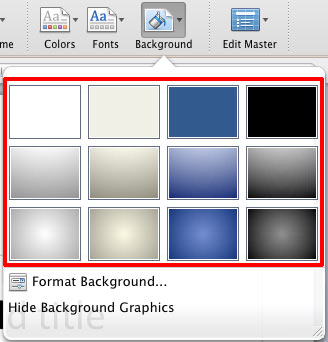
Learn about different slide background styles available in PowerPoint 2011 for Mac.
Filed Under:
PowerPoint 2011
Tagged as: Background, Office for Mac, PowerPoint 2011, Tutorials
Comments Off on Learn PowerPoint 2011 for Mac: Slide Background Styles

Jay Wilder is director of product marketing at Brainshark, Inc. Brainshark’s cloud-based software lets users create online and mobile video presentations — using simple business tools like PowerPoint and the telephone — and then share and track their content. Thousands of companies use Brainshark to improve the reach and results of their business communications, while also dramatically reducing costs.
In this conversation, Jay discusses new features in Brainshark’s free SlideShark app, which enables users to view and share PowerPoint presentations on the iPad.
Filed Under:
Interviews
Tagged as: Brainshark, Interviews, iPad, Jay Wilder, PowerPoint
Comments Off on Brainshark SlideShark v1.6: Conversation with Jay Wilder
A Video Action in PowerPoint is something that causes an event for any inserted movie clip — these are simple events such as Play, Pause, Resume, and Stop. Although PowerPoint classifies Movie Actions as an animation type, these are not strictly animations. However, since Movie Actions can be accessed through the Add Animation gallery, we have included this tutorial in our Animations section. Once you add these Media Actions to your video clips, PowerPoint will allow you to make these Actions interact with other animations, including Triggers.

Learn how you can create Media Actions for video clips in PowerPoint 2010 for Windows.
Filed Under:
PowerPoint 2010
Tagged as: Animation, PowerPoint 2010, Tutorials, Video
Comments Off on Learn PowerPoint 2010 for Windows: Media Actions for Video
Whenever a new shape is inserted on a slide in PowerPoint 2011 (or in any previous version), you will find that by default it is filled with a gradient fill, has an outline, and a shadow applied (or something else, depending upon the Theme your presentation is based on). For example, in a new blank presentation that we created, any new shape inserted is by default filled with a gradient fill, and has a thin dark blue outline. It also has a shadow. These default shape attributes can be changed very easily. But do remember that these changes are only limited to the presentation you are working on. If the presentation is not saved, you’ll lose the changes.

Learn how to change the default shape attributes for a presentation in PowerPoint 2011 for Mac.
Filed Under:
PowerPoint 2011
Tagged as: Office for Mac, PowerPoint 2011, Shapes, Tutorials
Comments Off on Learn PowerPoint 2011 for Mac: Change Default Shape Attributes
Microsoft and the Office logo are trademarks or registered trademarks of Microsoft Corporation in the United States and/or other countries.