
This is the print version of this page. All content is copyright Indezine.com 2000-2026.
Thoughts and impressions of happenings in the world of PowerPoint and presentations, continuously updated since 2003.
See Also:
PowerPoint and Presenting Notes
PowerPoint and Presenting Glossary
By default, animation effects are numbered in the order as they are added to the slide objects. You might need to re-order your animations mainly because you have more than one animated object on a slide, and re-sequencing of animations as they happen in relation to each other may provide a better result. Or you may just want some animations to happen before the others. Also, there are logical reasons to re-order animations since typically entrance and exit animations need to be the first and last animations for any slide object. PowerPoint’s Re-Order options for animations let you play with their sequencing.
Learn how to re-order animations on a slide in PowerPoint 2010 for Windows.
Filed Under:
PowerPoint 2010
Tagged as: Animation, PowerPoint 2010, Tutorials
Comments Off on Learn PowerPoint 2010: Re-Order Animations
These businessman silhouettes are ready to use within your PowerPoint presentation slides – and have been provided in both black and white colors. Both variations are contained within two separate slides in one presentation that you can download. In addition, you can use PowerPoint’s fills, lines, and effects to make these silhouettes appear coordinated with your slides.

Copy the silhouettes graphics (clip arts) of your choice from the downloaded presentation, and paste them into your PowerPoint presentation slides. All these silhouette graphics can be used and customized with Shape Styles just like any other PowerPoint shape. You can also paste them into a Word document, an Excel worksheet, or any other program.
Download and use this presentation.
Filed Under:
Presentation Bank
Tagged as: Graphics, PowerPoint, Presentation Samples
Comments Off on Businessman Silhouettes for PowerPoint – 01
We already show you how to remove the background from an inserted picture — this process works great for simple pictures that have fairly distinct foreground and background areas. But, if the picture is little crowded, or does not have clearly demarcated areas, you need to manually select the areas to be retained or removed in the picture using the advanced Remove Background options. Before you start, we assume you have already inserted a picture on your slide and initiated the process of removing the picture’s background.
Learn about advanced background removal options in PowerPoint 2011 using markers.
Filed Under:
PowerPoint 2011
Tagged as: Office for Mac, Pictures, PowerPoint 2011, Tutorials
Comments Off on Learn PowerPoint 2011 for Mac: Advanced Remove Background Options for Pictures
Removing an animation is a simple select-and-click option, but even before you remove any animation, do ascertain why you want to remove it. Here are some obvious scenarios that result in removing animations. Do you want to remove both the animation and the slide object that is animated? Or do you want to just remove the animation, and let the slide object be? Or maybe you don’t want to remove the animation or the slide object — you just want to change the animation?
Learn how to remove animation from slide objects in PowerPoint 2010 for Windows.
Filed Under:
PowerPoint 2010
Tagged as: Animation, PowerPoint 2010, Tutorials
Comments Off on Learn PowerPoint 2010: Removing an Animation
 Michael Barber is Marketing Manager for Neuxpower Solutions Ltd. in London. He is originally from the Newcastle upon Tyne, in the NE of England. Before joining Neuxpower, Michael worked for the UK’s largest software company, Sage UK. He spent 8 happy years at Sage, working in a variety of roles across its many marketing departments. His career highlight (other than joining Neuxpower) was bringing to market Sage’s flagship software-as-a-service, Sage One. Outside of work, Michael spends most of his time going to music gigs/festivals and following his football team, Newcastle United as they take the EPL by storm.
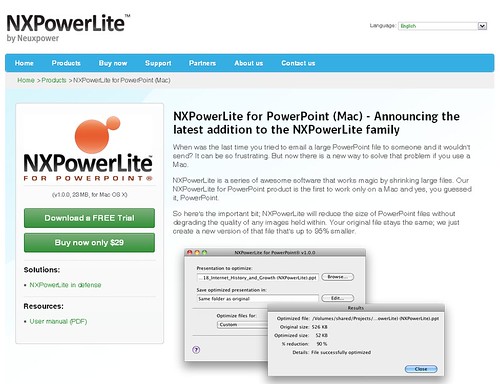
In this conversation, Michael discusses the new NXPowerLite file optimization product for PowerPoint users on the Mac.
Geetesh: Why did you create a Mac version of your popular file optimization software, and why did you choose PowerPoint as the first file format to launch NXPowerLite for the Mac?
Michael: Neuxpower has been delivering great file reducing software for around 10 years now. Some of the world’s leading brands are our customers. Over the last few years a growing number of our customers have been asking us to deliver software that can reduce MS Office, PDF and JPEG files on a Mac OS. We noticed that as the growth in Mac use across the world increased, so did the number of requests from our customers. As a software company we pride ourselves on putting our customers first. All of our development is led by our customers. This has never been demonstrated more so than by the release of NXPowerLite for PowerPoint® on Mac.
The most popular request for a file type to reduce our software with has always been Microsoft PowerPoint, so it was kind of an obvious choice to start with. Especially given the great links we have with the PowerPoint and presentation community.
Geetesh: How has the feedback been from Mac users, and do you plan to add optimization options for Word and Excel files in the future?
Michael: The feedback so far has been great from our customers. We sent out a pre-release email to those customers who requested the software over the years. The idea was just to say thanks for pushing us to do this. Within minutes of sending that email a customer in Switzerland bought a licence online. A few hours later, a few customers who follow us @nxpowerlite on Twitter were sharing the link to the free 14 day download.
Christy Buechler of DHL, one of the first customers to use this new software, said “We knew all about NXPowerLite working on PC’s, so we asked them to create a version to work on Macs. Many people in the proposal/defence industry use PowerPoint’s full of images. NXPowerLite can shrink those files so we can easily email them to customers, suppliers or colleagues.” Christy’s comments have been followed by others who have said things like: “Wow,” “this is amazing,” “I love it,” “best software utility ever,” and suchlike. I don’t say this to appear arrogant, in fact far from it. It’s just that once someone starts using our software, they often can’t remember how they ever did without it. To that end we have some very loyal customers. As for our next version, and whether we will optimise other file types; well its simple, it’s up to our customers. I will be asking those who buy and trial our new product what they want to see next. Once again it will be a customer driven development.
The views and opinions expressed in this blog post or content are those of the authors or the interviewees and do not necessarily reflect the official policy or position of any other agency, organization, employer, or company.
Filed Under:
Interviews
Tagged as: Add-in, Interviews, NXPowerlite, Office for Mac, PowerPoint
Microsoft and the Office logo are trademarks or registered trademarks of Microsoft Corporation in the United States and/or other countries.