
This is the print version of this page. All content is copyright Indezine.com 2000-2026.
Thoughts and impressions of happenings in the world of PowerPoint and presentations, continuously updated since 2003.
See Also:
PowerPoint and Presenting Notes
PowerPoint and Presenting Glossary
Bevel options for shapes in PowerPoint 2011 are aplenty. Most of the time, the Bevel preset effects may work for you as explored in our Apply Bevel Effects to Shapes in PowerPoint 2011 for Mac tutorial. Yet, those presets are merely the tip of the iceberg — PowerPoint’s advanced Bevel effect options provide customizations for contour, contour color, depth, depth color, and materials used in the Bevel effects. And if all that 3-D terminology had you in a dizzy, don’t worry — this simple tutorial explains every option within the 3-D gamut as far as Bevels are concerned. Do note that advanced Bevel options are available in the 3-D Format area within PowerPoint — so for reasons of sanity, just imagine that Bevel and 3-D Format are the same attribute with two different names — we use both terms interchangeably in this tutorial!
Explore the advanced Bevel (3-D Format) options available for shapes in PowerPoint 2011 for Mac.
Filed Under:
PowerPoint 2011
Tagged as: Effects, Office for Mac, PowerPoint 2011, Tutorials
 Hermann Narez is a graphic designer for PhotoSpin, Inc., a royalty-free stock photo company. He currently heads up the Design Services department, develops and designs print, web, and e-marketing campaigns, and maintains brand consistency across multiple print, web, and e-marketing channels.
In this conversation, Hermann discusses the importance of using pictures in slides.
Geetesh: Using a large picture along with a great slide title seems more common these days as presenters want to include less text on their slides – almost like Steve Jobs’ presentations. What do you think about this approach?
Hermann: The phrase “less is more” is often associated with the architect and furniture designer Ludwig Mies Van Der Rohe. In graphic design it’s typically referred to as “white space”.
I’m glad to see that this approach is being used in screen presentations because by using white space in design, we create space, balance, emphasis on what’s important, and a feeling of easiness that we cannot achieve with a more cramped space.
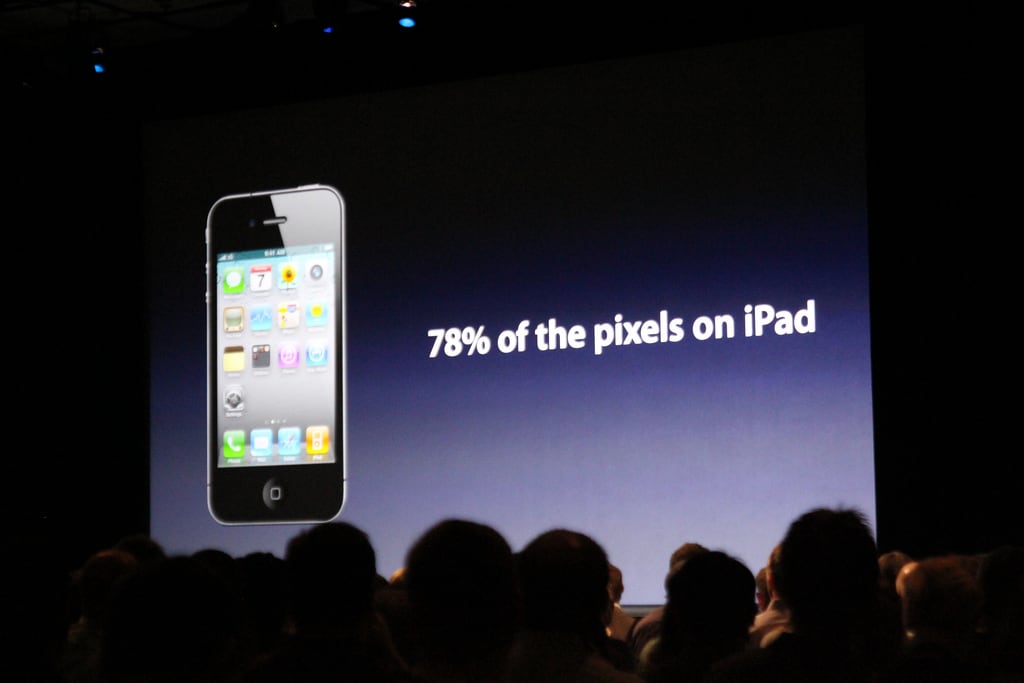
Picture: Ben Miller, vide Flickr Creative Commons
Geetesh: Do you have any guidelines to share on finding the perfect picture for a slide in PowerPoint, Keynote, or any of the slide apps?
Hermann: “A picture is worth a thousand words” is what I think about when searching for the right image for a screen presentation. I look for a photo or an illustration that contains white space/copy space. It could be an isolated object or maybe even a simple illustration with a monochromatic pattern.


Note from Geetesh: The sample pictures shown above illustrate the concept of white space or copy space that Hermann explained in this conversation. Both these pictures are from the PhotoSpin collection, and are used with their permission.
The views and opinions expressed in this blog post or content are those of the authors or the interviewees and do not necessarily reflect the official policy or position of any other agency, organization, employer, or company.
Filed Under:
Interviews
Tagged as: Design, Graphics, Hermann Narez, Interviews, Photos, PhotoSpin, Pictures, PowerPoint
We all are exposed to slides that can be so hazardous to our vision! One look at a horrendous slide, and it really doesn’t matter if the content is great or not — because the slide may have nothing understated about it. Such loud slides can ensure that audiences look more at the look of the slide rather than the content. You might end up with such slides even with no fault of yours, because someone else designed them for you! Fortunately, there is an easy, one-click process to restore the sanity in the slides — it’s called the Reset button. Remember, the Reset button is your friend.
Learn how to reset your slide formatting with one click in PowerPoint 2010 for Windows.
Filed Under:
PowerPoint 2010
Tagged as: PowerPoint 2010, Tutorials
While PowerPoint does provide a plethora of Shape Effects, there’s something about the Bevel effect that makes it stand apart. Once applied, the Bevel effect can make your shape look embossed, like a button, or even a pillow — the different output variations occur since there are many Bevel presets available in PowerPoint 2011 for the Mac. Play with all the presets, and some Bevel presets will make your shapes will look as if they can pop out of the slide — fortunately, there are plenty of Bevel effect presets that are more restrained and understated!
Learn how you can apply Bevel effects to selected shapes in PowerPoint 2011 for Mac.
Filed Under:
PowerPoint 2011
Tagged as: Effects, Office for Mac, PowerPoint 2011, Tutorials
By Dean Laffan
Recently, on the Indezine’s PowerPoint and Presenting Stuff LinkedIn community (you need to be signed in to access this group), someone started a thread with the question What are some alternates to using Microsoft PowerPoint?
Various people chipped in with suggestions. But the question got me thinking was … and what follows is a short article stimulated by that discussion.

Image: Yay Images
While the original question asks about the mechanics of what software may be used to construct a presentation, it also raises deeper questions about what we do as presentation designers, and as presenters as well. I’m reminded of-of the old saying; Never mind are we doing the thing right … the question is, are we doing the right thing?
To answer those questions, we need to go back a step. Here are a few important principles we need to keep in mind when working as presentation designers.
PowerPoint is just one of many tools we can use to create presentation graphics. Note I say presentation graphics. I make that distinction with great care because I believe the original question raises a topic that I cover with our clients daily. And as a presentation designer who owns a presentation design business, you may find this a strange thing I tell our clients, but I often have to explain that we cannot design them a presentation.
Why is that? Not because we can’t concept, design and deliver effective, persuasive, well-designed speaker support graphics; we do that every day. In fact, after 20 years, I think we’re getting rather good at it. We can’t design a “presentation” because a “presentation” is not a PowerPoint, Keynote or Prezi file any more than a delicious meal is a recipe in a book–or a great piece of music is notes on a sheet. The recipe needs a human being (cook) to bring the ingredients together in a way that results in a tasty meal. The music needs talented human beings (musicians) to play the music in a way that brings the notes off the page and into the air where we can hear and enjoy them.
There is only one thing that can embody a presentation and that is a human being who creates (delivers) that presentation. It takes an actual person to bring their physicality to the process, much like an actor does with a script, to make eye contact with their audience, to engage in a conversation, to tell stories, to persuade, to bring humor, tragedy, provocation, inspiration … to make a connection. I don’t believe this can be achieved by any amount of gee-whizzery concocted into any ‘file’ And believe me … I’ve tried it all.
From about 2001, we were creating and inserting Flash into PowerPoint. From around 1995, we worked in Macromedia Director creating many interactives, both CD and web-based. We’re specialists in compressing video for web and disc. Over the years we’ve authored over 200 projects on DVDs and CD. Remember those little business card CDs? We did them too .. basically, if it’s made of pixels, we’ve made it.
But our first love has always been presentation design and working with clients to build a visual support aspect to help them tell their stories.
A PPT or KEY file is just a collection of ones and zeroes until it is delivered by a human being to create a presentation. Yet daily we hear people say “Put that presentation on a USB stick” or “Can you email me the new marketing presentation”. I’m really not trying to be a vocabulary pedant (honestly!), but it is a daily reminder that sometimes we fall into the lazy habit of regarding the information as the presentation when it’s absolutely not.
A PowerPoint file absent a presenter is just a document. This is sadly proved on a daily basis by the recent appalling rise of the ‘slideument’ so well skewered in the past by Garr Reynolds. It is also the genesis of the dreaded ‘data dump’ It’s like the old joke about buying computers from the 1980s that you couldn’t get fired for choosing IBM … because it was ‘safe’
In the exact same way, we see far too many presentations designed as data dumps. Dumbed down and made ‘idiot proof’ so a legion of middle managers can trot them out all over the country. If criticized, the creators can claim that they know it may have too much information and reads more like a document than a presentation,. but they plead that ‘the slides also need to stand on their own …’. You know when you hear that phrase, the poor audience of that presentation is doomed.
You can write a document … Word is useful for that. And you can design a presentation … PowerPoint is good for that. But we see far too many times, people confusing the two and creating documents in PowerPoint (in itself not necessarily a bad thing) but then presenting them .. and when that happens, then like Jim Lovell said on the Apollo 13 mission “Ahhh Houston .. we have a problem.”
I’ll give you a good quick reference guide right now as to whether a presentation has been well designed. Flip quickly through the slides in screen show mode. If at the end you can’t really tell what the presentation is actually about, then there’s every chance it’s in pretty good shape. If however, you can understand it enough to think, “Yeah I get what this is about” then you have a slidument and the last thing you ever want to do is present it.
In closing let me implore you that as presentation designers to stick to your principles. The worst brief any of u can get, is a client who says something like; “I want all the bells and whistles ! I want it high impact ! I want it to really wow the audience !!” … as that 20th Century philosopher Charlie Brown often said; good grief …
You immediately know you have a presenter who does not want to do the hard yards themselves on constructing a persuasive and entertaining presentation (or perhaps they just don’t know how and you should provide, or suggest help). Either way, they are expecting you to provide some kind of multi-media ‘Shock and Awe’ for which they will be happy and you will get paid, but which serves your client … and their audience poorly.
It sometimes surprises my clients when I tell them “I don’t design slides for you … I design slides for your audience.” In doing so, I think I best serve my client because ultimately it is your client’s audience that decides the quality of the presentation, not the guy paying your bill. However, if you make him a hero with his audience you have done your job.
Keep up the good fight!
 Dean Laffan is the founder of Real World Productions, a Melbourne based studio specialising in presentation design, events, interactive design and digital video. When not attempting to put the world to rights one slide at a time, he can be found as a beta tester for most of the current video compression tools. He is also on Adobe’s Customer Advisory Board and is also on the beta team for various Creative Suite Products. When not chauffeuring 3 teenage children around weeknights and weekends he avoids iPhones, email and client briefs by cave diving in the Australian outback.
You can read more on Dean’s site.
The views and opinions expressed in this blog post or content are those of the authors or the interviewees and do not necessarily reflect the official policy or position of any other agency, organization, employer, or company.
Filed Under:
Guest Posts
Tagged as: Dean Laffan, Guest Post, Opinion, PowerPoint
Microsoft and the Office logo are trademarks or registered trademarks of Microsoft Corporation in the United States and/or other countries.