
This is the print version of this page. All content is copyright Indezine.com 2000-2026.
Thoughts and impressions of happenings in the world of PowerPoint and presentations, continuously updated since 2003.
See Also:
PowerPoint and Presenting Notes
PowerPoint and Presenting Glossary
All SmartArt layouts have text placeholders, which are basically text boxes. You can click and start typing in these placeholders to add or edit text. I have already shown you how to insert a SmartArt graphic within PowerPoint (or converting some bulleted text to SmartArt), and also, how the SmartArt Text Pane works. All these options add text to SmartArt graphics — once you add text, you might want to change the way your text looks. There are several way to play with the text within a SmartArt graphic.
Learn how to format text attributes of SmartArt graphics in PowerPoint 2010 for Windows.
Filed Under:
PowerPoint 2010
Tagged as: PowerPoint 2010, SmartArt, Tutorials

Scott Schwertly calls himself a storyteller. He owns and operates Ethos3, a Nashville, TN-based presentation boutique. Alongside his talented employees, he continues to provide professional presentation design and training for national and international clients ranging from Fortune 100 companies like Google and Pepsi to branded individuals like Guy Kawasaki. Scott is the author of a newly released book, How to Be a Presentation God.
In this interview, Scott discusses his book, How to Be a Presentation God.
Geetesh: Tell us about your book, How to be a Presentation God, and what the title means?
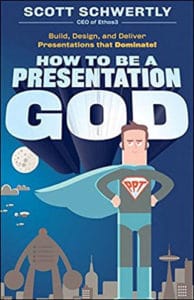 Scott: How to Be a Presentation God at its core is all about how to build, design, and deliver better presentations. What this means is that the book centers around 3 main ideas: Content (how you build it), Design (how you design it), and Delivery (how you deliver it). A mastery of all areas is essential for presentation success and the book shows you how to make that happen.
As for the book title, it is really about inspiring others to join what I like to call – The Pantheon of Presentation Gods. I want people to walk away from the book feeling a bit more inspired and empowered to start building, designing, and delivering presentations that will dominate.
Geetesh: What is the most important takeaway for readers of your book?
Scott: Unlike most presentation books that say the same things regarding presentation design and delivery (less is more, get rid of bullets, emulate Steve Jobs, and so on), How to Be a Presentation God not only covers design and delivery, but it puts specific emphasis on the most important component of a presentation – your message. At the end of the day, it’s the focus on “Content” that really sets it apart.
The views and opinions expressed in this blog post or content are those of the authors or the interviewees and do not necessarily reflect the official policy or position of any other agency, organization, employer, or company.
Filed Under:
Interviews
Tagged as: Books, Interviews, PowerPoint, Presentation Skills, Scott Schwertly
The Handout Master is a view in PowerPoint 2011 where you can make changes to the look and layout of printed handouts. Changes made in this view affect the background, header, and footer of printed handouts. Within the Handout Master, you can format and reposition the handout header, footer, date and time, and slide number placeholders. You can also add objects, such as a picture (useful to add a logo to all your printed handouts).
Learn about the Handout Master view in PowerPoint 2011 for Mac.
Filed Under:
PowerPoint 2011
Tagged as: Office for Mac, PowerPoint 2011, Tutorials
Successful speakers do not do all the right things all the time. They often take risks and risk bombing. But all top speakers take daily action, to move towards their goals with many adjustments.

Image: Yay Images
Here are ten ways to be a highly effective speaker.
Filed Under:
Guest Posts
Tagged as: Delivery, Guest Post, Opinion, PowerPoint
Every presentation typically contains an outline — in other words, an outline is all the text contained within the title and text placeholders of your slides. A few versions ago, PowerPoint had an Outline view, and don’t fret because all that functionality is not lost! You can still perform all the outlining tasks within the Outline pane, visible in Normal View within the PowerPoint 2011 interface.
Learn about the Outline pane in PowerPoint 2011 for Mac.
Filed Under:
PowerPoint 2011
Tagged as: Office for Mac, PowerPoint 2011, Tutorials
Microsoft and the Office logo are trademarks or registered trademarks of Microsoft Corporation in the United States and/or other countries.