
This is the print version of this page. All content is copyright Indezine.com 2000-2026.
Thoughts and impressions of happenings in the world of PowerPoint and presentations, continuously updated since 2003.
See Also:
PowerPoint and Presenting Notes
PowerPoint and Presenting Glossary

Jim Endicott is an internationally-recognized consultant, designer, speaker specializing in professional presentation messaging, design and delivery. Jim has been a Jesse H. Neal award-winning columnist for Presentations magazine with his contributions to the magazine’s Creative Techniques column. Jim has also contributed presentation-related content in magazines like Business Week, Consulting, and Selling Power as well as being a paid contributor for a number of industry-related websites. In this conversation, Jim discusses the results of the 2010 Annual Presentation Impact Survey conducted by his company, Distinction Communication, Inc.
Geetesh: Tell us about your 2010 Presentation Impact Survey, and what do the results speak about. What are the reaffirmations, and the surprises?
Jim: The goal of our annual impact survey has always been pretty straightforward – to better understand the needs, issues, and concerns of active presenters. They are groups of people we talk a lot about and make assumptions about, but too seldom do we ask them directly about their needs. Probably one of the more challenging parts of doing a survey of presenters is that they are so diverse but there were some data points that hardly wavered from the previous year.
This year, 86.0% said “Communicating with a solid level of clarity and confidence directly impacts my career and income.” (2009 results – 86.1% chose this option). It seems this is the one thing we can all agree on. The skills associated with delivering a presentation (face-to-face or virtual), are ones that impact us all, both personally and professionally, and at every level of our careers.
Also for the second year in a row, people continued to rank “Presentation technologies don’t always work predictably” as their greatest frustration ahead of creating slides, time to practice, getting feedback, and collaborating with others. As far as things have come in the technology area, this area continues to bubble to the top every year. More questions need to be asked about their out-of-box experiences because there still seems to be a lot of angst.
On the slide creation side of things, more people thought they were doing a better job. 36.8% believed their presentations were “High-caliber and well-designed visual tools” (26.1% in 2009) and 30.8% believed their presentations were “too simple or too complex” (58.5% in 2009). Then there were the 32.2% of people who thought theirs were “just average” (15.4% in 2009). The big question for all presenters probably is…. would their audiences agree?
Geetesh: You conduct this survey every year — and looking back through the years, you must have witnessed trends in presentation patterns that eventually became mainstream — tell us about some of these trends
Jim: I’ve been in the service support side of the presentation industry since 1984 and have seen the progression from acetate overheads created in photocopiers to presentations delivered off of smartphones. But in reality, the vast majority of presenters change very slowly. A few of our largest client companies (Fortune 500) are still using PowerPoint 2003. And if you saw the vast majority of visuals that are being created, most still struggle with how to create good ones. (I have not seen 36.8% of our clients creating “high-caliber” presentations).
I believe trends fall into several categories; the tools we use and the approaches we take. There are some very progressive companies that have been making compelling progress in the art of presenting. And within many other companies today, there are some shining stars who are elevating the caliber of their company’s presentations – often fighting corporate cultures that are very slow to change. My advice to them… make the corner of the world you own better and others will follow.
In considering changes & trends in the art of presenting, the challenge most of us will struggle with has to do with what we believe the “end game” is for our efforts. It is all too easy to become preoccupied with the mechanics of “giving” a presentation (technology, software, add-in, conversions) at the expense of coming up with new ideas and approaches that actually help our audiences “get” our messages and remember them later on (compelling messages, confident delivery, understanding how to cause people to think more deeply about a topic).
As long as the art of presenting advances both the tools and approaches we are using, I think we’ll see more memorable presenters supported by dynamic visuals. Distinction will continue to do these surveys every year because they give presenters a voice. And in a world where the stakes are so high, we need to better understand the things that keep them awake at night before we can offer relevant resources. More results can be found at our website.
See Also: Distinction’s 2010 Annual Presentation Impact Survey: Conversation with Jim Endicott
The views and opinions expressed in this blog post or content are those of the authors or the interviewees and do not necessarily reflect the official policy or position of any other agency, organization, employer, or company.
Filed Under:
Interviews
Tagged as: Interviews, Jim Endicott, Opinion, PowerPoint, Survey

Rulers in PowerPoint are typically located on the top and left parts of the active slide, and by default they might not be visible at all. However, it is a great idea to make them visible because not only do they provide you with a visual cue about where you are placing slide objects, they also let you use other PowerPoint features like the grid and guides more usable. In this tutorial, you will learn how to show / hide these rulers in PowerPoint 2010. You will also explore some of the settings that influence the measurement units in the rulers.
Learn about viewing and using rulers in PowerPoint 2010.
Categories: powerpoint_2010, shapes, tutorials
Filed Under:
Uncategorized
Tagged as: PowerPoint 2010, Shapes, Tutorials
 Spencer Lambert is a presentation designer by day, and serial business starter by night. He started his career as a rostrum cameraman making slides on film (remember that?). His first PowerPoint job was in 1993, and sadly has been using it pretty much every day since. Along the way he has started a new media production agency (1997), an e-commerce website (2000) and a bar (2004). Some soul searching led him to decide to concentrate on what he was really good at, and at the end of 2009 decided to embark on a project that would evolve into Present.me.
In this conversation, Spencer discusses Present.me
Geetesh: Tell us more about Present.me, and how it evolved?
Spencer: Quite simply, we scratched our itch. Most readers will know that great presentations are made of 3 things, you – the presenter, your story and your slides. When they’re put together well, you get a really potent combination – just watch Al Gore’s “An Inconvenient Truth”, or any TED presentation to see this in effect.
We used to make synchronized presentations for our clients all the time and they loved them but they also moaned about how much they cost! If you’ve ever tried making your own and putting it on the web, it involves a huge amount of effort and can be a real pain in the neck. Even a short 30 minute presentation can take half a day to get an output, which is why most people don’t bother.
There are some desktop applications that make it a bit easier, and some web ones that work too, but they’re all far too complicated for the average user. There had to be a better way!
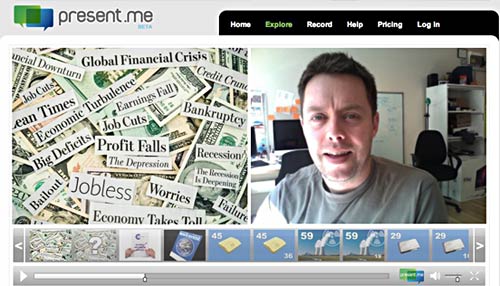
That was the inspiration for Present.me – a really easy (and cheap) way of recording, synchronizing, and sharing your presentations.
Geetesh: What is the most significant task that a user can do via Present.me, and what are the costs involved in doing so?
Spencer: The most significant task is the ability to do it yourself without any technical knowledge or skill. Our solution is simple: you upload your slides, you then click Record, you present into your webcam clicking your slides as you go, and when you’re finished you click Publish and share with the world!


Once we’d built Present.me, we realized 2 things: firstly, if you haven’t had any presentation training, you might not feel quite so confident about putting yourself out there — it’s definitely not as anonymous as other presentation sharing sites. Secondly, it’s really hard to present into a webcam without making a mistake or feeling under pressure.
To fix these two issues we’re building the Academy where two of the founders Richard and Charlie are sharing their knowledge around building and performing great presentations — I’ve worked with many presentation coaches over the years, and this stuff is world class. I’m also uploading my library of ready to use graphics that were originally intended for another project so your slides can look great too!
We’ve also developed the ability to edit on the fly, so if you make a mistake, you can stop the recording, scrub back to a good point before the mistake, and then carry on recording as if nothing had happened — it sounds like a really simple feature, but to make it work in the cloud was extremely difficult.
There are two basic types of account to start with, Free and Plus. If you’re a Free user, you can record up to 15 minutes at a time, all your presentations live in the public domain, and you see banner ads on the site. If you’re a Plus user (only $29/month subscription), you can record for 90 minutes, you have a whole load of privacy options, and no banner ads. We’re working on a different slide conversion process for the Plus account where you’ll be able to keep all your animations and builds, but that’s not quite ready yet.
The future? We have lots of new ideas for features and we’ll keep rolling them out as and when they’re ready.
The views and opinions expressed in this blog post or content are those of the authors or the interviewees and do not necessarily reflect the official policy or position of any other agency, organization, employer, or company.
Filed Under:
Interviews
Tagged as: Interviews, Online Presentations, PowerPoint
The Slide area in PowerPoint 2011 for Mac includes the actual slide, the slide workspace (blank area surrounding the slide), and the scrollbars that let you navigate to other slides (or the same slide when you zoom the view to a larger percentage). We discuss each of these individual interface elements in this tutorial.
Filed Under:
PowerPoint 2011
Tagged as: Office for Mac, PowerPoint 2011, Tutorials
Once you insert a SmartArt graphic within PowerPoint 2010, you might realize that the colors of the shapes comprising the SmartArt graphic are not exactly what you wanted — and while it is possible to change colors of individual shapes within the SmartArt graphic, PowerPoint lets you change the colors of everything within the SmartArt graphic at one go — not only does it save your time, but this also ensures that the different colors chosen are coordinated to look good together.
Learn how to change colors for a SmartArt graphic in PowerPoint 2010 for Windows.
Filed Under:
PowerPoint 2010
Tagged as: PowerPoint 2010, SmartArt, Tutorials
Microsoft and the Office logo are trademarks or registered trademarks of Microsoft Corporation in the United States and/or other countries.