
By Kurt Dupont
A PowerPoint timer functions as a common everyday timer in your presentation. But there are other uses too for a timer such as displaying it on an information screen or even showing real-time, dynamic information on your slide using a timer:
- The user can use it for example on a school display system during play-time.
- And also a timer for lunch time in the factory, and so on.
In this article, we will show you an easy way to create a timer presentation in PowerPoint. We will then show you how to use Dynamic TIME, a special timer add-in for PowerPoint so that the user can use to create timers much easier and with more efficiency.
Timer presentation with timed transitions
Visualize that we will use a timer of 10 minutes. Create your first slide and insert a text box. Type some static text within the text box, say “10 min” (see the figure below). Now duplicate the slide 10 times to end up with 11 similar slides. Change the text box content every time and slide for every minute you have. And for the last, an ending slide with your text.

Click to open the Transitions tab. In the Timing group, uncheck the Advance Slide On Mouse Click option. Check the option After and set its value to 01:00:00 for a one-minute wait. Click the Apply To All button.
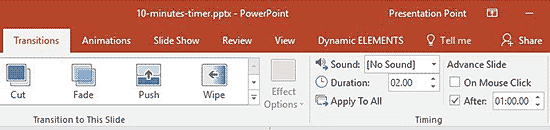
The user can now start the Slide Show. This technique will display every slide for 1 minute, and perform a countdown until the end.
These are two advantages of this method:
- This presentation is simple to create.
- This is a solution that is included in PowerPoint for free.
These are the two disadvantages of this method:
- The user will only see minutes and no seconds when counting down.
- Another disadvantage is that if the user needs to change the timer, then he or she will have to edit the presentation and even add new slides.
Automated Timer Presentation
For dynamic time functions in PowerPoint, we have our Dynamic TIME add-in. Dynamic timer is one of the features of Dynamic TIME. After installation within the PowerPoint Ribbon, the user will find a Dynamic ELEMENTS tab.

Now, follow these steps using Dynamic TIME:
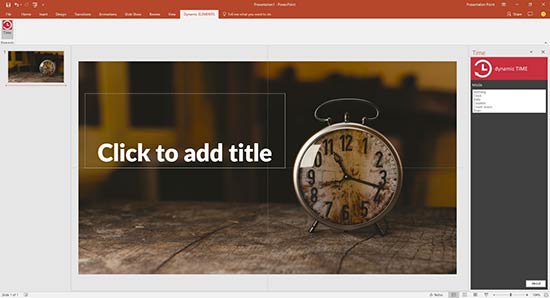
- Click the Dynamic ELEMENTS tab in the Ribbon to see all the options available.
- Click the Time button. This action will open the Dynamic TIME pane on the right.
- Insert and select a new text box on the slide to host your dynamic timer value.
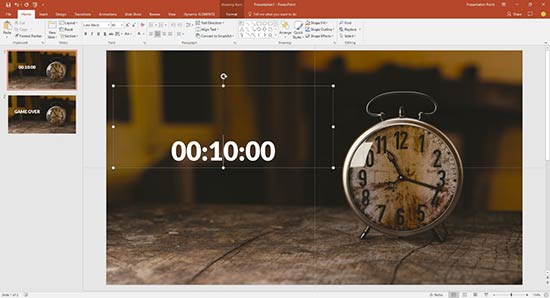
- Set the mode to Timer. Set a timer value for 10 minutes for this presentation. Set the Display to As time. And choose to jump to slide 2 when 0 is hit.

- This copies the dynamic timer value of 10 minutes into your text box.
- You are all set now. Start the slide show and see your timer updated every second.

These are the multiple advantages of using this method:
- The timer is created more easily and quickly.
- On top of that, you will get more precise information since it is automatically counting per second.
- You can show multiple other slides when the timer is running. You can also add that same timer to other slides with product info and advertising and the timer will continue to run.
- At the end of the timer, you can set it up, so that it will automatically jump to a selected slide.
- And finally, the biggest advantage of this is that you can change and use any timer value without adding and duplicating the slides.
The only disadvantage of this method compared to the earlier method, is that you have to pay for this add-on. But that is an investment for so many years.
See Also: Dynamic TIME: The Indezine Review
The views and opinions expressed in this blog post or content are those of the authors or the interviewees and do not necessarily reflect the official policy or position of any other agency, organization, employer, or company.
Related Posts
 By Kurt Dupont The number of businesses using digital signage screens to share information has expanded over the years. Administrators of restaurants,...
 By Kurt DupontPowerPoint is a very resourceful tool that can help businesses achieve more. Unfortunately, there are several possibilities within Power...
 By Kurt Dupont DataPoint is the PowerPoint add-on to display real-time information on your information screens. What more do you need? You can display...
 By Kurt DupontLet me show our latest project where we use PowerPoint to streamline a waiting queue.Connect physical buttons to PowerPoint.Connect phys...