
 (No Ratings Yet)
 Loading...
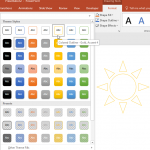
By default, PowerPoint shapes that you insert on your slide are flat and two-dimensional. And this indeed works well most of the time. Yet, there are situations that may benefit from a 3D graphic. It is times like these that you can apply a plethora of Shape Effects that PowerPoint provides, or just use the Bevel shape effect that makes it stand apart by making your shape look embossed, like a button, or even a pillow.

Learn how to apply bevel effects to shapes in PowerPoint 2016 for Windows.
Related Posts
 Depth, as a parameter for 3-D objects, plays a very important role. In simple terms, Depth is the distance from the highest to the lowest, and typical...
 PowerPoint's fill, line, and effect attributes enable you to customize the look of shapes and other slide objects in your presentation. However, it ma...
 PowerPoint's 3-D options allow you to rotate shapes or add beveled edges. And these 3-D options are surprisingly powerful. In fact, some of these opti...
 Among all the Shape Effects in PowerPoint, the 3-D ones stand apart. For any of the 3-D effects to work, you must understand two important 3-D paramet...