
Imagine you have inserted a picture in PowerPoint 2013 for Windows, and then you applied various picture editing options to enhance its appearance. For example, you may have added a border, applied some Picture Effects, etc. Probably, you then added both Fade and Zoom animations, synced them to happen together, and also timed the animations to occur at a particular speed. You may find yourself often doing these same tasks: adding all sorts of picture edits and animating them. And then you realize that you have a better picture, or your boss asked you to change the existing picture to another one, but with all the same effects and animations!

Learn how to change one picture into another in PowerPoint 2013 for Windows.
Related Posts
 A picture needs to be corrected when it's appearance is too dark or too bright. You can end up with pictures that need correction if the lighting was ...
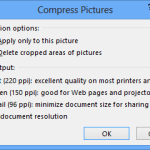 After a picture is inserted on your PowerPoint slide, you might want to make adjustments to the picture itself so that it looks distinctive and focuse...
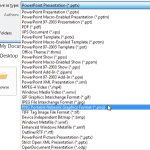 PowerPoint allows you to save your slides to many graphic file formats, which can later be used in other applications as required. One of the most pop...
 It is true that both pictures and words are important, and they both play complementary roles. If you had to choose just one of them; then seeing is a...