
One of the worst things that you can do to your PowerPoint presentation is to add a busy, multi-colored picture background to your slides. However, people do that all the time and in the process, they compromise the subtlety and contrast of any content on their slides. So why do they do so? Most of them look at the picture in isolation to the entire picture. As a picture, their chosen content may appear awesome. However, place the same picture as a backdrop for text, charts, shapes, or other slide objects, and you will realize that this just doesn’t work. Fortunately, you can make the visual noise in any picture more subtle by recoloring them within PowerPoint.

Learn how to recolor a picture background in PowerPoint 2013 for Windows.
Related Posts
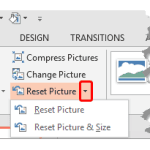 Once a picture is inserted within PowerPoint, any manipulations you make to that picture are strictly only on the surface. The appearance of the pictu...
 Working with pictures in PowerPoint 2013 can be so much fun and fulfilling at the same time. One of the coolest options is to recolor the hue of your ...
 PowerPoint is a slide program but that doesn't mean that it does not have some cool picture editing tricks up its sleeve. When we say "cool", we certa...
 Imagine you have inserted a picture in PowerPoint 2013 for Windows, and then you applied various picture editing options to enhance its appearance. Fo...