
Let’s start with the basics: what are guides? Picture a tailor’s cutting table, marked with faint chalk lines that keep every cut straight and every seam aligned. Guides do the same job on a PowerPoint slide, except this time, you’re the tailor, and the chalk never runs out. Every guide can be moved, added, or deleted entirely on your terms. Nothing is fixed in place unless you decide it should be. But here’s the twist nobody warns you about: the moment guides show up on your slide, they stop being polite background lines and start quietly running the show. Snapping is built in, permanently switched on, no settings buried three menus deep. Let an object wander even a little too close, and it clicks into place before you’ve finished dragging, like a magnet that’s been lying in wait the whole time. You won’t aim. You won’t nudge pixel by pixel. The guide will simply decide you’re done.

Learn how to work with guides in PowerPoint 365 for Windows.
Related Posts
 Guides in PowerPoint 365 for Windows are alignment lines that help you position slide objects with accuracy. They don’t appear in Slide Show or when p...
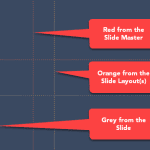 Marcus thought he'd cracked the code. First, he learned to enable guides. Then, he discovered the right-click menu, and now is adding, coloring, and d...
 Guides help you line up objects on your slides. Most of us use them in a basic way and never look further. This page covers Guide Options in PowerPoin...
 Have you watched an expert tailor at work? They start by marking the pattern on the fabric. They don't just slap down one chalk mark on the fabric and...