
This is the print version of this page. All content is copyright Indezine.com 2000-2026.
Thoughts and impressions of happenings in the world of PowerPoint and presentations, continuously updated since 2003.
See Also:
PowerPoint and Presenting Notes
PowerPoint and Presenting Glossary
In previous tutorials, we have showed you how you can add preset, shadow, and reflection effects to shapes in PowerPoint 2007 for Windows. Now we move on to the next effect: Glow. Glow adds a hazed color perimeter outside the shape area. PowerPoint provides several glow variations, and in this tutorial, we’ll show you how to apply Glow effects to a shape.

Learn how to apply glow effects to shapes in PowerPoint 2007 for Windows.
Filed Under:
PowerPoint 2007
Tagged as: Effects, Glow, PowerPoint 2007, Shapes, Tutorials
Comments Off on Apply Glow Effects to Shapes in PowerPoint 2007 for Windows
ColorSchemer Studio 2.0 is a color-oriented application that can be used for creating new color schemes by mixing the color values to create schemes. All color schemes are created based on sound color theory principles. ColorSchemer Studio 2.0 is from the company of the same name, which also creates products like ColorPix, Galleria, etc. You can download a trial version of ColorSchemer Studio 2.0 from their site. They have a Windows version available now, and a Mac version in development, and also a free online version! For this review, we’re working with the Windows version.

Learn how you can use Color Schemer Studio 2.0 to create a color theme for PowerPoint.
Comments Off on ColorSchemer Studio 2.0

Carles Enric Lopez is CEO of Netmaps, SA, a Barcelona, Spain-based company. He has a degree in Geography from the Universidad de Barcelona (UB) and the University College of London (UCL). In addition, he holds a Masters in Demography (Universitat Autònoma de Barcelona) and is a Postgraduate in Urbanism (Universitat Politècnica de Catalunya).
In this conversation, Carles Enric Lopez talks about the use of maps in PowerPoint.
Geetesh: How can presenters and presentation designers benefit from using maps in their PowerPoint slides?
Carles: PowerPoint maps are not only perfect for making your presentations easier to create but also give them a far more professional look. Such maps are ideal if you are looking to add clear, visual references to your presentation. One of the benefits of our maps for presentations is that we have covered all the country maps in the world with the same kind of information, so it would be perfect for any company to unify their information.
You can modify any of the maps and make your own look and feel, so our maps can be combined with your corporate images in an easy way. It is a well-known fact that visual aids greatly help people to retain for longer the information which you present to them, and the speaker finds it much easier to engage with their audience and pull off a successful presentation if they don’t have to worry about technical problems or trying to describe geographical locations. PowerPoint maps will save you a lot of time and hassle since the maps have been purposely created for PowerPoint software, so you won’t have to worry about glitches, bad graphics, or difficult modifications.
Geetesh: Tell us more about your company and the PowerPoint-specific maps that you provide.
Carles: We, at Netmaps, have over 11 years of experience under our belts, and specialize in the creation of digital maps in a variety of formats, for example, PowerPoint, Illustrator, and Freehand. Our diverse team comprises experienced geographers and cartographers. Our head office is located in a four-story building in the quiet suburbs of Barcelona (Spain), but we have reputable customers in 69 countries throughout the world, such as DK, Time Out, National Geographic, African Development Bank, HP, BBC, Apple, and so on. We offer maps of continents, countries, and cities, both topographical, political, and road maps. Our maps for PowerPoint were created in 2003 because some of our largest clients needed specific and customized maps for their presentations. We used our beta website version from 2003-2005, with Maps 1.0 available. In 2006, we launched the new version of our website 2.0, and finally, in 2009, we have decided to start our PowerPointMaps version 3.0, which combines the free version 1.0 and the payable version. We have also reduced prices by 50% of version 2.0. Version 1.0 maps are completely free to download, and you can start using them straight away. Upgrading to version 2.0 maps (at a cost of just 49 euros each) allows you to easily modify the PowerPoint map.
Geetesh: Tell us more about your support infrastructure.
Carles: Our maps are fully vectorized, which means that our production team is working day in and day out to update any new information. When we update any of the maps, we also transform them to PowerPoint format to make them available for users of PowerPoint presentations.
We can be reached by either phone or email. You will be put straight through to a member of staff (no pushing lots of buttons!). If you choose to send us an email, we promise to get back to you within 6 hours. Our team comprises native-speaking English, French, Spanish, and German nationals. Our production team is on hand if you have any problems with downloading, but if all else fails, we can send the map to you via email. Our central server is in the UK, and we have backups in India and France. It means our presentation maps are guaranteed 24 hours X 7 days.
The views and opinions expressed in this blog post or content are those of the authors or the interviewees and do not necessarily reflect the official policy or position of any other agency, organization, employer, or company.
Filed Under:
Interviews
Tagged as: Carles Enric Lopez, Clip Media, Interviews, Maps, Netmaps, PowerPoint
Comments Off on Netmaps: Conversation with Carles Enric Lopez
Have you ever wondered how you might transform your presentations into the kind of integrated media displays you see on television during high-profile shows and events? Examples would include the information graphics that appear during network nightly news broadcasts or major sporting events. In those displays, backgrounds move subtly, transitions incorporate key branding and design elements, and video is included in visually interesting ways? Our review product, OfficeFX? Presenter version 3.5 offers these capabilities and does so without changing the way your file looks or behaves in PowerPoint.

Read the Indezine review of OfficeFX Presenter v3.5.
Filed Under:
Reviews
Tagged as: Add-in, OfficeFX, PowerPoint, Review
Comments Off on OfficeFX Presenter v3.5
This tutorial is part of the effects series for PowerPoint 2007. We already showed you how you can apply a shadow effect and tweak the shadow options. In this tutorial, we’ll show you how you can quickly add a reflection to a shape.
Note: Although you can add both a shadow and reflection effect to any object in PowerPoint 2007 or higher versions, it’s good to use just one of these two effects.
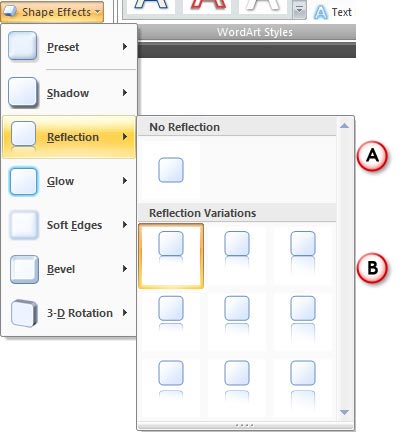
Learn how to apply Reflection effects to selected shapes in PowerPoint 2007 for Windows.
Filed Under:
PowerPoint 2007
Tagged as: Effects, PowerPoint 2007, Shapes, Tutorials
Comments Off on Apply Reflection Effects to Shapes in PowerPoint 2007 for Windows
Microsoft and the Office logo are trademarks or registered trademarks of Microsoft Corporation in the United States and/or other countries.