
This is the print version of this page. All content is copyright Indezine.com 2000-2026.
Thoughts and impressions of happenings in the world of PowerPoint and presentations, continuously updated since 2003.
See Also:
PowerPoint and Presenting Notes
PowerPoint and Presenting Glossary
This year’s journey to PowerPoint Live in San Diego followed a different route, with Bangkok replacing Singapore as the transit point. The change offered a range of new experiences—beginning with Bangkok itself, both the city and the airport.
Bangkok presents a sensory overload from the moment of arrival. For vegetarians, the most striking impression is the pervasive aroma of meat that fills the city air. Adjusting to this unique scent can take time. The city itself moves at an unrelenting pace, with constant motion and activity. Whether along its bustling streets or within its vibrant malls, Bangkok reveals countless nuances—each leaving a lasting imprint on the senses and the mind.
With only a few hours available in Bangkok, there was no time for sightseeing. The hotel was located in the Sukhumvit area—conveniently close to malls, street markets, restaurants, and train stations.
Suvarnabhumi International Airport mirrors the character of Bangkok itself—vibrant, unpredictable, and full of contrasts. While not as streamlined as airports in Kuala Lumpur or Singapore, and even less efficient than the newer facility in Hyderabad, it compensates with intrigue at every turn. Its architecture stands out for its unique design, showcasing Thailand’s deep-rooted Indian influences visible in the art, religious motifs, and cultural details throughout the terminal.
Upon entering the departures area, the eye is immediately drawn to a magnificent statue of Vishnu standing upon a tortoise. On either side, the serpent Vasuki is pulled by gods and demons in a dynamic scene. This striking sculpture depicts the legendary “Churning of the Ocean,” a central story from Hindu mythology.
Here are some pictures — click on them to see a larger view:
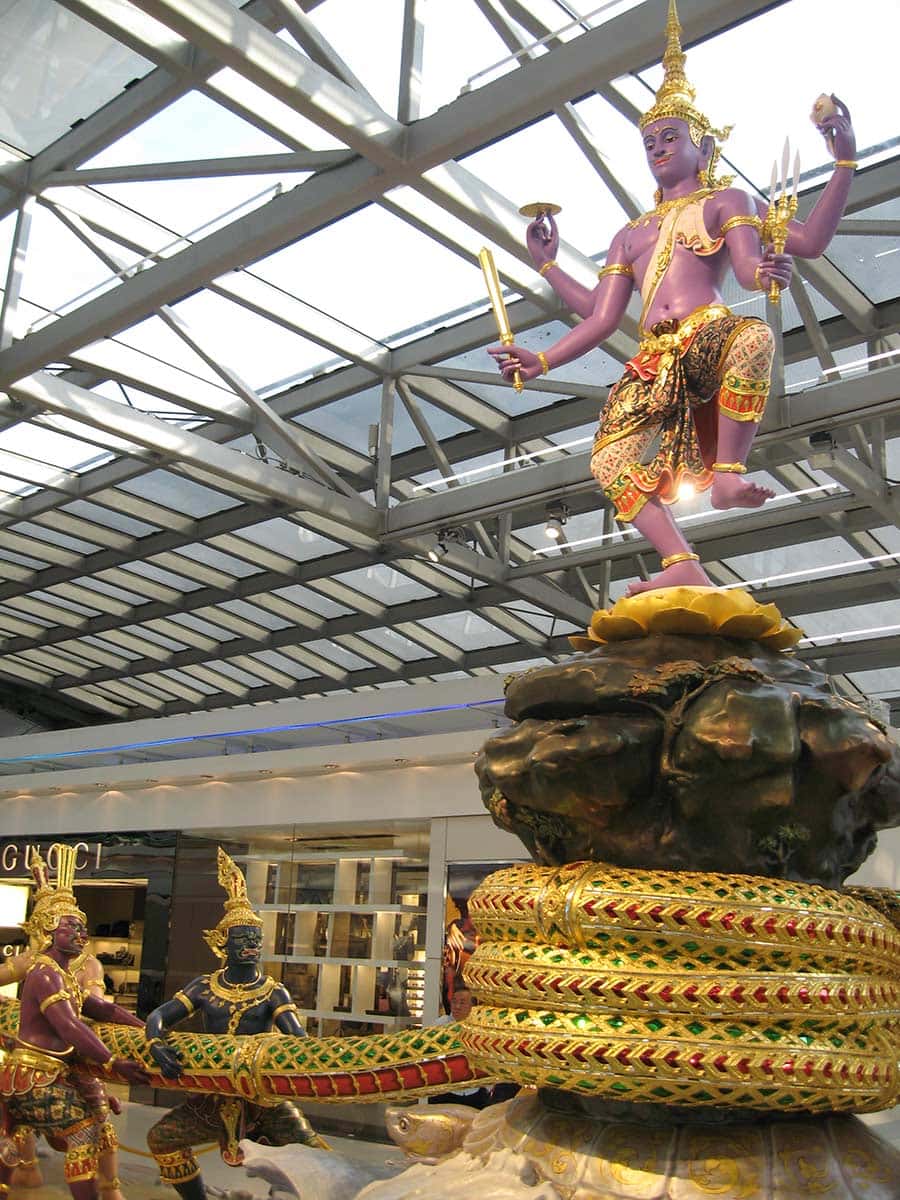

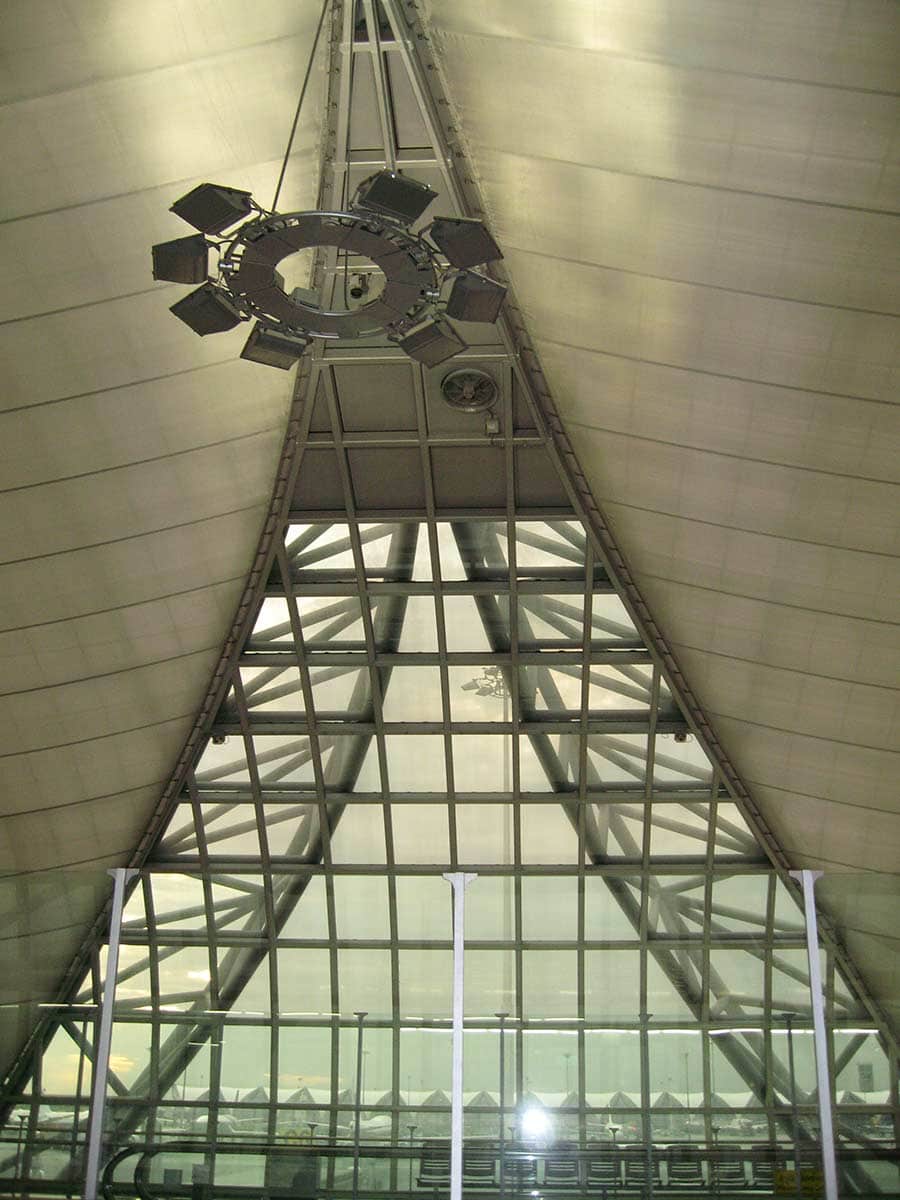
For an airport that showcases Indian art, it is surprising to find that there’s almost no vegetarian food available at the airport — Indian food or any other vegetarian food. The flight on Thai Airways from Bangkok to Los Angeles was good — but when I landed in Los Angeles, I discovered they lost my bag! More about that soon.
Filed Under:
Events
Tagged as: Bangkok, Events, Flight, PowerPoint Live
Comments Off on Traveling to America via Bangkok
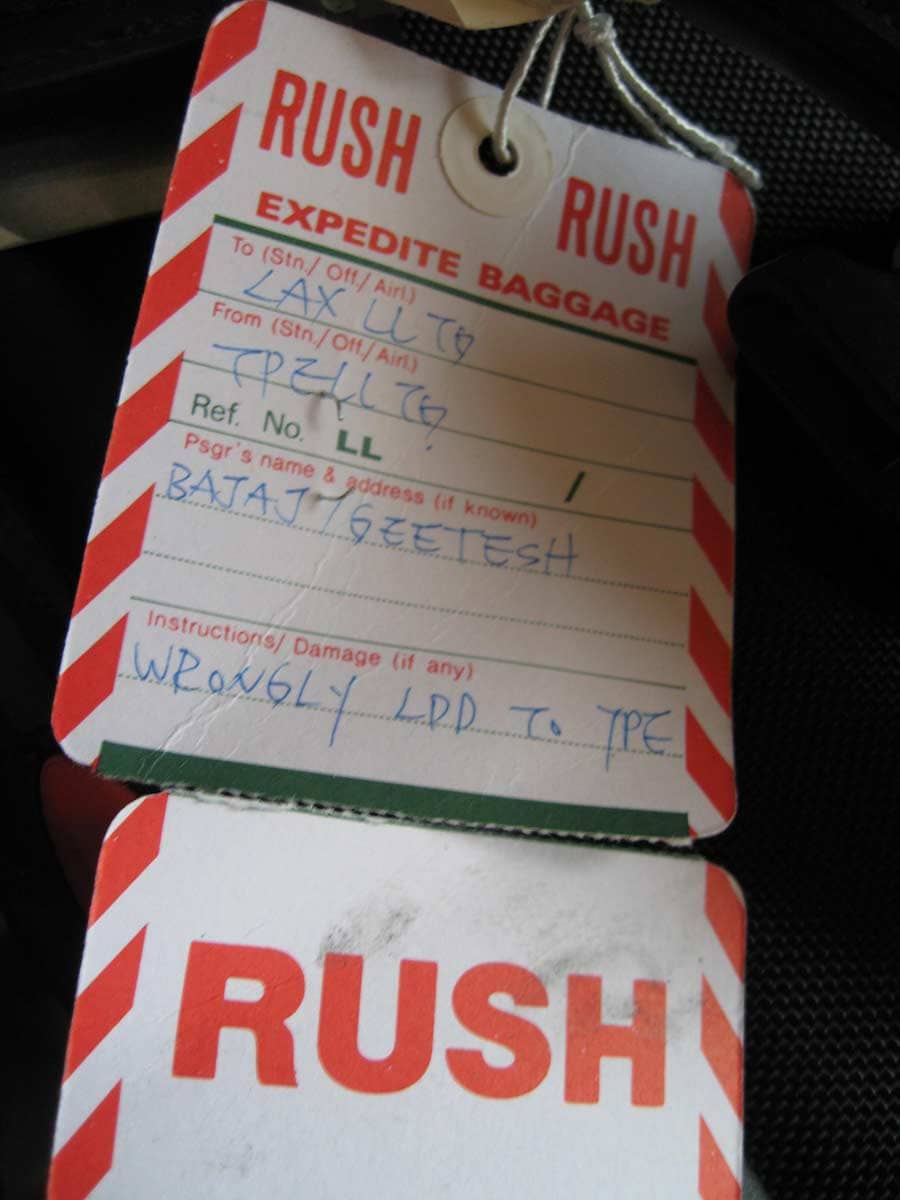
A missing bag added some unexpected adventure to the journey. Thai Airways mistakenly routed one piece of luggage to Taipei instead of Los Angeles LAX, while the other made it to LAX as intended—ensuring that at least half the belongings arrived on time.
Thai Airways delegates its missing baggage handling to an external agency, which in turn subcontracts the actual delivery of delayed luggage to a separate transport company. The result is a complex chain involving multiple baggage tags, file reference numbers, and tracking codes—all requiring careful coordination.
Eventually, Thai Airways confirmed that the delayed bag had traveled from Taipei to Bangkok and onward to Los Angeles. After numerous follow-ups—sixteen phone calls in total—the bag was delivered a little over 24 hours after arrival at LAX, reaching its destination just past midnight.
Here’s a picture of the Rush tag on the bag:
Filed Under:
Companion Programs
Tagged as: Bangkok, Flight, PowerPoint Live, Thai Airways
Comments Off on Missing Bag
Arriving in San Diego a day before PowerPoint Live begins sets the stage for an exciting week ahead. It’s 4:30 p.m., with about an hour and a half left before heading down to the hotel bar for the informal opening. The temptation to rest “just for 15 minutes” after the journey is strong—but when the clock strikes past six and eyes turn red from jet lag, it becomes clear how easily time can slip away.
Within ten minutes, the redness fades and clarity returns. The hotel bar hums with voices and familiar faces, each met with smiles, hugs, and scattered conversation. Amid the lively scene, a call from home interrupts the moment, prompting a quiet retreat from the crowd. Soon after, exhaustion takes over—and sleep arrives once more, back in the room.

Filed Under:
Companion Programs
Tagged as: Companion Programs, PowerPoint Live
Comments Off on PowerPoint Live: Day 0
I took the Amtrak again to San Diego—Amtrak’s Pacific Surfliner goes all the way through most of Southern California to San Diego. Along the way, you get to see spectacular scenery, including a seaside ride for some part of the way between San Juan Capistrano and Oceanside.
I started from Simi Valley—after a few stops, the train chugged into Los Angeles station for a half an hour halt. I found these birds on an empty rail track (see below).

Got to San Diego at 10 minutes past 3 in the afternoon, and was in the hotel by 4 pm. Met some conference folks in the lobby, checked in, and then the jet lag hit me!
Filed Under:
Companion Programs
Tagged as: Amtrak, Companion Programs, PowerPoint Live, San Diego
Comments Off on Amtrak Ride to San Diego
It can often take hours to create the perfect collage using tools in programs like Adobe Photoshop, and even then, the collages created may not work all the time. And when you want a quick collage, and don’t really have the time to create it, then you’ll really want to look at this new tool called AutoCollage 2008.
AutoCollage 2008 is a standalone application which allows users to compile a set of photographs into one seamless collage. The output can be printed, used in e-postcards, web pages or desktop backgrounds, or e-mailed to family and friends.

Explore AutoCollage 2008, an application that creates a seamless collage from photographs.
Filed Under:
Reviews
Tagged as: Design, Graphics, Microsoft, Review
Comments Off on Focus on Microsoft AutoCollage 2008
Microsoft and the Office logo are trademarks or registered trademarks of Microsoft Corporation in the United States and/or other countries.