
This is the print version of this page. All content is copyright Indezine.com 2000-2026.
Thoughts and impressions of happenings in the world of PowerPoint and presentations, continuously updated since 2003.
See Also:
PowerPoint and Presenting Notes
PowerPoint and Presenting Glossary
ShapeStyles is a nifty, time-saving PowerPoint add-in from PPTools. If you create many presentations, this add-in can often save you hours of time that you may have spent doing repetitive tasks. Naturally, this time can be used more effectively elsewhere — in design or content tasks, or just some extra time for yourself.

Steve Rindsberg from PPTools is a Microsoft PowerPoint MVP. He also runs the PPTFAQ site. In this conversation, he discusses the ShapeStyles add-in.
Geetesh: Tell us more about how ShapeStyles evolved.
Steve: I’m lazy. Necessity may be the mother of all invention, but surely Sloth is its father. I hate dull, repetitive, boring work and love to write software that saves me from it. And I can’t think of many things more boring than applying the same formatting, running through the same dialogs and mouse-clicks, time after time to format all the shapes in a large presentation.
My PPTools partner Brian Reilly and I developed ShapeStyles as a tool for what we call PowerPoint production artists. These are the folks who create lots of attractive PowerPoint slides, formatted to strict specifications, and usually on a short deadline.
PowerPoint makes it simple to apply any needed formatting, but it can take a lot of keystrokes and mouse-clicking to do it. For just a few shapes, that’s no big deal, but multiply it by the hundreds or thousands of shapes in a large slide presentation and you’re talking about a lot of wrist pain. And a huge waste of a creative artist’s time and talent.
Sure, there’s the Format Painter tool, but it doesn’t remember all the formatting we might need, it doesn’t remember more than one format at a time and it doesn’t remember ANYTHING from one PowerPoint session to another.
That was the problem we set out to solve. In a nutshell, how could we help talented artists make the best use of their valuable time, let them do the things they enjoy and are good at, AND still give them the ability to turn out high-quality, accurately formatted work at a prodigious rate?
Originally, the idea was to create a kind of Super Formatting Paintbrush, a tool that’d pick up the formatting from one shape and apply it to another but also allow you to save the formatting as a kind of named style. That way you could have a bunch of different saved styles that you could pick and choose from, and that would be available from one session of PowerPoint to another.
That was a good start, but it wasn’t the right answer. For example, suppose you’re working with text. You format a text box to 42-point Arial Bold and save the style. Now you pick another text box and apply the style. Great. The text becomes 42-point Arial Bold. But the text box also gets the size, position, fill and outline and all the other formatting attributes from the text box whose style you saved. Most of the time, that’s not what you wanted.
So, this is what makes ShapeStyles so useful. We added the ability to pick and choose the formatting attributes that will be saved with a style and later applied when the style is applied.
So, you could choose that same 42-point Arial Bold text box and tell ShapeStyles to remember the font, the size, and the boldness but NOT the italic attribute or fill color, size, position, etc.
Now, when you apply that same style to another text box that happens to be, say, Times New Roman 24-point Italic, it’ll change the font to Arial and make the text Bold (because you told ShapeStyles to remember those formatting options) but leave the text Italic (because you told ShapeStyles to ignore the Italics of the original text).
To get an idea of the formatting features you can include (or NOT include) in styles, just have a look at the dialog box that appears when you save a style.

All this means that you can format one shape as needed and have ShapeStyles memorize it as a style under whatever name you like. Repeat for each style you think you’ll need. You can create as many styles as you like.
Later, pick any shape on any slide in any presentation and apply the style to it. Or to them … ShapeStyles reformats any currently selected shapes at one time.
Then, because the only constant is change, we added the StickyStyles feature. Another example explains this best: You’ve created a whole bunch of styles for a client and it’s looking great. Then the client decides they don’t like the green you chose and want to change it to blue. Which means that you have to change ALL the other colors in your styles that you so carefully matched to that green. And apply them all to ALL the shapes in your presentation. Even with ShapeStyles it’s going to be a long night, right?
Wrong. If you chose the StickyStyles option when you created the style in the first place all you have to do is:
Well, at this point, we figured we had a pretty powerful tool, but when we let a few production artists test ShapeStyles, they had some great ideas for improving it.
We have different clients. Why can’t we save a set of styles for each client? Can we create, say, a Heading Text style and change it to suit each client?
Done. We added the ability to choose different Style folders so users can have a folder for each client, brand, product, division, etc., each with its own distinct styles.
We want to create styles and distribute them to our users. We want them to be able to apply the styles but not edit them.
Done. We created a “light” version of ShapeStyles at a very light price. Only the full version can create styles, but the inexpensive light version can choose Style folders and apply styles.
Why should we have to create a shape and then apply a style to it? Can’t ShapeStyles do that for us?
Done. If you apply a style when no shape is selected, ShapeStyles creates a duplicate of the shape the style was originally created from. If the shape included text, ShapeStyles can even add the original text or “dummy” text and pre-select it. So, to add a perfectly formatted footnote, for example, you’d Apply the Footnote style and just start typing.
Geetesh: Does ShapeStyles have a learning curve, and what about the effects applied using ShapeStyles. Can those be seen by people who don’t have ShapeStyles installed?
Steve: With all this power comes a little complexity. When you save a new style or edit an existing one, you see what may be the most complicated dialog box ever created. LOTS of checkboxes, it’s true, but that’s what gives you so many choices. Once you get used to it, it’s really quite fast to use, and most of the time you’ll select everything (using the handy ALL buttons) and then de-select just the formatting attributes you don’t need for the style and save your style.
But the fact that you can pick and choose what you want to include in your style means that you can create one style that affects nothing but the size of selected text and another that remembers EVERYTHING … the font, size, color, text box fill, outline, and even the text itself.
Despite all of this power, ShapeStyles does nothing to the presentation that you couldn’t do manually by formatting each shape individually yourself. The presentations you produce with it are totally compatible with other PowerPoint users, even though they don’t have ShapeStyles.
They can still change the formatting of your styled shapes. But, if you use StickyStyles, you can always override their changes with your original styles; just reapply StickyStyles as I mentioned earlier.
Download a trial version of ShapeStyles here.
The views and opinions expressed in this blog post or content are those of the authors or the interviewees and do not necessarily reflect the official policy or position of any other agency, organization, employer, or company.
Filed Under:
Interviews
Tagged as: Add-in, Interviews, PPTools, Steve Rindsberg
Comments Off on ShapeStyles: Conversation with Steve Rindsberg
Microsoft released an update for Office 2004 for Mac, currently available on Microsoft’s downloads page, which includes all improvements that have been released in previous Office 2004 updates as well as various new fixes, such as vulnerabilities that “an attacker can use to overwrite the contents of your computer’s memory with malicious code”.

Read more on the Ars Technica site.
Filed Under:
PowerPoint 2004
Tagged as: Office for Mac, PowerPoint, PowerPoint 2004, PowerPoint for Mac
Comments Off on Microsoft Releases Update for Office 2004 for Mac
Like stamps, hotspots are a great feature in TechSmith SnagIt that allows you to select any area of the captured image (or imported image) and add links from that area to an external link using Flash SWF technology. These links are only retained in the image captures that you save as SWFs; and thanks to a great new feature in SnagIt 8.1, it’s so simple to add these Flash equipped captures with hotspots to your PowerPoint presentations! That’s exactly what this tutorial will show you.

Filed Under:
Companion Programs
Tagged as: Snagit, Techsmith
Comments Off on Using Hotspots in Techsmith Snagit
Apple Keynote and Microsoft PowerPoint: you can hear raves and rants about both of them, and comparisons are inevitable. Also inevitable is that you end up hearing stories of which one is better from people who are actually using just one of these programs. Needless to add, those verdicts are biased and one-sided. That’s why I bring you opinions from Rob Griffiths of Macworld, who uses both the programs, to get you a balanced opinion in this Indezine exclusive conversation.

Rob Griffiths founded Mac OS X Hints in 2000; since mid-2005, the site has been part of MacPublishing, publishers of Macworld magazine. Rob serves as a Senior Editor for Macworld, responsible for content on Mac OS X Hints, as well as regular articles and reviews on Macworld’s site, and a column in the print magazine each month.
Geetesh: How do you find Keynote compared to using PowerPoint. Give us both your rants and raves, and what is that you really like about Keynote.
Rob: Keynote’s strengths are its interface and the professionalism of the bundled themes. I love the way the program works, though there was a definite learning curve in migrating from PowerPoint. The concept of a master slide is completely different between the two programs, for instance.
In Keynote, I love the way you can work with transparency and shadows, and I find the Inspectors to be a logical way to work on objects in my presentation. The inclusion of a new “light table” in the 2006 version of Keynote solved one of my long-standing grudges (no easy way to sort large presentations), but it still needs some work (I’d like to be able to choose the size of the slide images on the preview table).
The way Keynote handles tables and charts also seems to work much better for me; I always struggled to get just the look I wanted in PowerPoint. In Keynote, I spend much less time trying to “design” my presentation than I do just creating the slides I need. I find the default color schemes for each template work quite well, so I seldom spend time tweaking things.
PowerPoint is still more powerful when it comes to doing animation and builds, though Keynote has more options, and more ways of using those options, than does PowerPoint. The 2006 release of Keynote added the ability to build individual bullets, and have activity build between bullets, which was a welcome addition, but PowerPoint still does more.
Geetesh: How easy is it to co-exist in a Keynote-PowerPoint world, for tasks like exchanging presentations.
Rob: In theory, it’s transparent. In practice, things like alpha-channel graphics and embedded movies don’t carry over well at all between Keynote and PowerPoint. As such, I have both programs on my machine, and I no longer try to view one’s slides in the other. If someone sends me a PowerPoint presentation that I need to work with, I’ll just do it in PowerPoint (that way, I won’t accidentally add something that doesn’t work in PowerPoint).
I have, however, created presentations in Keynote and exported them as PowerPoint slides. I then open the converted presentation in PowerPoint, tweak as necessary, and send to friends who use PowerPoint on their Macs or PCs (being careful to stick to cross- platform fonts). This lets me use some of Keynote’s nice themes in PowerPoint presentations.
The views and opinions expressed in this blog post or content are those of the authors or the interviewees and do not necessarily reflect the official policy or position of any other agency, organization, employer, or company.
Filed Under:
Interviews
Tagged as: Interviews, Keynote, Office for Mac, PowerPoint, Rob Griffiths
Comments Off on Apple Keynote vs. Microsoft PowerPoint: Conversation with Rob Griffiths
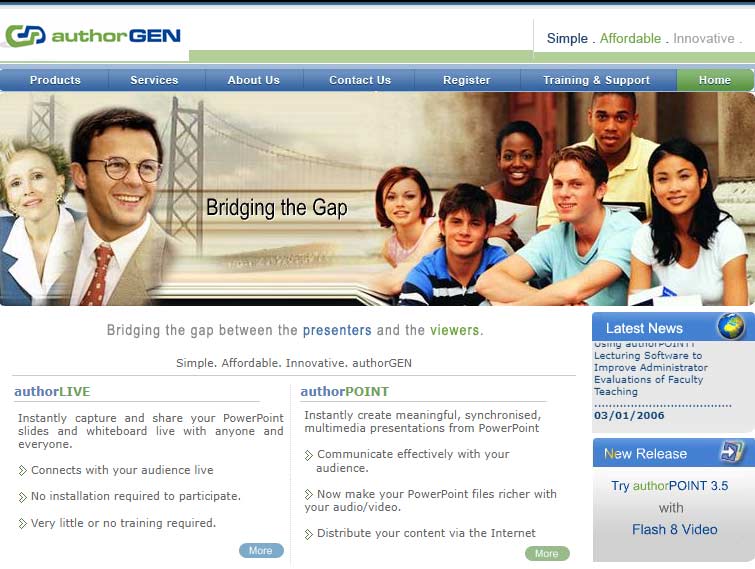
authorGEN has released authorPOINT 3.6 with some new updates. authorPOINT is a content authoring tool that includes a PowerPoint to Flash converter. The most significant feature of this release is that the trial version can now be used to create full-length multimedia presentations in Windows Media and the Real Media formats; there is no limit to the size of the presentations in the free version and the outputs are without watermarks. You would need to buy the software though, if you need to output your presentations in the Flash format.
Read more on the eCoustics.com site.
Filed Under:
Add-ins
Tagged as: Add-in, authorSTREAM, PowerPoint
Microsoft and the Office logo are trademarks or registered trademarks of Microsoft Corporation in the United States and/or other countries.