
This is the print version of this page. All content is copyright Indezine.com 2000-2026.
Thoughts and impressions of happenings in the world of PowerPoint and presentations, continuously updated since 2003.
See Also:
PowerPoint and Presenting Notes
PowerPoint and Presenting Glossary
Do you want to add an infinity symbol on your slide? Or do you want to add one of the mathematical symbols? Or even the Yen or Rupee symbols? PowerPoint provides several ways to add such symbols, but the most straightforward option is to use the Symbol dialog box. Let us now explore how you can add symbols within your text containers in PowerPoint 2013 for Windows.

Add symbols within your text in PowerPoint 2013 for Windows.
Filed Under:
PowerPoint 2013
Tagged as: Character, Insert, Microsoft Windows, Office 2013, PowerPoint 2013, Symbol, Tutorials
Comments Off on Insert Symbol in PowerPoint 2013 for Windows
You may want to quickly add an em dash within your text container—be it a placeholder, text box, shape, or even a table. It’s very easy to add an em dash, and there is more than one way to achieve this task, although there may be some differences, and all ways may not work in the version of PowerPoint you are using. But certainly, using one of these options, you will be able to add an em dash in PowerPoint.
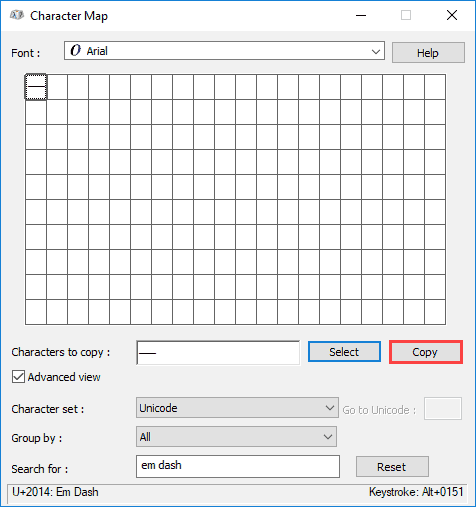
Learn how you can insert an em dash in PowerPoint for Windows.
Filed Under:
PowerPoint All Versions
Tagged as: Character, Em Dash, PowerPoint, Symbol, Tutorials
Comments Off on Add an Em Dash in PowerPoint for Windows
When you insert any shape into your PowerPoint slide, more often than not you will want to make some changes to the default shape that you end up with. Mainly, you may want to resize and rotate the shape. This is something we do a lot in our everyday life, like rearranging our work desks, or even changing the position of our favorite chair so that we feel more comfortable. Similarly, all objects on your slide need to be arranged in a way that feels appropriate, rotation is one way of making this change happen. In PowerPoint 2016 for Mac, rotation can be applied in more than one way.

Learn how to rotate shapes approximately and accurately in PowerPoint 2016 for Mac.
Filed Under:
PowerPoint 2016
Tagged as: Mac, Office 2016, Office for Mac, PowerPoint 2016, PowerPoint for Mac, Rotate, Shapes, Tutorials
Comments Off on Rotate Shapes in PowerPoint 2016 for Mac
Many times, you may want to add an image within a star shaped container, or any other container shape, such as a diamond, a teardrop, or even a triangle. This is quite easy to achieve, and involves two basic PowerPoint techniques. The first technique is to add a shape, and the second is to fill the shape with an image. Here’s how you do it in almost any version of PowerPoint, since PowerPoint 2007 until the recent versions.

Easily place your image within a star or another shape in PowerPoint.
Filed Under:
PowerPoint All Versions
Tagged as: Fills, Pictures, PowerPoint, Shapes, Tutorials
Comments Off on Put Your Image in a Star in PowerPoint
We first explore a simple countdown you can download and use in PowerPoint. We then explore what a Unicode font is. If you are confused about what Unicode is, what Unicode fonts are, and where do single-byte and double-byte fonts fit in, then here’s a simple explanation about Unicode and Unicode fonts. We also feature Paul Balogh who talks about the new Hypersay Pro accounts, and more. For those of you who are not aware, Hypersay is a product that improves PowerPoint by making it a conversation.
PowerPoint users of all versions can learn about adding glossy highlights for shapes, and creating your own countdown timer slides. PowerPoint 2016 for Windows users can learn how to Insert Symbols. PowerPoint 2016 for Mac users can explore Selecting Text, and Inserting a New Slide. And if that wasn’t enough for this week, make sure you do not miss the quotes, press releases, and templates released in the last week.

Stay informed about updated tutorials and happenings related to PowerPoint and presenting.
Filed Under:
Ezine
Tagged as: Ezine, Indezine, News, PowerPoint
Comments Off on PowerPoint and Presenting News: November 20, 2018
Microsoft and the Office logo are trademarks or registered trademarks of Microsoft Corporation in the United States and/or other countries.