
This is the print version of this page. All content is copyright Indezine.com 2000-2026.
Thoughts and impressions of happenings in the world of PowerPoint and presentations, continuously updated since 2003.
See Also:
PowerPoint and Presenting Notes
PowerPoint and Presenting Glossary
PowerPoint takes the Merge Shapes command to a whole new level. Many of you know that you can merge shapes with other shapes and text, but did you know that you can also merge shapes with pictures? At first, you may wonder what’s so awesome about merging shapes with pictures? But play a bit and you’ll realize that this option opens up huge possibilities. We will start simple in this tutorial and explore how you can create cookie cutter shapes with this option.

Learn how to merge shapes with pictures in PowerPoint 2016 for Mac.
Filed Under:
PowerPoint 2016
Tagged as: Combine, Mac, Merge Shapes, Office 2016, Office for Mac, Pictures, PowerPoint 2016, PowerPoint for Mac, Shapes, Tutorials
Comments Off on Merge Shapes with Pictures in PowerPoint 2016 for Mac
When you use a prop in a presentation, the primary objective is always to add value, clarity, or emphasis to a point or an idea in a speech. If used correctly a prop provides the bridge between the abstract and the real world. For example, in his TEDx talk on ‘The Art of Saying No,’ Kenny Nguyen does this very effectively.
Filed Under:
Guest Posts
Tagged as: Guest Post, Opinion, Presentation Skills, Props, Toastmasters
Comments Off on Nine of the Best Props to Add Impact to Your Presentation
Text is an important element in your PowerPoint slides, and most of the time, text alignment is taken care by the defaults set in your presentation template. You type or paste some text in a placeholder, and the text may align left, right, or even center, based upon the choices made in the template or Theme of the presentation. However, there are times when you want to make alignment choices, not just for text in placeholders, but also for text in text boxes, shapes, charts, tables, and anywhere else.

Align text in PowerPoint 2016 for Windows.
Filed Under:
PowerPoint 2016
Tagged as: Align, Microsoft Windows, Office 2016, PowerPoint 2016, Text, Tutorials
Comments Off on Text Alignment in PowerPoint 2016 for Windows
Do you want to add a bunch of countdown timer slides right at the beginning of your slide deck? All you need to do is download this presentation, and add these slides as you need.

Download a simple countdown timer for PowerPoint.
Filed Under:
PowerPoint All Versions
Tagged as: Animation, Presentation Samples
Comments Off on Simple Countdown in PowerPoint
Like many other tasks you do in PowerPoint, inserting a new slide can be done in multiple ways. You just need to find a way that works best for you. The following steps show you how you can do this simple task in PowerPoint 2016 for Mac.
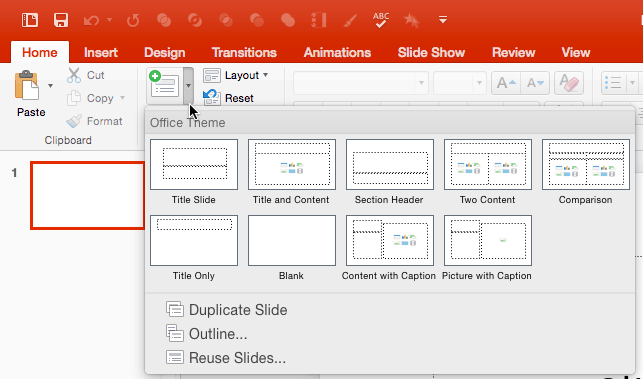
Learn how to insert a new slide in PowerPoint 2016 for Mac.
Filed Under:
PowerPoint 2016
Tagged as: Insert, Mac, Office 2016, Office for Mac, PowerPoint 2016, PowerPoint for Mac, Slides, Tutorials
Comments Off on Inserting a New Slide in PowerPoint 2016 for Mac
Microsoft and the Office logo are trademarks or registered trademarks of Microsoft Corporation in the United States and/or other countries.