
This is the print version of this page. All content is copyright Indezine.com 2000-2026.
Thoughts and impressions of happenings in the world of PowerPoint and presentations, continuously updated since 2003.
See Also:
PowerPoint and Presenting Notes
PowerPoint and Presenting Glossary
Slide Layouts are a very useful feature because they let you use a preset arrangement of placeholders repeatedly, resulting in consistent looking slides. And yes, you can also create your own custom Slide Layouts. While very few users create their own custom Slide Layouts, even fewer will create a custom Slide Layout for pictures! That’s regrettable since Picture Slide Layouts can make your slides look so unique. In this tutorial, we will show you how easy it is to create your own Picture Slide Layout in PowerPoint 2016 for Mac.

Learn how to work with Picture Slide Layouts in PowerPoint 2016 for Mac.
Filed Under:
PowerPoint 2016
Tagged as: Mac, Office 2016, Office for Mac, Pictures, Placeholders, PowerPoint 2016, PowerPoint for Mac, Slide Layouts, Tutorials
Comments Off on Working with Picture Slide Layouts in PowerPoint 2016 for Mac

TJ Walker is the founder of Media Training Worldwide and has been conducting public speaking training workshops and seminars since 1984. Walker has trained Presidents of countries, Prime Ministers, Nobel Peace Prize winners, Super Bowl winners, U.S. Senators, Miss Universes and Members of Parliament.
His book, “Secret to Foolproof Presentations” was a USA Today, Wall Street Journal, and Business Week Bestseller. Walker has made more than 2000 network TV and radio appearances on CBS, ABC, Fox News Channel, MSNBC, CNN, Bloomberg TV. In 2009, Walker entered the Guinness Book Of World Records for most talk show appearances ever in a 24 hour period. He is also a past president of the National Speakers Association, New York City.
In this conversation, TJ talks about his new Udemy course, Complete Presentation Skills Masterclass for Every Occasion.
Filed Under:
Interviews
Tagged as: Interviews, Presentation Skills, TJ Walker, Training, Udemy
Comments Off on Complete Presentation Skills Masterclass for Every Occasion: Conversation with TJ Walker
Assuming someone has provided you with an HSL (Hue, Saturation, and Luminosity) value of a color, and asked you to add a rectangle of that color to a slide, then how do you proceed? Let’s also explore another scenario. What if you have started with a color that’s close enough to what you need, but it’s not the exact one. Maybe you need it to be a little less saturated? Again, you will benefit by working with the HSL color model rather than the RGB model.

Learn about how to work with HSL Colors in PowerPoint 2016 for Windows.
Filed Under:
PowerPoint 2016
Tagged as: Color, Color Models, HSL, Microsoft Windows, Office 2016, PowerPoint 2016, Tutorials
Comments Off on Working with HSL Colors in PowerPoint 2016 for Windows
While you can open and save files from any file location you access on your computer or network, you can also add more places from where you can open and save files. You see options to add a place in both the Open and Save As tabs of Backstage view.
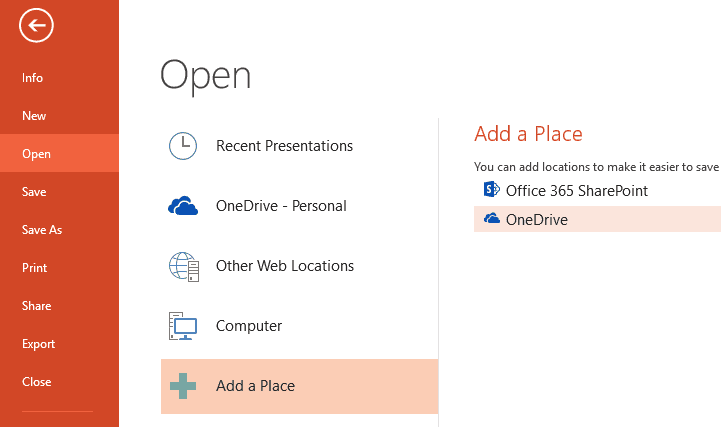
Learn to add places to open and save files in PowerPoint 2013 for Windows.
Filed Under:
PowerPoint 2013
Tagged as: Backstage, Interface, Microsoft Windows, Office 2013, Places, PowerPoint 2013, Tutorials
Comments Off on Add Places in PowerPoint 2013 for Windows
Haven’t you seen the Themes that PowerPoint shows you when you want to create a new presentation? These Themes show up in the Presentation Gallery and also within the Themes drop down galleries within PowerPoint. Where are those Themes located? Many times, you want to know why this information is not as easily accessible as it should have been. Luckily, we will try and solve this problem.

Learn where Office Themes are located for various PowerPoint versions.
Filed Under:
PowerPoint All Versions
Tagged as: Microsoft Office, Templates, Themes
Comments Off on Where Are the Office Themes and Templates Located?
Microsoft and the Office logo are trademarks or registered trademarks of Microsoft Corporation in the United States and/or other countries.