
This is the print version of this page. All content is copyright Indezine.com 2000-2026.
Thoughts and impressions of happenings in the world of PowerPoint and presentations, continuously updated since 2003.
See Also:
PowerPoint and Presenting Notes
PowerPoint and Presenting Glossary
A PowerPoint presentation comprises a bunch of slides and we like to think of these slides as akin to a blank canvas. You add content to the slides in almost the same way as you use brushes to create strokes of paint to color a canvas. However unlike a canvas, in PowerPoint, you don’t have a non-structured freedom, and this can be good in many ways. Primarily, PowerPoint categorizes each slide type into one of its prescribed layouts.

Learn how to change slide layouts in PowerPoint 2016 for Mac.
Filed Under:
PowerPoint 2016
Tagged as: Mac, Office 2016, Office for Mac, PowerPoint 2016, PowerPoint for Mac, Slide Layouts, Tutorials
Comments Off on Change Slide Layout in PowerPoint 2016 for Mac
Love him or hate him, I think we can all agree that President Obama served an unforgettable term as the leader of the free world. Let’s not get carried away though, this isn’t about politics. This is about how President Obama gave the most inspirational speeches of our time.
Obama has a way to tie society’s influences with the messages he tends to communicate. The way he crafts his messages is impeccable, and I’m kind of surprised that no public speaking experts caught on to his techniques (at least, not enough to talk about them).
Here’s the thing, Obama didn’t just stick to the facts. He knew that he had to practice empathy to get his message out there. Furthermore, he knew he had to find a way to connect with the American people.
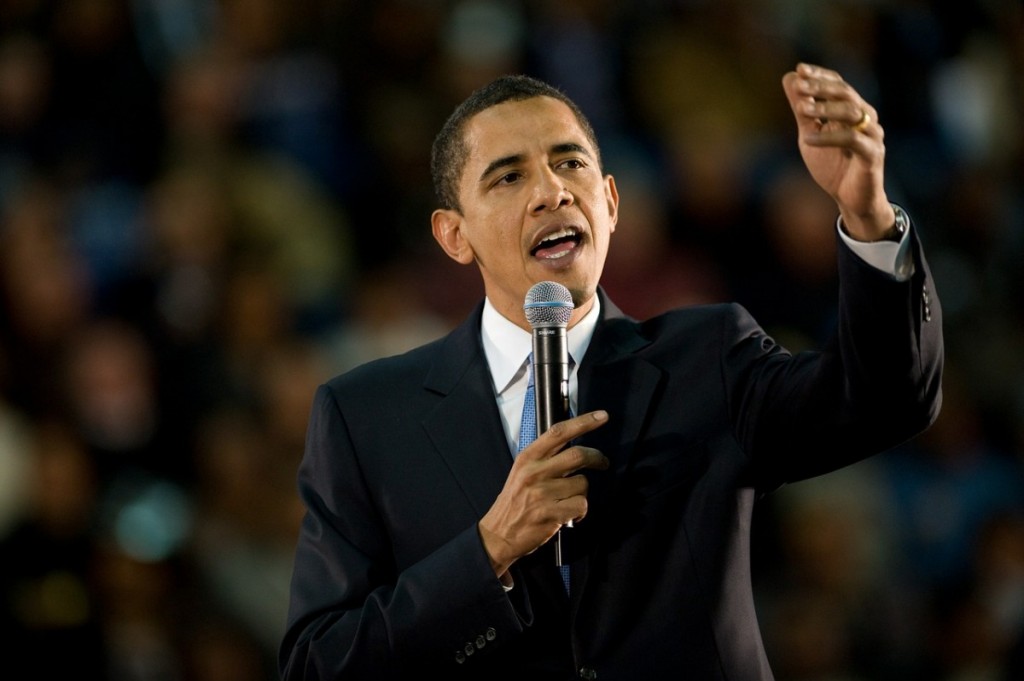
Image: Pixabay
So, how did he do it?
Simple.
He tapped into the American public’s emotions.
By tying the emotional needs of the public to his formal addresses, Obama set the grounds to make his audience relate to him on a personal level. Keep in mind, I said “personal” and not “presidential.” When he took the stage, he didn’t want the American people to look at him like he was above all else. He wanted to establish equal ground between him and the person he’s addressing his message to.
By making himself appear as an equal, he enabled the American public not just to listen to what he has to say, but to convince themselves that what he is saying is agreeable, in every sense of the word.
The late American poet Maya Angelou said it best:
“People will forget what you said, people will forget what you did, but people will never forget how you made them feel.”
On June 15, 2008, President Obama dropped a stellar quote that showed just how inspirational his speeches are.
“Life doesn’t count for much unless you’re willing to do your small part to leave our children – all of our children – a better world. Even if it’s difficult. Even if the work seems great. Even if we don’t get very far in our lifetime.”
The first thing to notice here is how the topic concerns children. Yet, he never talked about his children. He talked about “our” children. He constantly used pronouns like “your” and “our”, and never said “my” once. He took the focus of attention away from him and shined it on his audience.
He then discussed the greater responsibility of parenthood; how life is only as good as how our children see it:
He kept hitting those raw emotional triggers repeatedly, just to remind the American people to look at their children like they’re the most valuable beings in the world (which, of course, they are).
A good speaker will focus on coherence and clarity to get the message across. A great speaker will take those factors to the next level and stir them into the emotional melting pot. By following Obama’s techniques, you have a good chance to rock your next presentation, speech, or even public address (if you’re running for office one day). So get to it.

Yousef “Yoyo” Abu Ghaidah is a PowerPoint ninja who founded Slide Cow, a learning platform for all things PowerPoint, presentations, and public speaking.
When he’s not designing slides or giving presentations, he’s on another coffee run.
You May Also Like: Why You Should Never (Ever) Memorize Your Presentation
The views and opinions expressed in this blog are those of the authors and do not necessarily reflect the official policy or position of any other agency, organization, employer, or company.
Filed Under:
Guest Posts
Tagged as: Guest Post, Presentations, Presenting, Yousef Abu Ghaidah
Comments Off on Here’s How President Obama Gave Stellar Inspirational Speeches
To commemorate the launch of the new NXPowerLite Desktop 8 from Neuxpower, we bring you an exclusive interview with Alan Gurney, who talk about what’s new and what’s improved. We bring back Rodney Saulsberry’s interview, in which not only he talks about his book, Tongue Twisters and Vocal Warm-Ups, but also shares some tongue twisters to improve your speaking skills. We also look at how you can change the unit of measurement in Mac OS X.
PowerPoint 2016 for Windows users can learn Exit Animations, Reordering Animations, Animation Speed, and Animation Events. And if that wasn’t enough for this week, make sure you do not miss the quotes, press releases, and templates released in the last seven days.

Stay informed about updated tutorials and happenings related to PowerPoint and presenting.
Filed Under:
Ezine
Tagged as: Ezine, Indezine, News, PowerPoint
Comments Off on PowerPoint and Presenting News: March 20, 2018
PowerPoint’s export options come into play after you have created your slide decks, and are looking for ways to share your slides with others in the most effective way possible. PowerPoint allows you to save your presentation in different forms, that allows you to view and share your slides on almost any device. Did you know you can create a PDF from your presentation, or export all slides to a video? If you need an old-fashioned way to share, you can burn your slides to a CD. You can also create Word document handouts. Finally, PowerPoint lets you save in so many other file formats.

Learn about the Export options in PowerPoint 2016 for Windows.
Filed Under:
PowerPoint 2016
Tagged as: Backstage, Export, Interface, Office 2016, PowerPoint 2016, Tutorials
Comments Off on Export Option in Backstage View in PowerPoint 2016 for Windows
The three basic animation types in PowerPoint: entrance, emphasis, and exit animations are something we have already explored. The fourth animation type is called Motion Path animations, and this is something more advanced in nature than the basic animation types explored so far. Motion Path animations determine the route (path) and the direction in which the animated slide object moves across or around on the slide. For example, you can move a slide object up, down, right, or left, on a preset or created motion path, or possibly anywhere you want.

Explore Motion Path animations in PowerPoint 2016 for Windows.
You May Also Like:
Filed Under:
PowerPoint 2016
Tagged as: Animation, Microsoft Windows, Office 2016, PowerPoint 2016, Tutorials
Comments Off on Motion Path Animations in PowerPoint 2016 for Windows
Microsoft and the Office logo are trademarks or registered trademarks of Microsoft Corporation in the United States and/or other countries.