
This is the print version of this page. All content is copyright Indezine.com 2000-2026.
Thoughts and impressions of happenings in the world of PowerPoint and presentations, continuously updated since 2003.
See Also:
PowerPoint and Presenting Notes
PowerPoint and Presenting Glossary
PowerPoint for the Web’s work area below the Ribbon is tri-paned. These three panes comprise the Slides Pane, the Slide Area, and the Notes Pane. The Slides Pane is the strip on the left side of the PowerPoint for the Web interface that contains thumbnails of all your slides.
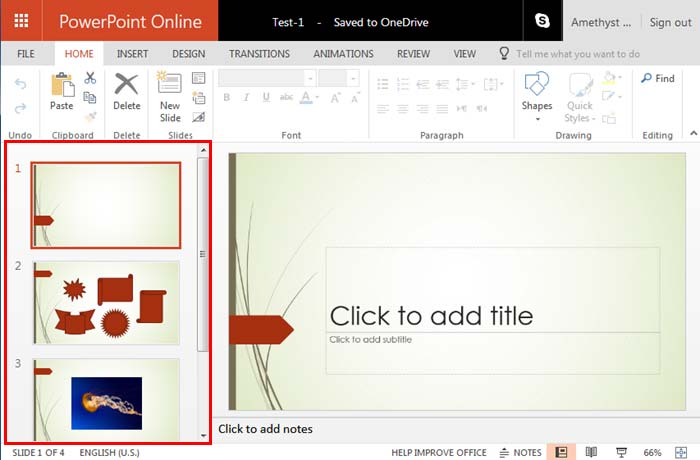
Learn about the Slides Pane in PowerPoint for the Web.
Filed Under:
PowerPoint for the Web
Tagged as: PowerPoint for the Web, Slides Pane, Tutorials
Comments Off on Slides Pane in PowerPoint for the Web
Creating outlines for PowerPoint in various external applications lets you stay away from distractions in PowerPoint-land and concentrate on the structure of your slides rather than their appearance. Once you have the outline created, it’s very easy to import it in the form of slides into PowerPoint. While this import process works the same way in all versions of PowerPoint, there are small interface changes from version to version. In this tutorial, we’ll show you how to import outlines in PowerPoint 2016 for Mac.

Learn to import outlines in PowerPoint 2016 for Mac.
Filed Under:
PowerPoint 2016
Tagged as: Mac, Office 2016, Office for Mac, Outline, PowerPoint 2016, PowerPoint for Mac, Tutorials
Comments Off on Import Outlines in PowerPoint 2016 for Mac

Richard Goring is a Director at BrightCarbon, the specialist presentation and eLearning agency. He has helped to write and create thousands of presentations, and coached hundreds of teams to present more effectively using compelling visuals, diagrams, and animated sequences.
In this conversation, Richard discusses his upcoming webinar as part of the Outstanding Presentations Workshop 2017 series.
Filed Under:
Events
Tagged as: BrightCarbon, Outstanding Presentations Workshop, PowerPoint, Richard Goring
Comments Off on Outstanding Presentations Workshop 2017: Conversation with Richard Goring
Many people seem to consider PowerPoint to be a tool to provide and display static info. Now, what do I mean by static info? Static info is something you feed in, and it never changes unless you go and make changes manually. When I say static info, the info could be anything: sentences, figures, web links, pictures, charts, diagrams, videos, and even sound bytes!
But you get the irony, right? All this info in PowerPoint is static. What you put in stays right where you decided to put it. Nothing updates on its own. There is no intelligence involved, and life continues, just as it did for eternity. If that’s what you want, then who can deny that PowerPoint is an awesome program.

Filed Under:
Thoughts
Tagged as: Data, Dynamic, Opinion, Presenting Data
Comments Off on Possibilities 01: Static PowerPoint vs. Dynamic PowerPoint
We have already covered the concept of differences between text placeholders and text boxes using PowerPoint 2008 and PowerPoint 2011 on Mac. Now we will explore the same within PowerPoint 2016 for Mac. Let us start with these thoughts: Aren’t text boxes and text placeholders the same? Are they really different? And why should anyone bother even if they are different? All these are valid questions, and the answers to them form one of the most important foundations in learning to create more structured presentations in PowerPoint.

Learn about the differences between text placeholders and text boxes in PowerPoint 2016 for Mac.
Filed Under:
PowerPoint 2016
Tagged as: Mac, Office for Mac, PowerPoint 2016, Tutorials
Comments Off on Text Placeholders vs. Text Boxes in PowerPoint 2016 for Mac
Microsoft and the Office logo are trademarks or registered trademarks of Microsoft Corporation in the United States and/or other countries.