
This is the print version of this page. All content is copyright Indezine.com 2000-2026.
Thoughts and impressions of happenings in the world of PowerPoint and presentations, continuously updated since 2003.
See Also:
PowerPoint and Presenting Notes
PowerPoint and Presenting Glossary
 Steve Rindsberg is the CEO, COO, CFO of PPTools, where he develops popular add-ins for PowerPoint. There, he presides (he’s the President, too) over a vast staff (himself) and reports to the cats and any of the many foreign students that he and his wife have serially adopted. He began his professional life with a degree in Political Science. Armed with that, and little else, he’s spent his career as a photographer and multi-image slide show producer; doing computer graphics and service bureau work; and for the last ten years writing add-ins for PowerPoint. From developing film to developing software. Some day, perhaps, he’ll find a use for the degree.
In this conversation, Steve talks about the upcoming Presentation Summit 2017 in Clearwater Beach, FL.
Filed Under:
Events
Tagged as: Events, Interviews, Presentation Summit, Steve Rindsberg
Comments Off on Presentation Summit 2017: Conversation with Steve Rindsberg
Unlike PowerPoint programs that run on your computer devices, PowerPoint for the Web provides you with an option to rename an open presentation. When you create a new presentation, PowerPoint for the Web uses a default name such as Presentation 1, Presentation 2, etc. This mimics the desktop experience. But did you know that you can provide a new name to the presentation while you are editing? Additionally, you can also rename within OneDrive, and this is similar to renaming your files in Windows Explorer. We look at both approaches in this tutorial.

Learn to rename PowerPoint presentation files in PowerPoint for the Web and OneDrive.
Filed Under:
PowerPoint for the Web
Tagged as: OneDrive, PowerPoint for the Web, Rename, Tutorials
Comments Off on Rename Files in OneDrive and PowerPoint for the Web
 Joseph Ganci is from eLearningJoe. eLearningJoe works with organizations worldwide to assist in their quest to improve their productivity and increase their revenue by ensuring their employees learn and retain what they must know to perform at their highest levels. Our award-winning consultancy covers all aspects of eLearning analysis, design, development, and evaluation. We understand technology and are experts in many eLearning development tools, which we also review and evaluate. In fact, we frequently train groups at their places of business in the use of authoring tools, couched in practical approaches to instructional design.
In this conversation, Joseph discusses his upcoming webinar as part of the Outstanding Presentations Workshop 2017 series.
Geetesh: Joseph, what is the largest takeaway for attendees of your Outstanding Presentations Workshop webinar, How to Ensure that Your eLearning Initiatives are Successful?
Joseph: Most eLearning projects are not very successful. Learners do not find the experience engaging or interesting and they simply aren’t learning much in the process. Unfortunately, those who don’t have a professional background in eLearning don’t know what they don’t know, so they often make assumptions that prove to be wrong. A lot of money and time is wasted in creating eLearning that simply doesn’t do the job of helping employees become more productive. During this session, I will point out the important questions that must be answered along with the steps that should not be skipped. Invest an hour of your time in this presentation and you may find yourself saving a lot of time and money while creating much better eLearning that your learners will love.
Geetesh: You head eLearningJoe, a consulting and training eLearning company. Can you tell us about the work you do at eLearningJoe, and how you help presenters and communicators?
Joseph: I’ve been creating eLearning for 34 years and have had my own practice since 1998. We’ve helped organizations all over the world to know how to communicate better with their employees by both listening and then providing to them the learning experiences they need to become happier, more productive employees. We work with clients at every level, sometimes helping them only with the initial stages while at other times taking on the bulk of the work. We’ve also been hired to critique eLearning projects to help ensure subsequent ones are even better. Finally, I focus especially on the tools of the trade, reviewing and writing about eLearning authoring tools each month for Learning Solutions Magazine.
The views and opinions expressed in this blog post or content are those of the authors or the interviewees and do not necessarily reflect the official policy or position of any other agency, organization, employer, or company.
Filed Under:
Events
Tagged as: Events, Interviews, Joseph Ganci, Outstanding Presentations Workshop
Comments Off on Outstanding Presentations Workshop 2017: Conversation with Joseph Ganci

Sheila McGurin plans and manages the many seminars and conferences hosted by Rick Altman. Since 2003, Sheila has been the one behind the scenes making sure Presentation Summit attendees have the very best conference experience. From city and venue selection to Expo partner coordination to on-site liaison, Sheila makes sure the business of the Summit exceeds expectations and continues to evolve.
Sheila is an East Coast transplant, having earned a Bachelor’s degree in Mathematics and Computer Science from the University of Massachusetts and then moving to California to pursue an IT career. She retired from the tech world in 2001 to raise a family and now enjoys a saner work-life balance.
In this conversation, Sheila talks about the upcoming Presentation Summit 2017 in Clearwater Beach, FL.
Filed Under:
Events
Tagged as: Events, Interviews, Presentation Summit, Sheila McGurin
Comments Off on Presentation Summit 2017: Conversation with Sheila McGurin
Data labels are indications used to quickly identify data series in a chart. There are some essential guidelines that relate to data labels. Data labels are determined from the values you input on the worksheet for the chart. Once you update those values, they get updated automatically on the chart too. You can adjust the positions of the data labels to make them easier to read in the chart. You can also change the font and font size.
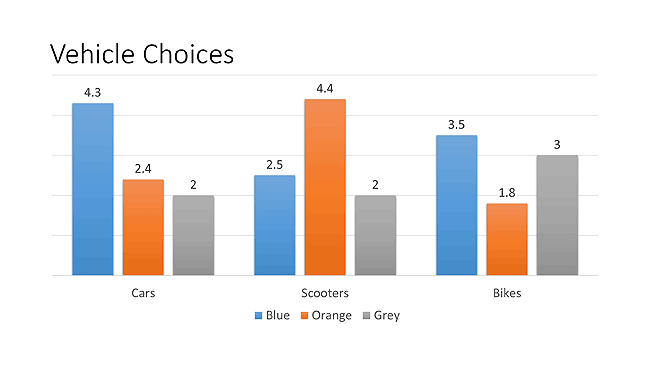
Learn about the Data Labels in PowerPoint charts.
Filed Under:
Charts and Diagrams
Tagged as: Charting, Data, Data Labels, PowerPoint, Tutorials
Comments Off on Data Labels in PowerPoint Charts
Microsoft and the Office logo are trademarks or registered trademarks of Microsoft Corporation in the United States and/or other countries.