
This is the print version of this page. All content is copyright Indezine.com 2000-2026.
Thoughts and impressions of happenings in the world of PowerPoint and presentations, continuously updated since 2003.
See Also:
PowerPoint and Presenting Notes
PowerPoint and Presenting Glossary
Once you insert a video clip on your slide, you can do so much more to enhance its look. Probably, you may want to apply corrections or recolor your videos. Additionally, you can also apply any of the preset Video Styles available. This is a quick and easy way to add some character to your video without spending too much time. Further, there are small niceties that PowerPoint 2016 provides, such as adding a border to your video clip. In this tutorial, we’ll explore how to add a frame-like effect to your video by using the Border option.

Learn how to add and edit borders for video clips in PowerPoint 2016 for Windows.
Filed Under:
PowerPoint 2016
Tagged as: Border, Microsoft Windows, Office 2016, PowerPoint 2016, Tutorials, Video
Comments Off on Video Borders in PowerPoint 2016 for Windows

James Toms is a marketer transformed into an entrepreneur when he founded Pslides. He has a heavy background in design and data visualization and was three years old when PowerPoint first launched. In his own words, he “feels like he’s been using it ever since!” James is an advocate for a minimalistic design and gets nervous when he sees too much text on a slide.
In this conversation, James discusses PowerPoint templates from Pslides.
Geetesh: James, tell us about Pslides. What prompted you to create another PowerPoint template site? What did you want to be different?
James: Pslides is dedicated to helping you create highly visual, informative slides. We provide business owners, managers, and executives with quality PowerPoint templates that can be instantly downloaded and easily editable. Our growing selection of templates covers many different areas including ‘Business’, ‘Marketing’, ‘Strategy’, ‘Education’ and much more.
Behind Pslides, there is a small group of creative PowerPoint designers who took up a giant mission to make the world of presentation design better. We created Pslides after experiencing first-hand how low the quality of slides being used in a corporate environment was and knew that both presenters and audiences deserved better.
Geetesh: How can PowerPoint templates from Pslides help users save time and create beautiful content? Can you share some ideas?
James: All our PowerPoint templates are fully editable. They are designed to be changed, tweaked, and adapted to fit the style and branding of your business or organization. As an example, here is how editable our 4 Levels 3D Pyramid Infographic PowerPoint Template is:
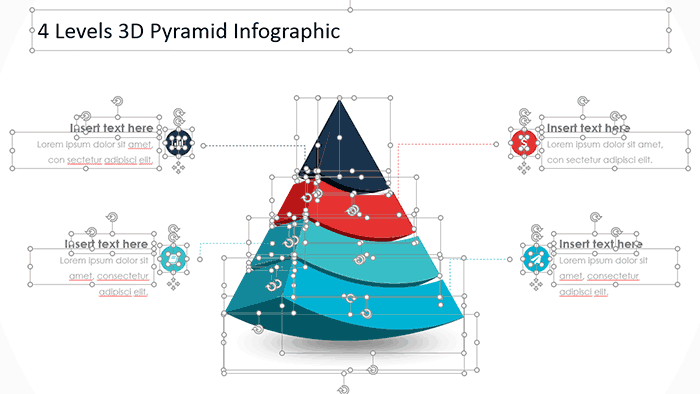
And how easy it is to change the color scheme:

Users that are subscribed can also use Pslides as their own personal template library as every template they have downloaded is stored and can be downloaded again when it’s needed. Finally, we are adding new templates on a weekly basis and if you can’t find what you are looking for, contact us and we would be happy to create it for you.
The views and opinions expressed in this blog post or content are those of the authors or the interviewees and do not necessarily reflect the official policy or position of any other agency, organization, employer, or company.
Filed Under:
Interviews
Tagged as: Interviews, James Toms, Pslides, Templates
Comments Off on Pslides: Conversation with James Toms
Similar to Shape Styles that you apply to shapes, PowerPoint provides you with Video Styles for your inserted video clips. These pre-built Video Styles add edges, shapes, and effects to videos, and apply with just a single click. Your videos no longer need to be rectangular. Some of the Video Styles make the video clip to play within an oval or a rounded rectangle. Video Styles also transform the look of your inserted videos by applying borders, 3-D effects, shadows, frames, etc. around your video clip.

Learn how to apply preset Video Styles to video clips in PowerPoint 2016 for Windows.
Filed Under:
PowerPoint 2016
Tagged as: Microsoft Windows, Office 2016, PowerPoint 2016, Styles, Tutorials, Video
Comments Off on Video Styles in PowerPoint 2016 for Windows
At times, you may want to change your default version of PowerPoint. This decision can be important for you if you have multiple versions of PowerPoint installed on your system. Typically the last version installed is the default version, but there are other ways to change the defaults, and all of them do not work all the time! Let us explore some options if you want to set PowerPoint 2016 as your default version.

Filed Under:
PowerPoint 2016
Tagged as: Default, Microsoft Windows, Office 2016, PowerPoint 2016, Tutorials
Comments Off on Set PowerPoint 2016 for Windows as the Default Version

Kartik Sundar is focused on helping PowerPoint users improve their productivity. As a former corporate strategy and management consultant, Kartik has firsthand knowledge of consulting, sales, and marketing workflows. In addition, he understands the process of building insightful business presentations. Kartik has leveraged this background as a co-founder at Aploris GmbH, a software firm that builds PowerPoint-focused productivity tools.
In this conversation, Kartik discusses TeamSlide Pro, a desktop slide search solution that keeps PowerPoint content at your fingertips.
Geetesh: What does TeamSlide Pro’s desktop search product do? Please explain your takeaway idea for a novice user.
Kartik: TeamSlide Pro is a PowerPoint search tool that helps you instantly find the slide you need. It enables you to search for individual slides from across presentations in all your folders and even in your email attachments.
Instead of hunting through folders and emails to find that one slide you created last month, with TeamSlide you can search, preview, and insert individual slides all without leaving PowerPoint.
The Indezine audience can try TeamSlide Pro here.
TeamSlide Pro has two primary components:
TeamSlide Engine: The TeamSlide engine locally indexes your PowerPoint presentations located in selected folders and email. In addition, the engine creates preview images for all your slides. It enables you to search across all your documents to find the specific slides you need. Note that all your content remains on your computer.

PowerPoint add-in: The TeamSlide PowerPoint add-in is the primary user interface. From within PowerPoint, you can search, preview, and insert slides into your active presentation. The add-in allows you stay within your workflow and avoid disruption.

In addition to desktop search, TeamSlide offers a business product that enables users to build a shared repository or connect to an existing content system such as SharePoint, Dropbox, and Box. I have previously discussed this product with Indezine.
Geetesh: There are several slide management programs available today that work as desktop-based or cloud-based options. What sets TeamSlide Pro apart from all other products?
Kartik: At TeamSlide, our team has a unique set of business experience and technical know-how that differentiates us.
From a UI/ease-of-use perspective, our unique add-in offers incredibly easy access to your slides, and the intuitive design ensures that even PowerPoint beginners can immediately pick up TeamSlide. One customer explained to his team, “If you can use Google, you can use TeamSlide!”
Our search capabilities are built based on first-hand experience working with large repositories and also from directly speaking with users. These experiences and constant feedback have shaped our search formula and slide filtering capabilities to ensure you quickly find specific slides. For example, TeamSlide can automatically filter duplicate and title slides to clean-up search results.
Lastly, we spend time with our customers to ensure they are set up for success. Beyond just providing a tool, we work closely with our customers, sharing best practices and driving operational tasks that lead to business results.
Take a moment to try TeamSlide Pro (free) and start saving time and improving productivity.
The views and opinions expressed in this blog are those of the authors and do not necessarily reflect the official policy or position of any other agency, organization, employer, or company.
Filed Under:
Interviews
Tagged as: Digital Asset Management, Kartik Sundar, Presentation Management, Slide Management, TeamSlide
Comments Off on TeamSlide Pro: Conversation with Kartik Sundar
Microsoft and the Office logo are trademarks or registered trademarks of Microsoft Corporation in the United States and/or other countries.