
This is the print version of this page. All content is copyright Indezine.com 2000-2026.
Thoughts and impressions of happenings in the world of PowerPoint and presentations, continuously updated since 2003.
See Also:
PowerPoint and Presenting Notes
PowerPoint and Presenting Glossary
Once you insert a video in your slide, you can crop it in almost the same way you crop a picture. The Crop option allows you to remove non-required areas of a video. For example, if the subject of your video is a person speaking who is surrounded by a large, distracting background of other people or moving objects, you may want to crop the video so that the cropped video now focuses more on the speaker, and gets rid of all the extra distractions.

Crop video clips in PowerPoint 2016 for Windows.
Filed Under:
PowerPoint 2016
Tagged as: Crop, Microsoft Windows, Office 2016, PowerPoint 2016, Tutorials, Video
Comments Off on Crop Video in PowerPoint 2016 for Windows
After inserting a video within your presentation, you may see a blank/black rectangle instead—caused by the file format of the video clip inserted on the slide. Not all the formats show these blank/black rectangles. In fact, you may also see the first frame of the video clip in some cases. However, if you do see this blank/black rectangle, do note that it may look professional. With PowerPoint’s Poster Frame option, you can easily overcome this limitation, and change the black rectangle to a picture of your choice by selecting a frame from the video itself, or even a picture from a different source.

Add a Poster Frame for your video clip in PowerPoint 2016 for Windows.
Filed Under:
PowerPoint 2016
Tagged as: Microsoft Windows, Office 2016, Poster Frame, PowerPoint 2016, Tutorials, Video
Comments Off on Poster Frames for Videos in PowerPoint 2016 for Windows
We first look at real 3D inside PowerPoint. Some of you will soon see this feature on your Office 365 equipped machines–we also have a cool video demo to share with you. James Toms of Pslides talks to us in an exclusive conversation. James is an advocate for minimalistic design and gets nervous when he sees too much text on a slide–he talks about content templates for PowerPoint. From TeamSlide Pro, we have Kartik Sundar who tell us more about their fascinating PowerPoint slide management product.
PowerPoint 2016 for Windows users will learn about Video Correction Adjustments, Video Recolor Options, Video Styles, and setting your default PowerPoint version. We also cover the last tutorial for PowerPoint 2013 users. Finally, do not miss the quotes, press releases, and templates of this week.

Stay informed about updated tutorials and happenings on Indezine.
Filed Under:
Ezine
Tagged as: Ezine, News, PowerPoint
Comments Off on PowerPoint and Presenting News: July 11, 2017
In PowerPoint, if you want to enhance the look of your inserted video, you are certainly not limited to the options we have already explored including Corrections, Recolor, Video Styles, and Video Borders. In addition to these options, you can also apply Video Effects such as shadows, glows, bevels, 3-D rotation, etc. to your video clip. Follow these steps to explore Video Effects in PowerPoint 2016.
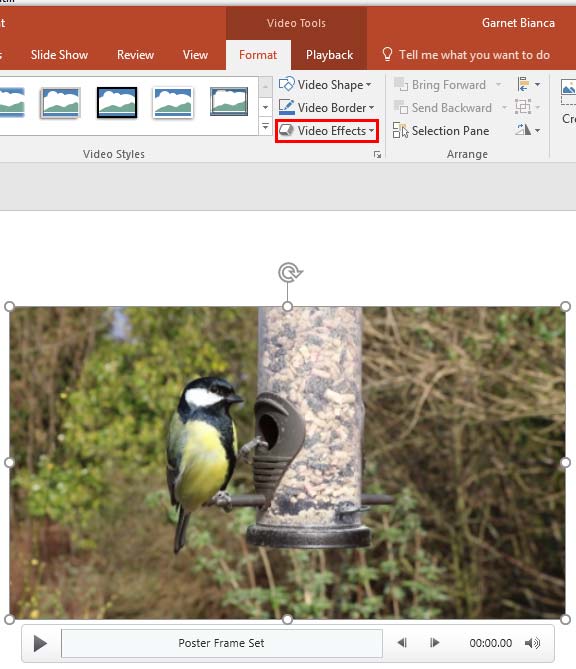
Learn about applying Video Effects in PowerPoint 2016 for Windows.
Filed Under:
PowerPoint 2016
Tagged as: Effects, Microsoft Windows, Office 2016, PowerPoint 2016, Tutorials, Video
Comments Off on Video Effects in PowerPoint 2016 for Windows
Here’s the most comprehensive list of PowerPoint 2013 keyboard shortcuts that we know. How many of these do you presently use? Speed up your PowerPoint usage with these shortcuts, and enjoy some free time!
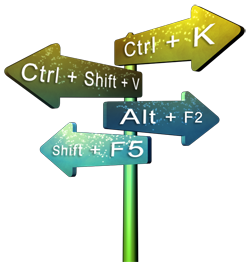
Explore keyboard shortcuts in PowerPoint 2013 for Windows.
Filed Under:
PowerPoint 2013
Tagged as: Keyboard Shortcuts, Microsoft Windows, Office 2013, PowerPoint 2013, Tutorials
Comments Off on Keyboard Shortcuts: PowerPoint 2013 for Windows
Microsoft and the Office logo are trademarks or registered trademarks of Microsoft Corporation in the United States and/or other countries.