
This is the print version of this page. All content is copyright Indezine.com 2000-2026.
Thoughts and impressions of happenings in the world of PowerPoint and presentations, continuously updated since 2003.
See Also:
PowerPoint and Presenting Notes
PowerPoint and Presenting Glossary
In today’s newsletter, we begin by looking at Silhuetas, a presentation that Portugal-based Miguel Monteiro shares with Indezine readers. And Jamie Garroch of YOUpresent shows how you can effectively manage PowerPoint guides in both templates and presentations with the new options available in his G-Tools add-in for PowerPoint.
PowerPoint 2016 for Windows users can learn about inserting new charts and editing the data for charts. We also look at Translation options. PowerPoint 2013 users can explore Trust Center Settings whereas PowerPoint 2011 for Mac users can find out about setting PowerPoint 2011 as the default version. Finally, do not miss the press releases and templates of this week.

Stay informed about updated tutorials and happenings on Indezine.
Filed Under:
Ezine
Tagged as: Ezine, PowerPoint
Comments Off on PowerPoint and Presenting News: May 30, 2017
Making a chart look different translates to so much involvement. That’s because each chart has almost 10 or more elements that contribute to its appearance. Of course, you can format all these 10 elements individually, and end up spending some quality time exploring nuances that end up with some amazing and distinctive results. But what if you want the same format applied to another chart? The same format will be difficult to apply to any other chart because you will have to remember all the attributes you applied in the first chart—not to speak about the time it will take to create a coordinated chart. The savior, in this case, can be the amazing Chart Styles option in PowerPoint 2016.
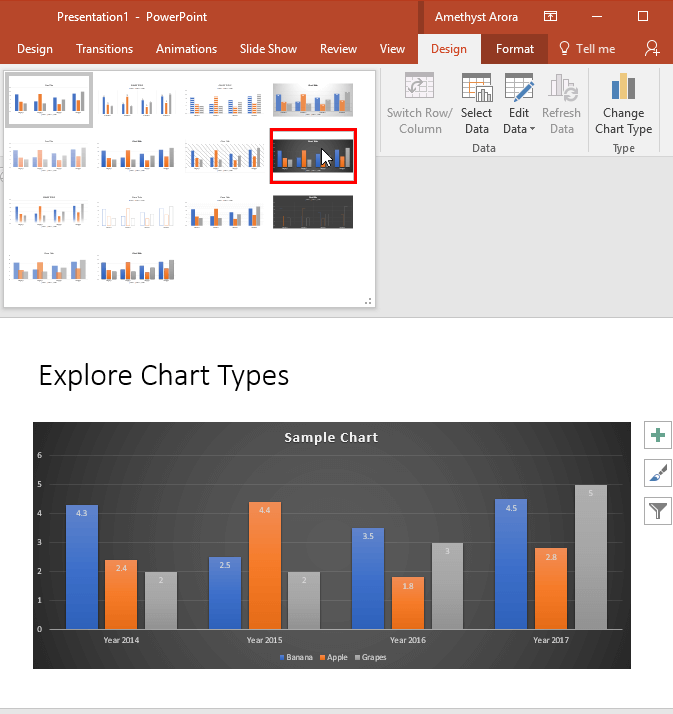
Learn how to apply predefined Chart Style to your charts in PowerPoint 2016 for Windows.
Filed Under:
PowerPoint 2016
Tagged as: Charting, Microsoft Windows, Office 2016, PowerPoint 2016, Tutorials
Comments Off on Chart Styles in PowerPoint 2016 for Windows
Public speaking, presenting, whatever you want to call it can be terrifying but if you get your slides right not only will you feel way more confident delivering your presentation but your audience will be grateful too. Here are our do’s and don’ts you should follow when creating your slides.
Stock templates are generic, boring, and overused. Invest some time into building your own PowerPoint template. It’ll give your presentations a bespoke feel that off-the-shelf templates can’t match.
If you’re placing text over an image or colored background, make sure it’s readable. If not, adjust the colors or contrast until it is.
You’re not trying to complete the rainbow: three or four complementary colors should be plenty.
There’s no need to deploy the neon pink, but make sure your colors stand out. Avoid using competing colors in bar charts and don’t place yellow or light blue against a white background.
Transitions exist to help your presentation flow and enhance it, not overload it. Less is more.
If your audience has to read and listen to you at the same time, one of the two is going to be ignored. Your slides should be used to convey key points only.
Ok maybe they’re ok for highlighting key points but if you’re going to deploy them for every line of text on every slide, what’s the point in having them at all?
Left alignment looks best in presentations; avoid centering body text.
For body text, sans serif fonts are more legible. Save the serifs for titles and headers if you must, but don’t go overboard – you won’t need more than two or three fonts throughout your presentation.
The size of your font will naturally affect its legibility, but you also need to think about the ratio between your header and body text. Bear in mind the size of the room you’ll be presenting in. Will those at the back be able to read it?
Be consistent with your fonts. Whatever font you choose for your headers and body text should be the same throughout.
You can highlight key words and phrases to draw your audience’s attention to key concepts but highlighting entire sentences just looks bad.
Stock photos are great but cheesy, cliched ones are worse than PowerPoint clipart. Sites like Unsplash, Pexels, and Death to the Stock Photo can provide a welcomed alternative to the traditional stock photo sites.
Remember it’s not a photo album it’s a presentation so stick to one image per page (that doesn’t mean one image on EVERY page)
Charts, arrows, completion bars, and other graphics can all help to enhance your presentation when used effectively.
If you have the time you could apply the same filter to all of your images. This will give your presentation a harmonious and professional sheen. If you’re not a Photoshop user, you can use web-based software such as Canva to batch-apply filters.
So, there you have it. Follow these tips when creating your slides and your presentation will be so beautiful it’ll belong in a gallery (well maybe we’re exaggerating a touch). Now you’ve just got to deliver it. But that’s all on you.

Image: Pixabay

James Robinson is the Marketing Manager for Buffalo 7, the UK’s leading PowerPoint presentation design agency.
Buffalo 7 works with names including UEFA Champions League, Dell, Red Bull, Facebook, and the BBC.
See Also: SwiftPrez / PresentAssist: Conversation with Jamie Garroch
The views and opinions expressed in this blog post or content are those of the authors or the interviewees and do not necessarily reflect the official policy or position of any other agency, organization, employer, or company.
Filed Under:
Guest Posts
Tagged as: Beautiful Presentations, Buffalo 7, Guest Post, James Robinson
Are you unable to locate PowerPoint 2016 on your Mac computer? Sometimes, such a question can be embarrassing! Or are there other versions of PowerPoint on your computer—maybe older versions? Yes, we know that this can happen, although it does sound a little strange. However, there are perfectly valid excuses for you to be unable to locate PowerPoint.

Do you have PowerPoint 2016 installed on your Mac? Here’s how you can find out.
Filed Under:
PowerPoint 2016
Tagged as: Office 2016, Office for Mac, PowerPoint 2016, PowerPoint for Mac, Tutorials
Comments Off on Locate PowerPoint 2016 for Mac
Do you quickly need to translate your slides from English to French or some words from English to Hindi? The best option available to you is to get a professional translator but did you know that PowerPoint includes rudimentary translation skills? This translation is not something that you could use without checking the results, but this is still a great start.

Learn about translation from one language to another in PowerPoint 2016 for Windows.
Filed Under:
PowerPoint 2016
Tagged as: Microsoft Windows, Office 2016, PowerPoint 2016, Translation
Comments Off on Translation in PowerPoint 2016 for Windows
Microsoft and the Office logo are trademarks or registered trademarks of Microsoft Corporation in the United States and/or other countries.