
This is the print version of this page. All content is copyright Indezine.com 2000-2026.
Thoughts and impressions of happenings in the world of PowerPoint and presentations, continuously updated since 2003.
See Also:
PowerPoint and Presenting Notes
PowerPoint and Presenting Glossary
If you already spent many hours creating slides, it’s definitely worth using them effectively. Slideshows are not only useful as a visual back-up for oral presentations – they can also be used to inform your prospects, to get new leads, and to turn them into paying customers. In this blog post, we will have a closer look at the importance of slideshows in the process of capturing and validating leads.

Filed Under:
Interviews
Tagged as: Beamium, Guest Post, Online Presentations, Opinion, Promoted Post
Comments Off on Slideshows: The Better Way to Capture and Validate Leads
The folks at Eyeful Presentations created a PowerPoint adaptation of The Beauty and the Beast. I reached out to Eyeful, and their Managing Director, Rob Bailey graciously responded. We also explore two articles from our archives on case studies for using Callouts effectively.
In the Tutorials section, PowerPoint 2016 users will learn a lot about Custom Dictionaries. We explore creating and editing, plus how you can disable, enable, and set the Default Custom Dictionary. We also look at sharing Custom Dictionaries. For PowerPoint 2013 users, we look at Embedding Fonts and Backstage View’s Program Options. Finally, do not miss the press releases and templates of this week.

Stay informed about updated tutorials and happenings on Indezine.
Filed Under:
Ezine
Tagged as: Ezine, Indezine, News, PowerPoint
Comments Off on PowerPoint and Presenting News: April 18, 2017
If you created a long presentation for a particular event or concept and then realize that you used the wrong terminology across the presentation, then what would you do? Yes, you can manually find the problem word and replace its each occurrence. But what if you have more than a few slides? Or even then, you might miss out locating the problem word in some occurrences. Your best choice is to do replace using the Find and Replace option in PowerPoint 2016.
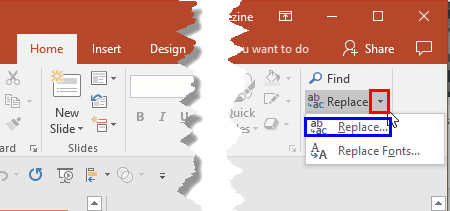
Learn how to find and replace words in PowerPoint 2016 for Windows.
Filed Under:
PowerPoint 2016
Tagged as: Microsoft Windows, Office 2016, PowerPoint 2016, Proofing, Replace, Tutorials
Comments Off on Find and Replace Words in PowerPoint 2016 for Windows
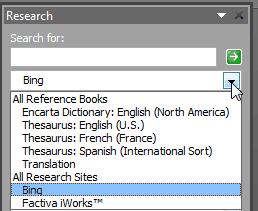
Creating a slide deck, and you suddenly want to authenticate a figure or double-check a fact? Well, there’s no need to open a web browser or even access a conventional dictionary. Research, a less explored option available is available within most Microsoft Office applications, including PowerPoint. This option connects with various online and offline reference sources such as translations, dictionaries, and news services.
Filed Under:
PowerPoint 2010
Tagged as: Microsoft Windows, Office 2010, PowerPoint 2010, Reference, Research, Tutorials
Comments Off on Research Tools in PowerPoint 2010 for Windows
There is a tale that Microsoft commissioned Arial because they wanted something similar to Helvetica as part of their Windows 3.1 operating system in 1992. The latter part may be true, but Microsoft did not commission Arial. Arial was already in existence, ten years prior in 1982 as a bitmap font for IBM printers. It evolved from a 1920s typeface called Monotype Grotesque. However, it won’t be diluting the truth to state that Arial owes its omnipresence to Microsoft Windows.

Explore Arial, a font that’s so omnipresent that you may have grown up using it!
Filed Under:
Fonts
Tagged as: Arial, Fonts, PowerPoint, Tutorials
Comments Off on Explore Fonts: Arial
Microsoft and the Office logo are trademarks or registered trademarks of Microsoft Corporation in the United States and/or other countries.