
This is the print version of this page. All content is copyright Indezine.com 2000-2026.
Thoughts and impressions of happenings in the world of PowerPoint and presentations, continuously updated since 2003.
See Also:
PowerPoint and Presenting Notes
PowerPoint and Presenting Glossary
In an exclusive post, Jon Heathcote talks about the need to use roadmaps on PowerPoint slides. We also explore how you can identify font types in Microsoft Windows 8–we already have similar tutorials for other Windows versions.
In the Tutorials section, PowerPoint 2016 users can learn about drawing all types of lines: Straight, Curved, Freeform, and Scribbles. Finally, do not miss the new press releases and templates of this week.

Read Indezine’s PowerPoint and Presenting News.
Filed Under:
Ezine
Tagged as: Ezine, Indezine, News, PowerPoint
Comments Off on PowerPoint and Presenting News: February 14, 2017
The ZIP file that you will download contains five Night Sky Starlit Backgrounds in three resolutions: Full Size: 4000×2250 pixels (16:9), Widescreen Size: 1365×768 pixels (16:9), and Standard Size: 1024×768 (4:3). Not only can you use these graphics for slide backgrounds, but these background designs can also animate between slides using PowerPoint’s Morph transition.
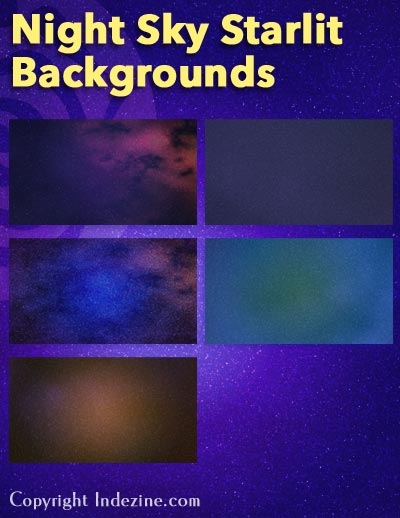
Download and use these night sky backgrounds.
Filed Under:
Presentation Bank
Tagged as: Background, Downloads, PowerPoint
Comments Off on Night Sky Starlit Backgrounds
SmartArt is a handy diagramming tool that first showed up in PowerPoint 2007 for Windows. These days, you can find it on just about every platform PowerPoint runs on—Windows, Mac, Android, iOS, and even the Web. The magic of SmartArt? It lets you ditch boring bullet points and turn your text into eye-catching infographics, with shapes that make your content pop.

Discover how to work with SmartArt in PowerPoint.
Filed Under:
PowerPoint All Versions
Tagged as: PowerPoint, SmartArt, Tutorials
Comments Off on What is SmartArt?
This is a promoted post.
There are only two certainties in life; death and taxes – so said, Benjamin Franklin. While the rest of our lives can’t be so easily predicted, if you’re alive in the 21st century it’s almost also a certainty that you’ve had to (or will have to) use PowerPoint to present something. Indeed, PowerPoint has become so ubiquitous as a medium for communicating ideas, stories, and plans, that there’s no sign of it going away anytime soon either. In fact, for those that have learned to exercise the strengths of PowerPoint, it can become a flexible and powerful tool for educating and persuading audiences of all kinds—on all manners of subject.

So while PowerPoint continues to be such a fundamental part of the way we all communicate, there will always be a need to help people create and deliver great messages through the use of PowerPoint. While this challenge is very much centered around the structure, the flow, and the content, it also helps to align those components around a visual framework to keep your audience interested and engaged. And that’s exactly our mission here at My Product Roadmap. We build great looking PowerPoint templates that provide structure and flow for the business specific content our customers want to create a message around.

Now while the number of types and styles of templates available for PowerPoint is vast, My Product Roadmap has a specific focus on creating unique roadmap templates. If you are a product or services company, you will more than likely maintain a roadmap for your product or service.
A roadmap is a communication tool, used to tell a story of trends and influences driving both your business and product strategy forward. Unlike a timeline template (which typically represents some tightly defined project schedule), it is a broad-strokes view of where a product is going in the future; that could be the next 6 months or the next 6 years, depending on the size and scope of the themes presented.
Roadmap presentations are an essential part of telling stakeholders, customers and even the market you serve, how your product or service is being built around them, and their needs and why your company is best placed to deserve their ongoing loyalty and custom.

Anyone responsible for product portfolio management will appreciate the challenge of building and maintaining a product roadmap that is full of the right details, simple enough for their audience to comprehend and a pleasure to evangelize. Having that in a format that’s easy to share with customers and senior management alike really helps too. Like with many things in life, using the right product roadmap tools will help you get the job done quicker, more efficiently and with a better outcome, giving you more time to focus on all the other parts of the product or service management process.
For that reason, My Product Roadmap has built an extensive range of roadmap templates for Powerpoint that will help to deliver the right message in the right structure for most roadmap audiences. Whether you’re doing agile planning or showing off long time frame market themes, we’re sure you’ll find the strategic roadmap diagram that’s right for you.
Filed Under:
Guest Posts
Tagged as: My Product Roadmap, Presentation Samples, Promoted Post, Templates
Comments Off on Roadmaps in PowerPoint
Drawing with the Scribble line tool is almost the same as drawing with the Freeform line tool, but there is one vital difference. You don’t need to double click to create an end point for your line with the Scribble tool. Also, once you start drawing with the Scribble tool, you can’t release the mouse button until you finish drawing. So, you can’t draw a perfect, straight line as you would do with the Freeform line tool. The point where you release the mouse button will be the end point for the drawing.

Learn how to draw with the Scribble line tool in PowerPoint 2016 for Windows.
Filed Under:
PowerPoint 2016
Tagged as: Drawing, Lines, Microsoft Windows, Office 2016, PowerPoint 2016, Shapes, Tutorials
Comments Off on Drawing Scribble Lines in PowerPoint 2016 for Windows
Microsoft and the Office logo are trademarks or registered trademarks of Microsoft Corporation in the United States and/or other countries.