
This is the print version of this page. All content is copyright Indezine.com 2000-2026.
Thoughts and impressions of happenings in the world of PowerPoint and presentations, continuously updated since 2003.
See Also:
PowerPoint and Presenting Notes
PowerPoint and Presenting Glossary
When a shape is inserted into a PowerPoint slide, its default appearance is related to the points that it contains. Alter the points, and you can change the original shape to anything you want. PowerPoint’s native Edit Points tool makes it almost a drawing program that provides you the option to play with vertexes (points), handles, etc. This is very similar to what you would do in Adobe Illustrator, CorelDRAW or another drawing program. By using the Edit Points tool, you can change a rectangle to a rhombus, or even edit a curved or freeform line differently.

Learn how to alter a shape in PowerPoint 2016 for Windows by using the Edit Points option.
Filed Under:
PowerPoint 2016
Tagged as: Drawing, Lines, Microsoft Windows, Office 2016, PowerPoint 2016, Shapes, Tutorials
Comments Off on Edit Points for Shapes in PowerPoint 2016 for Windows

Gavin McMahon is a senior partner and co-founder of fassforward Consulting Group, where he advises Fortune 100/500 companies on business strategy. He brings a unique perspective on growth and innovation to his clients–driving outcomes, traction, and results.
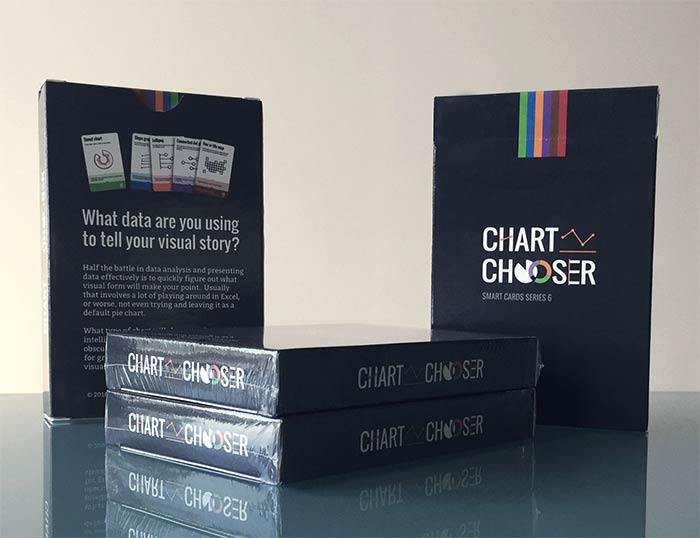
In this conversation, Gavin discusses his Chart Chooser Cards he created with Dr. Stephanie D. H. Evergreen.
Geetesh: Chart Chooser Cards seem like a great idea, but I am sure so much thought must have gone in their implementation. So what did you and Stephanie have to do so that the cards would be easy for others to use?
Gavin: It’s said that data speaks for itself, but this is rarely the case. In our experience, many professionals struggle to make their data sing. Most audiences are either confused by data or bored by it.
Data doesn’t need to be dry. It can tell powerful stories—if you know how to make it speak. But most of us don’t. The skill to craft data into cohesive arguments is lacking.
That’s the challenge many business professionals face today. It’s the challenge that Stephanie and I set out to address with our Chart Chooser Cards.
Chart Chooser Cards help professionals craft skillful arguments with data. No more using the same old pie chart over and over again. You can use the cards to choose the right chart design for your data to create story-telling impact.
Stephanie and I have worked together for years. We first met talking about presenter types, and later joined forces to develop a Presenting Data workshop for our clients. We started out developing Chart Chooser Cards for that workshop but put it on hold. Good ideas always come back, though, and here we are.
We looked at different charts that we found effective and categorized them. Some of those charts, such as bar charts, people would already be familiar with. Others are more unusual but far more effective for communicating, according to the research. What type of data you have determines the category of the chart. We color-coded those categories, so you have data based on time, that’s one category. If you have data based on survey responses, that’s another category, and so on.
It’s not just a collection of different chart types. In the deck, we’ve also included information on what people are looking for in data, and how to clean up your graphs, so the story is very clear.
We also learned from our experience with the Dirty Rhetoric communication card deck. We wanted to demystify the whole process as much as possible. Each card has the name of the chart type, a visual example, and a simple definition. If the chart type goes by different names, you will find that on the card. You will also find notes on what the best use for that chart type is, and usage theory is something the data visualization community is lacking.
Geetesh: Tell us more about the entire project—about Kickstarter, and about the extras such as templates you provide with the cards.
Gavin: We see KickStarter as a big brain trust for testing new ideas. It’s where thousands of innovative people go to look for unique concepts and to support projects.
Chart Chooser Cards are our second outing within the KickStarter community. We had success with Dirty Rhetoric on KickStarter. Dirty Rhetoric helps you find the perfect words. Chart Chooser helps you find the perfect chart.
KickStarter works best if you take part, with comments and messages. It’s very easy—but you have to keep it alive. The more you add thoughts or content, the more that community rallies around your idea and contributes to it. And in the case of the Chart Chooser Cards, that support took us to 1297% of our goal.
Based on our previous experience we knew it was important to build in the right ‘extras’. On Kickstarter, and now in the online store, Chart Chooser has extra options: an infographic poster, which is great in a classroom or cubicle, and a suite of Excel and Tableau templates that are a time-saving productivity tool.

The views and opinions expressed in this blog post or content are those of the authors or the interviewees and do not necessarily reflect the official policy or position of any other agency, organization, employer, or company.
Filed Under:
Interviews
Tagged as: Charting, Gavin McMahon, Interviews, PowerPoint, Stephanie Evergreen
Comments Off on Chart Chooser Cards: Conversation with Gavin McMahon
Bulleted text slides are part of most PowerPoint presentations, even though some people abhor using bulleted content altogether. On the other hand, many others just cannot do without slides that do not contain bulleted lists. And if you are part of either of these two opposing camps, you will love this cool feature in PowerPoint that takes a middle road approach by using SmartArt. You can enhance the look of some bulleted slides by converting them to a SmartArt graphic in PowerPoint.

Learn how you can convert bulleted text to a SmartArt graphic in PowerPoint 2016 for Windows.
Filed Under:
PowerPoint 2016
Tagged as: Microsoft Windows, Office 2016, PowerPoint 2016, SmartArt, Text, Tutorials
Comments Off on Convert Bulleted Text to SmartArt in PowerPoint 2016 for Windows
Some applications do identify font types by placing icons next to a particular font in a listing. Such behavior is an exception rather than a norm, and many times you may not know which font type you are choosing. And by font type, we mean the various font file formats such as OpenType, TrueType, etc. that are recognized by Microsoft Windows.
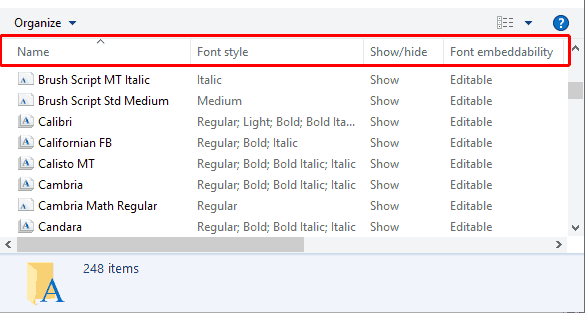
Learn how to identify font types in Windows 7.
Filed Under:
Microsoft Office
Tagged as: Fonts, Microsoft Office, Microsoft Windows, Tutorials
Comments Off on Identify Font Types in Microsoft Windows 7
SmartArt is a visual option in PowerPoint and some other Microsoft Office programs that allows you to create diagrams easily. Not only can you create SmartArt content from scratch, but did you know that you can convert your conventional bullet points into a SmartArt diagram? Clearly, there is so much to learn about SmartArt.

Learn how you can insert SmartArt graphics in PowerPoint 2016 for Windows.
Filed Under:
PowerPoint 2016
Tagged as: PowerPoint, SmartArt, Tutorials
Comments Off on Inserting SmartArt in PowerPoint 2016 for Windows
Microsoft and the Office logo are trademarks or registered trademarks of Microsoft Corporation in the United States and/or other countries.