
This is the print version of this page. All content is copyright Indezine.com 2000-2026.
Thoughts and impressions of happenings in the world of PowerPoint and presentations, continuously updated since 2003.
See Also:
PowerPoint and Presenting Notes
PowerPoint and Presenting Glossary
We bring you night sky backgrounds that are starlit — discover 5 backgrounds in amazing colors. We then interview Gavin McMahon who talks about his new Chart Chooser Cards he created with Dr. Stephanie D. H. Evergreen. We wind up the Identify Font Types series by showing how you can do so in Microsoft Windows 7. We also show you how you can create Word Clouds for PowerPoint using Word Cloud Generator.
In the Tutorials section, we explore SmartArt for all versions of PowerPoint. Additionally, PowerPoint 2016 users can learn about inserting SmartArt, converting bulleted text to SmartArt, editing points for Shapes, and adding or deleting points in shapes. Finally, do not miss the new press releases and templates of this week.

Read Indezine’s PowerPoint and Presenting News.
Filed Under:
Ezine
Tagged as: Ezine, Indezine, News, PowerPoint
Comments Off on PowerPoint and Presenting News: February 21, 2017
The Shapes gallery in PowerPoint consists of various shapes, both open and closed. Closed shapes are ones that do not have a “visible” beginning or an end such as the Rectangle, Ellipse, and Triangle shapes. Open shapes have a “visible” beginning and an end. An example of an open shape is a straight point to point line. Some tools within the Shapes gallery let you create both open and closed shapes; these are the Freeform Line, Curve, and Scribble tools. In addition, you can convert any closed shape into an open shape and vice versa, as you will learn in this tutorial.

Learn how you can open and close paths for shapes in PowerPoint 2016 for Windows.
Filed Under:
PowerPoint 2016
Tagged as: Drawing, Lines, Microsoft Windows, Office 2016, Paths, PowerPoint 2016, Tutorials
Comments Off on Edit Points: Open and Close Paths in PowerPoint 2016 for Windows
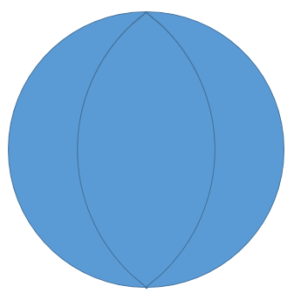
Do you want to create a flower diagram, or just draw a normal flower? You will soon realize that PowerPoint’s Shape Gallery offers no Petal shape or even no Leaf shape. However, PowerPoint’s amazing Merge Shapes tools allow you to create almost any shape without having actually to draw anything. And they also allow you to create convincing Petal shapes. We show you two ways to create a Petal shape in PowerPoint. The first way uses the Merge Shapes’ Union tool to create a tapered petal whereas the second way uses the Merge Shapes’ Fragment tool to create a curved petal.
Learn to draw petal shapes in PowerPoint quickly.
Filed Under:
PowerPoint All Versions
Tagged as: Drawing, Merge Shapes, PowerPoint, Shapes, Tutorials
Comments Off on Petal Shapes in PowerPoint
Every shape in PowerPoint is created using both points and segments. Points, also known as vertexes are pronounced areas of the shape, and segments are straight or curved lines that connect these points. It is easy to understand the relationship between points and segments using a connect-the-dots analogy. The points represent the dots whereas the segments represent the lines you draw between the dots. Both segments and points are only visible within Edit Points mode. We discuss segments in a subsequent tutorial; for now, let us explore different types of vertexes (points) in PowerPoint 2016 for Windows.

Learn about different types of points (vertexes) in PowerPoint 2016 for Windows.
Filed Under:
PowerPoint 2016
Tagged as: Lines, Microsoft Windows, Office 2016, Points, PowerPoint 2016, Tutorials, Vertexes
Comments Off on Types of Points (Vertexes) in PowerPoint 2016 for Windows
The Edit Points option gives you control over how you want a shape to look, but sometimes you might find it difficult to edit a certain segment in a shape because there are no points available to manipulate. Conversely, there could be far too many points! PowerPoint provides a simple solution for this problem: you can add and delete vertexes from a shape.

Learn how to add or delete points (vertexes) for a shape in PowerPoint 2016 for Windows.
Filed Under:
PowerPoint 2016
Tagged as: Drawing, Lines, Microsoft Windows, Office 2016, Points, PowerPoint 2016, Tutorials
Comments Off on Add or Delete Points (Vertexes) for Shapes in PowerPoint 2016 for Windows
Microsoft and the Office logo are trademarks or registered trademarks of Microsoft Corporation in the United States and/or other countries.