
This is the print version of this page. All content is copyright Indezine.com 2000-2026.
Thoughts and impressions of happenings in the world of PowerPoint and presentations, continuously updated since 2003.
See Also:
PowerPoint and Presenting Notes
PowerPoint and Presenting Glossary
The Freeform drawing tool lets you draw anything almost like drawing with a pencil on a piece of paper. Also, you can create straight lines; this dual capability of the Freeform tool provides you with more creative freedom. Significantly, it takes a while to master the Freeform tool. Practice alone will make your attempts perfect!
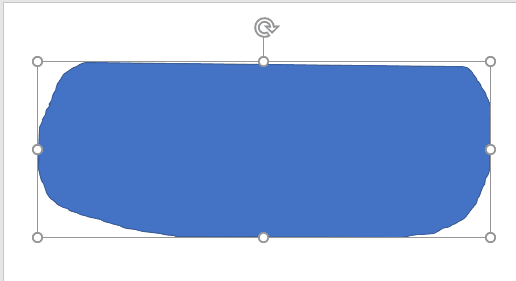
Learn how to draw with the Freeform line tool in PowerPoint 2016 for Windows.
Filed Under:
PowerPoint 2016
Tagged as: Drawing, Lines, Microsoft Windows, Office 2016, PowerPoint 2016, Tutorials
Comments Off on Drawing Freeform Lines in PowerPoint 2016 for Windows
Some applications do identify font types by placing icons next to a particular font in a listing. Such behavior is an exception rather than a norm, and many times you may not know which font type you are choosing. And by font type, we mean the various font file formats such as OpenType, TrueType, etc. that are recognized by Microsoft Windows.

Learn how to identify font types in Windows 8.
Filed Under:
PowerPoint 2008
Tagged as: Fonts, Microsoft Windows, PowerPoint, Tutorials
Comments Off on Identify Font Types in Microsoft Windows 8
Drawing a simple straight, point to point line in PowerPoint 2016 is a piece of cake. Now, in this tutorial, we’ll move on further to show you how you can draw a curved line. With curved lines, you can create both open and closed shapes.

Learn how to draw a curved line in PowerPoint 2016 for Windows.
Filed Under:
PowerPoint 2016
Tagged as: Drawing, Line, Microsoft Windows, Office 2016, PowerPoint 2016, Shapes, Tutorials
Comments Off on Drawing Curved Lines in PowerPoint 2016 for Windows
We feature an amazing tutorial from Duarte that looks at working with grids. We then explore alternative ways to work with fonts that are not available on all systems.
In the Tutorials section, PowerPoint 2016 users can learn about Shape Effects, such as 3-D Rotation Options and 3-D Depth. We also explore Super Themes, Duplicating Slides, and PowerPoint Program Options. Finally, do not miss the new press releases and templates of this week.
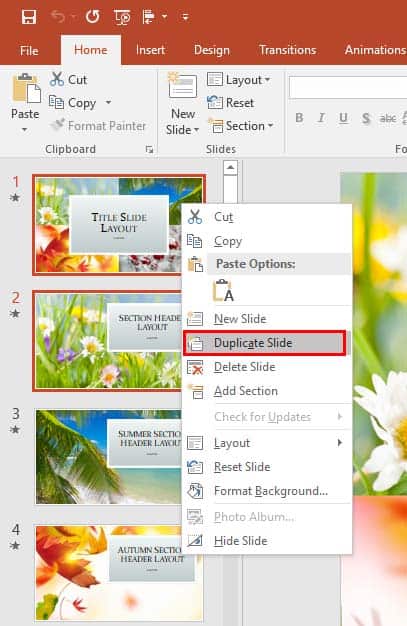
Read Indezine’s PowerPoint and Presenting News.
Filed Under:
Ezine
Tagged as: Ezine, Indezine, News, PowerPoint
Comments Off on PowerPoint and Presenting News: February 7, 2017
Beyond being just a program to create slides, PowerPoint is also a great illustration program with tools and options that rival top end graphic programs. Yes, you have learned how you can use readymade shapes in PowerPoint to place rectangles, circles, and hundreds of other shapes. However, PowerPoint also has the ability to create shapes from scratch by drawing them. These drawing tools are essentially the Line shapes that can be found within the Shapes gallery. This introductory tutorial shows you how to draw a simple line on the slide.

Learn how to draw a line in PowerPoint 2016 for Windows.
Filed Under:
PowerPoint 2016
Tagged as: Drawing, Line, Microsoft Windows, Office 2016, PowerPoint 2016, Shapes, Tutorials
Comments Off on Drawing Lines in PowerPoint 2016 for Windows
Microsoft and the Office logo are trademarks or registered trademarks of Microsoft Corporation in the United States and/or other countries.