
This is the print version of this page. All content is copyright Indezine.com 2000-2026.
Thoughts and impressions of happenings in the world of PowerPoint and presentations, continuously updated since 2003.
See Also:
PowerPoint and Presenting Notes
PowerPoint and Presenting Glossary
Unknown to many users, there are lesser known options within PowerPoint that can change your workflow, and make you work faster. Most of these preferences are to be found within the PowerPoint Options dialog box.

Learn about PowerPoint 2016’s Program Options that you can access from Backstage view.
Filed Under:
PowerPoint 2016
Tagged as: Microsoft Windows, Office 2016, Options, PowerPoint 2016, Tutorials
Comments Off on Options Tab in Backstage View in PowerPoint 2016 for Windows
Duplicating slides is a task that can be helpful, yet its value is not always understood. The first question asked is why would anyone want to duplicate slides? There are many reasons to do so. You may want to create another slide that is similar to what you already have. You may also want to use the same slide twice, or create a slightly edited chart than what you already have on an existing slide. Duplicating and editing a slide is easier than redoing it again.
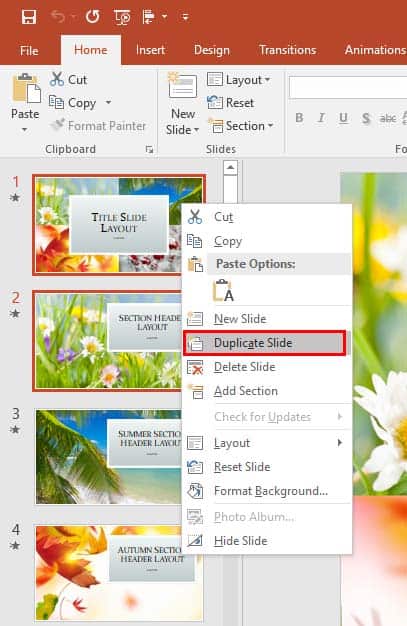
Learn how to duplicate slides in PowerPoint 2016 for Windows.
Filed Under:
PowerPoint 2016
Tagged as: Duplicate, Interface, Microsoft Windows, Office 2016, PowerPoint 2016, Tutorials
Comments Off on Duplicate Slides in PowerPoint 2016 for Windows
Create a presentation in PowerPoint 2016, using some of the built-in Themes, and you will have more options to change the look of your presentation slides slightly. By “slightly,” we mean that you don’t have to change to another Theme altogether, and yet you can make small changes in colors or design elements that still look very similar to your existing Theme. These small changes are “variants,” and a Theme that includes such variants is called a “SuperTheme.”

Explore Super Themes in PowerPoint 2016 for Windows.
Filed Under:
PowerPoint 2016
Tagged as: Microsoft Windows, Office 2016, PowerPoint 2016, Themes, Tutorials
Comments Off on Super Themes in PowerPoint 2016 for Windows
You all have heard about Nancy Duarte, a dear friend who is the CEO at Duarte, a presentation and storytelling company based in Sunnyvale, California.
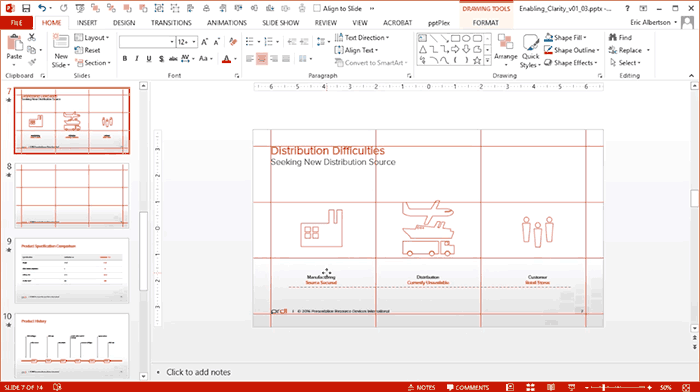
Duarte put up some amazing tutorial videos recently that talk about some key presentation design principles. In my opinion, anyone who creates or works with presentations can benefit immensely from the foundation principles explained in these videos. In today’s post, we will explore one such video that looks at how you can set up an effective Grid system to work with your slides in PowerPoint.
As you saw in the video, the design folks at Duarte do not use the Grid or the Guides features available within PowerPoint. They actually create their own Grid by drawing lines within PowerPoint.
I spoke to Zaki Hussain, Senior Marketing Manager at Duarte and asked him what motivated the team at Duarte to create such videos?
He responded: “These videos help non-designers establish a level of design consistency to their template to create an on-brand presentation.”

Zaki Hussain is a Senior Marketing Manager at Duarte. Duarte helps people and brands communicate persuasive ideas. Since 1988, Duarte has advised 25 of the top 35 global brands on creative presentations. Through public and corporate workshops, Duarte Academy has trained tens of thousands of professionals to become better communicators, storytellers, and persuasive presenters.
The views and opinions expressed in this blog post or content are those of the authors or the interviewees and do not necessarily reflect the official policy or position of any other agency, organization, employer, or company.
Filed Under:
PowerPoint All Versions
Tagged as: Duarte Design, Gridlines, Nancy Duarte, Tutorials
Comments Off on Duarte Tutorials: Working with Grids
Depth, as a parameter for 3-D objects, plays a very important role. In simple terms, Depth is the distance from the highest to the lowest, and typically has a value that’s larger than zero. Even though you rotate a shape that has a Depth of zero, you won’t see any optimum results. So, you can first rotate your object, but you must add Depth soon after.

Learn how you can add 3-D Depth to shapes in PowerPoint 2016 for Windows.
Filed Under:
PowerPoint 2016
Tagged as: 3D, Bevel, Depth, Effects, Microsoft Windows, Office 2016, PowerPoint 2016, Shapes, Tutorials
Comments Off on Apply 3-D Depth to Shapes in PowerPoint 2016 for Windows
Microsoft and the Office logo are trademarks or registered trademarks of Microsoft Corporation in the United States and/or other countries.