
This is the print version of this page. All content is copyright Indezine.com 2000-2026.
Thoughts and impressions of happenings in the world of PowerPoint and presentations, continuously updated since 2003.
See Also:
PowerPoint and Presenting Notes
PowerPoint and Presenting Glossary
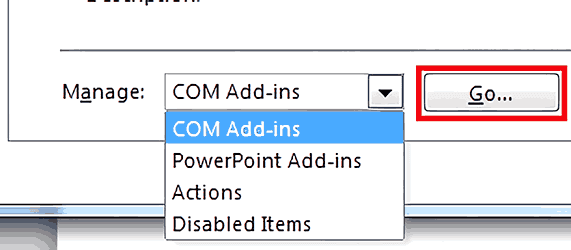
PowerPoint add-ins are awesome, small mini-programs that patch inside PowerPoint to extend abilities. While most add-ins automatically show up inside PowerPoint, some of them need to be loaded manually. And there may be times when you want to disable an add-in rather than completely uninstalling it. It’s possible to view, load and manage add-ins manually within PowerPoint, as we will show you in this tutorial.

Learn to manage and load add-ins in PowerPoint 2010 for Windows.
Filed Under:
PowerPoint 2010
Tagged as: Add-in, Microsoft Windows, Office 2010, PowerPoint 2010, Tutorials
Comments Off on Manage and Load Add-ins in PowerPoint 2010 for Windows
Add-ins are mini-programs that add new capabilities to PowerPoint. Some of these add-ins blend so seamlessly within PowerPoint; they almost appear to be PowerPoint-native options! At other times, you may have installed a new add-in but see no indication of any new, expected abilities within the program interface. Fortunately, PowerPoint provides a listing of all installed add-ins.
Learn how to view add-ins in PowerPoint 2010 for Windows.
Filed Under:
PowerPoint 2010
Tagged as: Add-in, Microsoft Windows, Office 2010, PowerPoint 2010, Tutorials
Comments Off on View Add-ins in PowerPoint 2010 for Windows
The situation is familiar: you or someone else uses a non-standard font (not a PowerPoint safe font) in your presentation. You then open this same presentation on another computer, and PowerPoint uses another font to display the same text. Why does it do so? The reason is simple enough: the font originally used is not available on the other system. The end user has no idea that PowerPoint substituted one font with another. There is no information provided at all. The font that is used as a substitute cannot be identified. If you have 500 fonts on your system, there’s no way to understand why PowerPoint used a certain font as a substitute.

You May Also Like:
Stop Underlining Your Descenders!
Can this Font be Embedded in PowerPoint?
Alternatives to Safe Fonts in PowerPoint
Filed Under:
Fonts
Tagged as: Embed Fonts, Fonts, PowerPoint, Tutorials
Comments Off on Find Substituted Fonts in PowerPoint
Adding a busy, multi-colored picture background to your slides is one of the worst things you can do to your PowerPoint presentation. People do so all the time, and in the process, they compromise the subtlety and contrast of any content on their slides. So why do they do so? As a picture, their chosen content may appear awesome. However, placing the same picture as a backdrop for text, charts, shapes, or other slide objects just work. Fortunately, you can reduce the visual noise in any picture by using the Recolor option within PowerPoint.

Learn how to recolor a picture background in PowerPoint 2016 for Windows.
Filed Under:
PowerPoint 2016
Tagged as: Background, Color, Microsoft Windows, Office 2016, Pictures, PowerPoint 2016, Tutorials
Comments Off on Recolor Picture Backgrounds in PowerPoint 2016 for Windows
Let’s admit that coins can look beautiful, especially if they are golden! Add an interesting light source and a stack of gold coins does appear warm and secure. However, what was once interesting can soon become boring; and then you may no longer like pictures that contain neat stacks of properly arranged coins.

Are coins synonymous with wealth? Are there other, better options?
Filed Under:
Clip Media
Tagged as: Clichés, Design, Graphics, Opinion, Pictures, PowerPoint, Visuals
Comments Off on Clichés: Stack of Coins Pictures in PowerPoint
Microsoft and the Office logo are trademarks or registered trademarks of Microsoft Corporation in the United States and/or other countries.