
This is the print version of this page. All content is copyright Indezine.com 2000-2026.
Thoughts and impressions of happenings in the world of PowerPoint and presentations, continuously updated since 2003.
See Also:
PowerPoint and Presenting Notes
PowerPoint and Presenting Glossary
PowerPoint provides various picture enhancement options such as Picture Adjustments, Picture Styles, Picture Effects, and Picture Borders. Beyond these options, there are some very significant yet basic picture editing options that you should consider. These include learning how you can Resize, Rotate, and Flip pictures. All of these options help you to enhance the look of your inserted pictures.

Learn how to resize, rotate, and flip pictures in PowerPoint 2016 for Windows.
Filed Under:
PowerPoint 2016
Tagged as: Graphics, Microsoft Windows, Office 2016, Pictures, PowerPoint 2016, Tutorials
Comments Off on Resize, Rotate, and Flip Pictures in PowerPoint 2016 for Windows
We feature Nancy Duarte’s Q and A for Presentation Guild members. We then hear Vinay Mohan of Slideteam, who shares some amazing tips that he explained as part of Ellen Finkelstein’s Outstanding Presentations webinar series. Maurizio La Cava of MLC-Design talks about his new book, Lean Presentation Design.
In the Tutorials section, PowerPoint 2016 users can learn about inserting pictures. PowerPoint 2013 users can explore the New option in Backstage view. PowerPoint 2010 users can look at reordering and removing Ribbon tabs, working with custom groups in the Ribbon, and adding commands within these custom groups. Finally, do not miss the new press releases and templates of this week.
Read Indezine’s PowerPoint and Presenting News.
Filed Under:
Ezine
Tagged as: Ezine, Indezine, News, PowerPoint
Comments Off on PowerPoint and Presenting News: November 29, 2016
For more than a decade, the online source of pictures for PowerPoint has been the pictures available online at Office.com. Now this option is no longer available in PowerPoint. Instead, you can use the Online Pictures option. This feature is very helpful as you are not limited to just the pictures available on your system. You get other picture sources, some of which also include Creative Commons pictures. And all this happens within PowerPoint. There’s no need to open your web browser.

Learn how to insert online pictures on a slide in PowerPoint 2016 for Windows.
Filed Under:
PowerPoint 2016
Tagged as: Graphics, Microsoft Windows, Office 2016, Pictures, PowerPoint 2016, Tutorials
Comments Off on Insert Online Pictures in PowerPoint 2016 for Windows
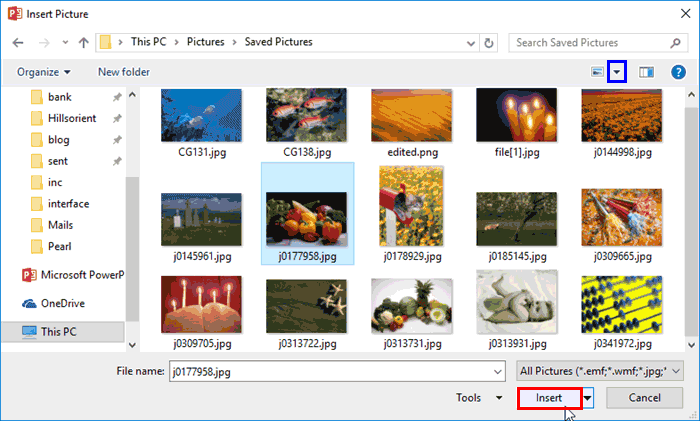
It is true that both pictures and words are important, and they both play complementary roles. If you had to choose just one of them; then seeing is a much more important part of presenting. Presentations, by their very nature, are meant to be seen since they evoke actions such as project, display, or broadcast; and all of these actions represent visual media. Text and speaking are important too, but you can be more effectively heard and remembered if your content includes both text and pictures. Adding pictures to your PowerPoint 2016 slide is a great way to add some visual detail.
Learn how to insert a picture on a slide in PowerPoint 2016 for Windows.
Filed Under:
PowerPoint 2016
Tagged as: Graphics, Microsoft Windows, Office 2013, Pictures, PowerPoint 2013, Tutorials
Comments Off on Insert Pictures in PowerPoint 2016 for Windows
If you want to customize your Ribbon in PowerPoint, you’ll want to add some of the commands that were not placed by default within any of the Ribbon tabs. Or maybe you want a particular command available on the Home tab of the Ribbon. Whatever your intent may be, you cannot place any commands within the existing groups that are built within PowerPoint. You first need to add a custom group within any of the tabs available in the Ribbon. Thereafter, you need to populate them with commands.

Learn how to add commands to custom groups in PowerPoint 2010 for Windows.
Filed Under:
PowerPoint 2010
Tagged as: Customizations, Microsoft Windows, Office 2010, PowerPoint 2010, Ribbon, Tutorials
Comments Off on Adding Commands to Custom Groups in PowerPoint 2010 for Windows
Microsoft and the Office logo are trademarks or registered trademarks of Microsoft Corporation in the United States and/or other countries.