
This is the print version of this page. All content is copyright Indezine.com 2000-2026.
Thoughts and impressions of happenings in the world of PowerPoint and presentations, continuously updated since 2003.
See Also:
PowerPoint and Presenting Notes
PowerPoint and Presenting Glossary
All Ribbon tabs in PowerPoint 2010 may have any number of buttons that represent commands but they are not scattered all over the tab area. In fact, all of them are neatly arranged together in Groups. Each of these Groups has a name that describes what the commands within that Group do. For example, the Slide Show tab in the Ribbon has a group named Set Up. This contains all commands that help you set up your slide show, such as changing show settings, hiding slides, rehearsing and recording slide shows, etc. It is only sensible to imagine that you should use this Group concept while creating custom Ribbon tabs. In fact, PowerPoint will not let you add any command anywhere else other than within a custom Group.

Explore working with Custom Groups within Ribbon Tabs in PowerPoint 2010 for Windows.
Filed Under:
PowerPoint 2010
Tagged as: Interface, Microsoft Windows, Office 2010, PowerPoint 2010, Ribbon, Tutorials
Comments Off on Working with Custom Groups in Ribbon Tabs in PowerPoint 2010 for Windows

Maurizio La Cava is a digital entrepreneur, marketer, blogger, public speaker, presentation design guru, and Founder at MLC-Design.
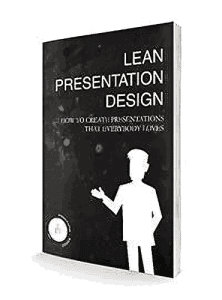
He is also the author of Lean Presentation Design, a top-rated freelancer, and a Professor at the European Institute of Design in Milan. His favorite quote is “Time is free, but it’s priceless”.
In this conversation, Maurizio talks about his book, Lean Presentation Design.
Geetesh: Maurizio, can you tell us more about what motivated you to write your book, Lean Presentation Design?
Maurizio: When you approach Presentation Design for the first time, you have about 4-7 must-read books that nowadays make up 90% of the theory about this discipline. After you read these books, you’ll start working, and you’ll find that many of the amazing guidelines that you studied are hard to apply in the day-by-day PowerPoint routine life.
The reality is that most of us have low creativity, tight timings, below-average design skills, and we do not know how PowerPoint works. However, we spend most of the time crafting presentations for our speeches, for our performance reviews, or for those of our bosses.
After a while, the fantastic books about Presentation Design are forgotten and remain a nice souvenir. When I started working in Presentation Design, I felt this frustration, and I understood that something was missing in the traditional theory.
Do not misunderstand me, I do love the theory about presentation design, but I think a bridge from theory to day-by-day life is strictly needed to take the discipline into practice.
Geetesh: What does the Lean approach mean to you, and how is it different from conventional approaches to presentation design?
Maurizio: Crafting a presentation requires time. If you work well using the correct techniques, you’ll be quick and you’ll create an effective presentation, but we both know that reality is often different.
We spend day in and day out on PowerPoint, wasting an enormous amount of time and generating huge costs for our companies. We often do not apply Presentation Design techniques, and so we end up realizing boring presentations.
Changing the point of view, do you remember the last meeting or conference you attended where the presenter was supported by a heavy, full-of-text, extremely boring presentation? You are not alone. Presentation Designers teach us that the audience is hit by “death by PowerPoint” every time they follow a speech supported by a bad presentation.
So, we can conclude that a bad presentation is a waste of time for both the presenter and the audience.
Traditional Presentation Design helps you make impactful presentations so people don’t get affected by “death by PowerPoint”, but it does not help those who need to craft the presentation, which represents the beginning of the whole process, and to optimize the way of doing so.
Applying Lean methodologies to Presentation Design, I created an innovative approach that allows everybody, even with zero design skills, to craft effective presentations, optimizing the time spent on doing it. Thus, the presenters will have impactful presentations, and the audience will enjoy them.
Thanks to Lean Presentation Design, creating outstanding presentations becomes easy and accessible to everybody.
You can get your copy now from Amazon.com (Paperback).
You May Also Like: MLC add-in for PowerPoint: Conversation with Maurizio La Cava
The views and opinions expressed in this blog post or content are those of the authors or the interviewees and do not necessarily reflect the official policy or position of any other agency, organization, employer, or company.
Filed Under:
Interviews
Tagged as: Books, Interviews, Maurizio La Cava, PowerPoint, Presentation Design
Comments Off on Lean Presentation Design: Conversation with Maurizio La Cava
PowerPoint 2010 sports the Ribbon, which is tabbed, and each of these tabs contains a set of commands. By default, PowerPoint 2010 contains eight such tabs. All tabs can be reordered as required. However, the eight default Ribbon tabs can only be reordered and not removed. However, many tabs including the Developer tab can be hidden.

Learn how to reorder Ribbon tabs and remove the custom tabs in PowerPoint 2010 for Windows.
Filed Under:
PowerPoint 2010
Tagged as: Customizations, Interface, Microsoft Windows, Office 2010, PowerPoint 2010, Ribbon, Tutorials
Comments Off on Reordering and Removing Ribbon Tabs in PowerPoint 2010 for Windows
When you launch PowerPoint 2013, it always provides you with an option to open a new blank presentation. Further, if you are already working on an open presentation, and want to create a new presentation at that point, you can do so using the New option within the Backstage View.

Learn about the New option within the Backstage view in PowerPoint 2013 for Windows.
Filed Under:
PowerPoint 2013
Tagged as: Backstage, Interface, Microsoft Windows, Office 2013, PowerPoint 2013, Tutorials
Comments Off on New Tab Options in Backstage View in PowerPoint 2013 for Windows

An entrepreneur at heart, Vinay Mohan completed his MBA from The Ohio State University and co-founded SlideTeam. Having made numerous PowerPoint presentations in B-school and earlier, he realized that there is no good one-stop PowerPoint resource on the web, where professionals can get excellent quality pre-designed slides. Realizing that there is an opportunity to service this market, he collaborated with like-minded professionals and co-founded SlideTeam, which has now become the world’s largest supplier of innovative, creative, and highly effective PowerPoint presentation content, and a go-to resource for anybody who uses PowerPoint.
He is also the Head of SlideTeam Presentation Design Services, a professional presentation design agency comprising 50+ PowerPoint experts and graphic designers.
In this conversation, Vinay talks more about the Outstanding Presentations 2016 webinar series.
Geetesh: Can you tell us more about your recent webinar as part of the Outstanding Presentations Workshop?
Vinay: I presented the topic of 6 Design Hacks to Quickly Create Powerful Business Slides and it was an exciting experience. The purpose of my talk was to teach professionals a simple approach to turn complex business ideas into powerful, easily understandable slides using visual aids.
Being in the PowerPoint industry for the last 10 years and after working on hundreds of business presentations, the most common trend I observed, unfortunately, is the absence of any visual element. Bullet-point slides are still the norm in presentations. The most common concern cited is “How can this concept be shown visually.” With that problem in mind, I gave hands-on, step-by-step instructions to turn 6 commonly used business slides into visually interesting and persuasive designs.
Inserting text over images is a very common problem that presenters face. Legibility of the text and the beauty of the image suffer when this is done unprofessionally. I, therefore, shared two design tricks that would help anyone make text legible, without losing on the power of a visual. One such design hack I shared in the webinar was the Gradient Mask. Below is an example which I shared during the webinar.
Before:

After:

Timeline is a powerful graphic to depict any planning slide, business milestones, development stages, or history of events slide. Creating a timeline is not a difficult task in PowerPoint. So, I walked the audience through easy steps to create a professional timeline diagram and improve the quality of their slides.
Before:

After:

Nothing depicts interrelated processes, teamwork and collaboration better than puzzle pieces. And creating them is just a 5-minute task in PowerPoint which I shared with the webinar audience.
Before:

After:

Data slides are often the most boring and incomprehensible slides with mind-numbing data. I shared the hacks to create Speedometer Dashboard—a powerful visual tool to tell stories with data.
Before:

After:

A business or marketing presentation remains incomplete without the strategy roadmap. Very few, however, take advantage of this visual aid. I shared the fastest way to accomplish a professional roadmap design in PowerPoint to pitch strategies with impact.
Before:

After:

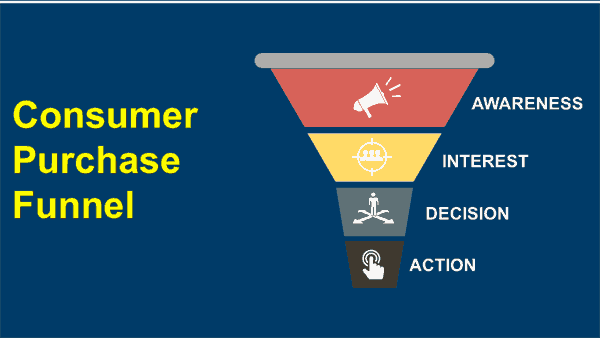
Again, presenters often need to show a consumer’s journey from lead to sales or stages of consumer behavior. A funnel is the appropriate visual for that and perhaps the simplest to create in PowerPoint which I shared through the webinar.
Before:

After:
Geetesh: What is the reason for poorly designed slides? In your opinion, what is the solution?
Vinay: First and foremost, 99% of presenters jump straightaway to PowerPoint when asked to deliver a presentation. Without a second thought, presenters tend to follow the default slide layout that opens on their computer screen—which is a heading on top and bullet points below. The slides are crammed with bullet points, and no logical sequence follows.
Secondly, lack of time, as well as skill, are big reasons for poorly designed slides. Even when people have the knowledge, a severe time crunch prevents them from working on the design of their presentation.
The solution to the first problem is to do Storyboarding which essentially means—Start on paper, not in PowerPoint. That way, you can properly structure your presentation, brainstorm and collect all ideas, and visualize in your head the best slide layout. Presentations can never fail if this rule is followed.
The solution to the second problem is to gain expertise in design or use pre-designed, professional presentation templates. PowerPoint beginners can gain expertise by following presentation resources on the web. Where users do not have the time to do it themselves, we offer a wide collection of pre-designed templates to help presenters make their presentations a visual success.
Designing beautiful presentations is not as tough as it seems. By taking care of the basic principles of design, anyone can create blockbuster slides. My purpose is to share the knowledge with all presenters out there. Conducting webinars is one such step in this direction and I am glad I got such a prestigious platform as Outstanding Presentations Workshop hosted by PowerPoint MVP Ellen Finkelstein to share the best presentation ideas with the global audience.
Get permanent access to the 2016 Outstanding Presentations Workshop, including Vinay Mohan’s webinar.
The views and opinions expressed in this blog post or content are those of the authors or the interviewees and do not necessarily reflect the official policy or position of any other agency, organization, employer, or company.
Filed Under:
Events
Tagged as: Interviews, Outstanding Presentations Workshop, PowerPoint, SlideTeam, Vinay Mohan
Comments Off on Outstanding Presentations 2016: Conversation with Vinay Mohan
Microsoft and the Office logo are trademarks or registered trademarks of Microsoft Corporation in the United States and/or other countries.