
This is the print version of this page. All content is copyright Indezine.com 2000-2026.
Thoughts and impressions of happenings in the world of PowerPoint and presentations, continuously updated since 2003.
See Also:
PowerPoint and Presenting Notes
PowerPoint and Presenting Glossary
We bring you two inspired options for Thanksgiving. The first is a self-contained Thanksgiving PowerPoint Kit that provides everything you need to create picture slides in PowerPoint. We also bring you Thanksgiving Clip Arts for PowerPoint.
In the Tutorials section, PowerPoint 2013 users can learn about Picture Corrections, Changing Pictures, Artistic Effects, Changing Colors of Pictures, and how you can Reset Pictures. Finally, do not miss the new press releases and templates of this week.

Read Indezine’s PowerPoint and Presenting News.
Filed Under:
Ezine
Tagged as: Ezine, Indezine, News, PowerPoint
Comments Off on PowerPoint and Presenting News: November 21, 2016
Once a picture is inserted within PowerPoint, any manipulations you make to that picture are strictly only on the surface. The appearance of the picture changes on the slide, but the unaltered picture is stored within your PowerPoint presentation. Essentially that’s good because if you make many changes to a picture and then regret, you can just reset your picture rather than starting all over again! There’s one caveat though. The option to reset any picture back to its original form works only if you have not run any compression options for pictures within your presentation.
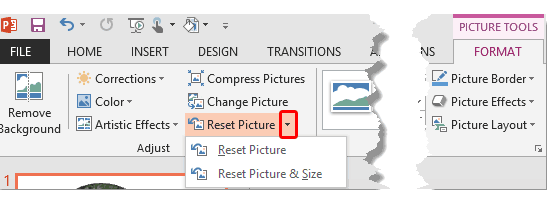
Learn how to reset pictures in PowerPoint 2013 for Windows.
Filed Under:
PowerPoint 2013
Tagged as: Images, Microsoft Windows, Office 2013, Pictures, PowerPoint 2013, Reset, Tutorials
Comments Off on Reset Pictures in PowerPoint 2013 for Windows
Working with pictures in PowerPoint 2013 can be so much fun and fulfilling at the same time. One of the coolest options is to recolor the hue of your entire picture so that it looks almost like a duotone picture. You have already learned how to apply corrections to your inserted pictures, and this Color option can help you do more with your pictures. Be aware though that this Color option does not work like a coloring book; rather it changes the overall hue color of the entire picture, saturates color values, change the overall color tone, and do more.

Learn how to change the color hue of pictures in PowerPoint 2013 for Windows.
Filed Under:
PowerPoint 2013
Tagged as: Color, Images, Microsoft Windows, Office 2013, Pictures, PowerPoint 2013, Tutorials
Comments Off on Changing Color of Pictures in PowerPoint 2013 for Windows
PowerPoint is a slide program but that doesn’t mean that it does not have some cool picture editing tricks up its sleeve. When we say “cool”, we certainly do not mean just inserting a picture, or even the fact that you can apply corrections or recolor hues. PowerPoint 2013 provides around 23 filters as part of its Artistic Effects options. Some of these filters (effects) can make your pictures look like paintings or sketches, and others can change the texture of your pictures.

Learn how to apply Artistic Effects to pictures in PowerPoint 2013 for Windows.
Filed Under:
PowerPoint 2013
Tagged as: Effects, Images, Microsoft Windows, Office 2013, Pictures, PowerPoint 2013, Tutorials
Comments Off on Artistic Effects for Pictures in PowerPoint 2013 for Windows
Imagine you have inserted a picture in PowerPoint 2013 for Windows, and then you applied various picture editing options to enhance its appearance. For example, you may have added a border, applied some Picture Effects, etc. Probably, you then added both Fade and Zoom animations, synced them to happen together, and also timed the animations to occur at a particular speed. You may find yourself often doing these same tasks: adding all sorts of picture edits and animating them. And then you realize that you have a better picture, or your boss asked you to change the existing picture to another one, but with all the same effects and animations!
Learn how to change one picture into another in PowerPoint 2013 for Windows.
Filed Under:
PowerPoint 2013
Tagged as: Graphics, Microsoft Windows, Office 2013, Pictures, PowerPoint 2013, Tutorials
Comments Off on Change Picture in PowerPoint 2013 for Windows
Microsoft and the Office logo are trademarks or registered trademarks of Microsoft Corporation in the United States and/or other countries.