
This is the print version of this page. All content is copyright Indezine.com 2000-2026.
Thoughts and impressions of happenings in the world of PowerPoint and presentations, continuously updated since 2003.
See Also:
PowerPoint and Presenting Notes
PowerPoint and Presenting Glossary
Do you want to be part of a new presentation industry body? Learn more about the Presentation Guild in an exclusive interview with Echo Swinford. We also bring you some in-depth tutorials that discuss using fonts in PowerPoint. First, we look at whether a particular font can be embedded within PowerPoint. Then we look at safe fonts, and finally we explore four alternatives to safe fonts.
In the Tutorials section, PowerPoint 2016 and 2013 users can learn about hiding and unhiding slides. PowerPoint 2010 users can learn about packaging slides, creating handouts in Word, and general PowerPoint program options. Finally, do not miss the new press releases and templates of this week.

Read Indezine’s PowerPoint and Presenting News.
Filed Under:
Ezine
Tagged as: Ezine, Indezine, News, PowerPoint
Comments Off on PowerPoint and Presenting News: October 25, 2016
The Advanced tab of the PowerPoint Options dialog box contains advanced, and some not-so-advanced options related to the appearance and working of the PowerPoint interface. Changes to these options can result in a very different and more efficient workflow. The PowerPoint Options dialog box can be accessed in multiple ways, as explained in our Backstage View – Program Options in PowerPoint 2010 for Windows tutorial. In this tutorial, we will explore the various options within the Advanced tab of the PowerPoint Options dialog box.

Learn about advanced program options in PowerPoint 2010 for Windows.
Filed Under:
PowerPoint 2010
Tagged as: Office 2010, Options, PowerPoint 2010, Tutorials
Comments Off on Advanced Program Options in PowerPoint 2010 for Windows
We learned about using safe fonts in PowerPoint, especially if you want to share your slides with others who may not have the required fonts. In simple terms, this means using fonts such as Calibri, Arial, or Times New Roman in your slides so that almost anyone can see the slides identically — as you see them! Sometimes, this may not be a bad idea, but you do have to narrow down your choices to the bare basics. Fortunately, there are some alternatives to safe fonts too — and some of these may work for you. The best part is that you may be able to show your slides with the fonts that you like!

Learn about alternatives to safe fonts in PowerPoint.
Filed Under:
Fonts
Tagged as: Fonts, PowerPoint, Tutorials
Comments Off on Alternatives to Safe Fonts in PowerPoint
The General tab of the PowerPoint Options dialog box contains basic, yet some very important options related to the appearance and working of the PowerPoint interface. Changes to these options can result in a very different and more efficient workflow. The PowerPoint Options dialog box can be accessed in multiple ways, as explained in our Backstage View – Program Options in PowerPoint 2010 for Windows tutorial. In this tutorial, we will explore the various options within the General tab of the PowerPoint Options dialog box. Follow these steps to understand better.
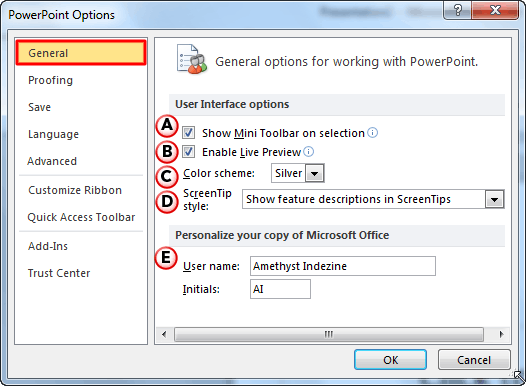
Learn about General Program options in PowerPoint 2010 for Windows.
Filed Under:
PowerPoint 2010
Tagged as: Interface, Microsoft Office, Office 2010, Options, PowerPoint 2010, Tutorials
Comments Off on General Program Options in PowerPoint 2010 for Windows
Did you use your favorite fonts in PowerPoint, and then discovered that when you moved the presentation to another computer, the fonts were substituted with another font? Worse, even this change is not predictable. You may find that the font change behavior is not consistent, and the same font may be substituted completely differently on a third computer!

Learn about using safe fonts in PowerPoint.
You May Also Like: Stop Underlining Your Descenders! | Can this Font be Embedded in PowerPoint? | Alternatives to Safe Fonts in PowerPoint | Find Substituted Fonts in PowerPoint
Filed Under:
PowerPoint All Versions
Tagged as: Fonts, PowerPoint, Tutorials
Comments Off on Use Safe Fonts Available on All Systems in PowerPoint
Microsoft and the Office logo are trademarks or registered trademarks of Microsoft Corporation in the United States and/or other countries.