
This is the print version of this page. All content is copyright Indezine.com 2000-2026.
Thoughts and impressions of happenings in the world of PowerPoint and presentations, continuously updated since 2003.
See Also:
PowerPoint and Presenting Notes
PowerPoint and Presenting Glossary
Rob Bailey of Eyeful Presentations explores the changes at Eyeful, and also how Brexit influences the EU’s presentation industry. Celebrated speakers at the upcoming Presentation Summit in Las Vegas talk about their sessions — we feature Emma Bannister, Heather Ackmann, Jon Schwabish, and Mike Parkinson. Make sure you read what they say, even if you won’t attend the conference!
We feature Microsoft Sway again this week. You can learn about the My Sways page, and also about Accessibility View in Sway. We then show you how you can create outlines for PowerPoint presentations in Word 2016. PowerPoint 2016 for Windows users can learn how to create their own Theme Fonts set. Finally, do not miss the new press releases and templates of this week.

Read Indezine’s PowerPoint and Presenting News.
Filed Under:
Ezine
Tagged as: Ezine, Indezine, News, PowerPoint
Comments Off on PowerPoint and Presenting News: August 30, 2016
While presenting and interacting with your audience, annotation on a slide can play an important role, and PowerPoint provides you with useful Pen and Highlighter tools that can change your static slide into a whiteboard upon which you can doodle and write! In this tutorial, we will learn how these tools can be helpful.
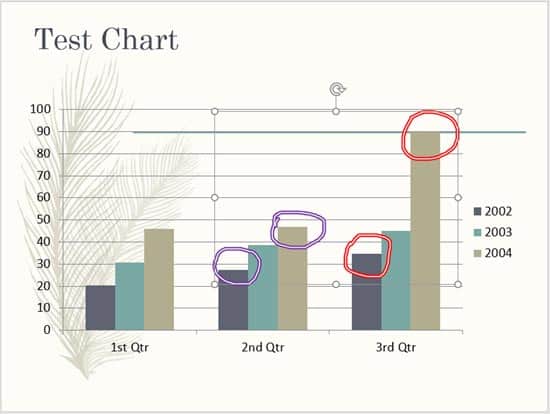
Learn how to use the Pen and Highlighter tools within Slide Show View in PowerPoint 2016 for Windows.
Filed Under:
PowerPoint 2016
Tagged as: Annotation, Highlighter, Microsoft Windows, Office 2016, Pen, PowerPoint 2016, Slide Show View, Tutorials
Comments Off on Using the Pen and Highlighter Tools in Slide Show View in PowerPoint 2016 for Windows

Troy Chollar is President and co-founder of TLC Creative Services, Inc., a graphic design studio team that specializes in presentation design and visual communication projects. He is very active in the PowerPoint and presentation community through his blog and a presentation industry podcast. He is a Microsoft MVP for PowerPoint, annually awarded since 2004, and has only missed one Presentation Summit since the inaugural event.
In this conversation, Troy discusses his sessions at the upcoming Presentation Summit 2016 series.
Filed Under:
Events
Tagged as: Events, Interviews, PowerPoint, Presentation Summit, Troy Chollar
Comments Off on Presentation Summit 2016: Conversation with Troy Chollar
Theme Fonts comprise a pair of font choices, one each for your slide titles (Heading font) and the other for everything else on your slides (Body font). You can use existing Theme Fonts available in PowerPoint or even create them on your own. Additionally, you can opt to edit existing Theme Font pairs (sets), as we will explore in this tutorial.
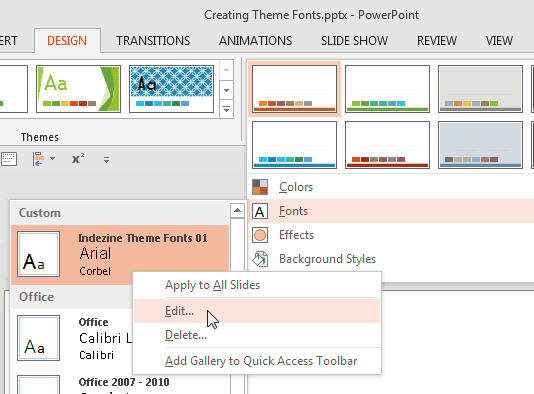
Learn how to edit Theme Fonts in PowerPoint 2013 for Windows.
Filed Under:
PowerPoint 2013
Tagged as: Fonts, Microsoft Windows, Office 2013, PowerPoint 2013, Text, Theme Fonts, Themes, Tutorials
Comments Off on Edit Theme Fonts Set in PowerPoint 2013 for Windows
Theme Fonts are font choices that are part of a Theme in PowerPoint or other Microsoft Office programs. Each Theme Font set has two font choices, one for the Heading fonts and another for the Body fonts. We already explored Theme Fonts in our Theme Fonts in PowerPoint 2013 for Windows tutorial. Now let us learn how to create a new custom Theme Fonts set.
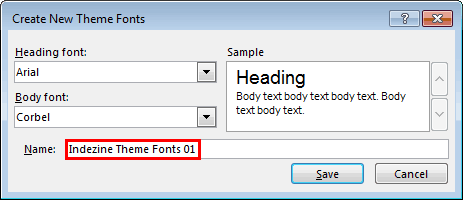
Learn how to create your own Theme Fonts in PowerPoint 2013 for Windows.
Filed Under:
PowerPoint 2013
Tagged as: Fonts, Microsoft Office, Microsoft Windows, Office 2013, PowerPoint 2013, Theme Fonts, Themes, Tutorials
Comments Off on Create Your Own Theme Fonts Set in PowerPoint 2013 for Windows
Microsoft and the Office logo are trademarks or registered trademarks of Microsoft Corporation in the United States and/or other countries.