
This is the print version of this page. All content is copyright Indezine.com 2000-2026.
Thoughts and impressions of happenings in the world of PowerPoint and presentations, continuously updated since 2003.
See Also:
PowerPoint and Presenting Notes
PowerPoint and Presenting Glossary
Programs such as PowerPoint are a very significant part of our workflows not just because of their vast abilities but also because they can understand content from so many file formats. These include file types that PowerPoint can save and open. We already explored file types that PowerPoint 2016 can save to, but when you go and look at the file types that PowerPoint 2016 can open, you’ll find that the list of file types is not exactly the same. There are several omissions and additions compared to that list.
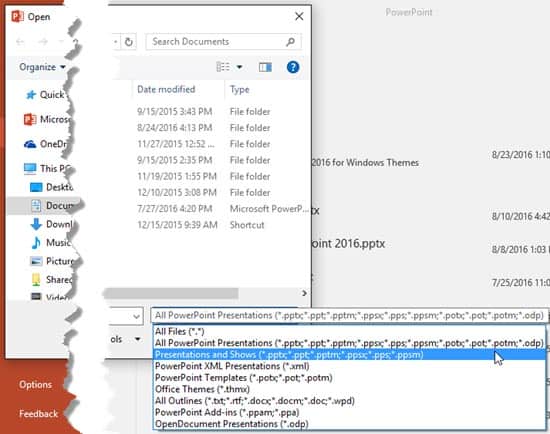
Learn about various file types that PowerPoint 2016 can open and work with.
You May Also Like:
Filed Under:
PowerPoint 2016
Tagged as: File Types, Microsoft Office, Microsoft Windows, Office 2016, PowerPoint 2016, Tutorials
Comments Off on File Types That Can be Opened in PowerPoint 2016 for Windows
Quick, how many file formats (types) can PowerPoint 2016 save your slides to? If you take count of every single format from the necessary to the irrelevant (and forget the missing ones), then the number is 28. Some of these could be genuinely helpful, such as the MPEG-4 Video export and others like GIF, JPG, PNG, WMF, and EMF ensure that you get good graphic outputs. And RTF outlines can sometimes be a boon.

Learn about various file types that you see in the Save As dialog box in PowerPoint 2016 for Windows.
You May Also Like:
File Types that can be Opened in PowerPoint 2016 for Windows
File Menu and Backstage View in PowerPoint 2016 for Windows
Backstage View – Info Pane in PowerPoint 2016 for Windows
Print Option in Backstage View in PowerPoint 2016 for Windows
Save and Save As Options in Backstage View in PowerPoint 2016 for Windows
Filed Under:
PowerPoint 2016
Tagged as: File Types, Interface, Microsoft Windows, Office 2016, PowerPoint 2016, Save, Tutorials
Comments Off on File Formats in PowerPoint 2016 for Windows

Ryan Orcutt joined Duarte in 2004 as a graduate of Chico State’s School of Communication Design and now contributes as Associate Creative Director. His 12-year tenure has allowed him to help some of the world’s most influential speakers craft, visualize, and deliver some of today’s most compelling and persuasive visual stories. Ryan’s skill lies in his ability to combine his natural abilities as a visual thinker, storyteller, and designer. If you dropped in at Duarte headquarters, you’d most likely find him leading a client workshop, drawing a storyboard, or bartending the Friday afternoon happy hour.
In this conversation, Ryan discusses his session at the upcoming Presentation Summit 2016 series.
Geetesh: You are presenting right after the keynote on Monday, and your session is called Why Presentation Design Matters. What do you believe attendees will take away from your talk?
Ryan: First, I believe my talk will remind the attendees of the importance of the work they do every single day. In today’s fast-paced, business-savvy world, presentations have become the default way the most innovative ideas and critical messages are shared. And because of that, how you design a presentation can determine whether or not an idea is accepted, or a message is heard. Your skillset as a presentation designer has never been in more demand and your value to a business is never higher. I hope to encourage people to accept that responsibility and be deeply proud of what they do.
Second, the attendees will get a glimpse into several real-world project transformations. They will be able to see some of the design techniques used as the presentations went from unclear, underwhelming, or forgettable to persuasive, impactful, and memorable. With the right design, these slides became presentations that moved people. And you can do it, too.
I hope that attendees walk away with a renewed passion for presentation design and some fresh techniques that they can take back to their desks.
Geetesh: Ryan, how do you approach presentation design? Many designers just think of presentations as an extension to print and graphic layouts—what should they know about presentation design?
Ryan: I approach each presentation I work on as if it was my story to tell. I try to learn as much as possible about the topic and find something about the message, person, product, or idea to fall in love with. The deeper in love I fall, the better the work. The best part, these are short love affairs with something new just after the next deadline.
Additionally, I never think of presentations as just a sequence of slides. I think of them more like movies with flow, pace, and contrast. Your approach to crafting presentations changes when you use that mindset. You focus less on titles, transitions, and individual data points, and you focus more on the audience, what you want them to feel, and the transformation you want them to undergo. Don’t get me wrong, the titles, transitions, and data points are important, but they all need to be in service of the message and the desired transformation.
Finally, remember that the best presentations are ones that have been approached from 3 different angles. The visuals, the content, and the delivery. A presentation can be made better by improving any one of those components, but it’s only when all three elements have been addressed that a presentation will truly sing. This means collaboration—designers, writers, and speaker coaches all working together on parallel tracks. It can be a tricky balancing act, but one that pays big returns if mastered.

For many years now, Rick Altman has been hosting the Presentation Summit, a highly popular event that is geared towards users of PowerPoint and other presentation platforms.
Date: October 23 to 26, 2016
Location: Green Valley Ranch, Las Vegas, United States
The views and opinions expressed in this blog post or content are those of the authors or the interviewees and do not necessarily reflect the official policy or position of any other agency, organization, employer, or company.
Filed Under:
Events
Tagged as: Duarte Design, Events, Interviews, Presentation Summit, Ryan Orcutt
Comments Off on Presentation Summit 2016: Conversation with Ryan Orcutt
Do you use PowerPoint and other Office programs on a Mac? Do you know which version you are using? And if the version question seemed easy, do you know what sort of license you are using? In this post, we will explore an easy way to identify version and license details for Microsoft Office on the Mac.
We have used PowerPoint for all the screenshots. However, the same process should also work with Word, Excel, and other Office programs. Follow these steps:


Thank you so much, Anneliese Wirth, at Microsoft who helped me create this post.
You May Also Like: Identify Your Version and License of Microsoft PowerPoint and Office on Windows
Filed Under:
PowerPoint All Versions
Tagged as: Anneliese Wirth, License, Microsoft Office, Office for Mac, Tutorials, Version
Comments Off on Identify Your Version and License of Microsoft PowerPoint and Office on Mac
When you use the Pen and Highlighter tools to annotate, you are provided with an option to save those annotations when you exit Slide Show view. If you do opt to save them, then you will actually open doors to new capabilities that will allow you to edit these annotations – in fact, you can also change these annotations to shapes and work more with them!

Learn how you can edit your Pen and Highlighter annotations in PowerPoint 2016 for Windows.
Filed Under:
PowerPoint 2016
Tagged as: Annotation, Highlighter, Ink, Microsoft Windows, Office 2016, Pen, PowerPoint 2016, Tutorials
Comments Off on Edit Annotations with Ink Tools in PowerPoint 2016 for Windows
Microsoft and the Office logo are trademarks or registered trademarks of Microsoft Corporation in the United States and/or other countries.