
This is the print version of this page. All content is copyright Indezine.com 2000-2026.
Thoughts and impressions of happenings in the world of PowerPoint and presentations, continuously updated since 2003.
See Also:
PowerPoint and Presenting Notes
PowerPoint and Presenting Glossary
An understanding has grown over the years to make all kinds of computer-generated content available to people with disabilities. PowerPoint is no stranger to this accessibility concept, and has many options up its sleeve that help your slides be more relevant to those with accessibility impairments. Similar to how PowerPoint’s spell checker alerts you to potential spelling errors, the built-in Accessibility Checker highlights potential accessibility issues in your presentation so that you can fix these potential problems and make your content accessible to everyone.
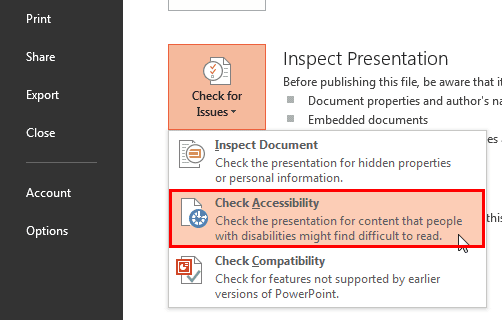
Check accessibility options available in PowerPoint 2013 for Windows.
Filed Under:
PowerPoint 2013
Tagged as: Accessibility, Microsoft Windows, Office 2013, PowerPoint 2013, Tutorials
Comments Off on Check Accessibility in PowerPoint 2013 for Windows
You’ve probably heard that a picture is worth a thousand words. Well, the same goes for presentation photos. Whether it’s using PowerPoint, Sway, or one of those old-school overhead projectors (ok, so we might be wrong about that last one), images make messages stronger.
Well, without getting all geeky about it, research shows that the human brain processes information more easily when supported by pictures. In fact, we remember slides with visual cues 55% better. Pictures just linger in our minds longer than words. So, adding a nice-looking shot to that slide full of bullet points might just help them do their job better.
That said, don’t go overboard. Images need to illustrate your point, not compete with it. Nor should they just be used for decoration. See, because they’re so memorable, it’s crucial that the images you use actually support your topic, otherwise, your audience will be remembering the wrong thing, and that would be a little annoying.

© Skitterphoto/Pickit.com
Instead, go for images that illustrate genuine emotions that connect with your audience on a more personal level. Emotion-evoking presentations increase engagement, so support your message with shots that shock, surprise or make people laugh.

© Skitterphoto/Pickit.com
Memes and classic images may be recognizable, but chances are that your listeners will switch off. Worse still, they might associate them with another context where they’ve seen them and not with your presentation. All of a sudden, your photo is distracting and detracting from your message instead of supporting it. As for that handshake photo on your introduction slide – your audience has seen that one too many times. Give them something fresh to make them smile instead.

© Skitterphoto/Pickit.com
For example, if your slide is a call-to-action, make sure the picture illustrates the same action. Be bold, be creative, and have fun when choosing your visuals.
Here are a few things to avoid:

Jullietta Stoencheva is a Media Psychology graduate from the University of Cologne, Germany. Jullietta manages the content and community of Pickit.com, a marketplace for presentation images. In addition, she is responsible for PR and media inquiries, as well as social media management of the company. Outside of work, Jullietta is a photo enthusiast, passionate about reading, literature, and meeting new people.
The views and opinions expressed in this blog post or content are those of the authors or the interviewees and do not necessarily reflect the official policy or position of any other agency, organization, employer, or company.
Filed Under:
Guest Posts
Tagged as: Graphics, Guest Post, Images, Jullietta Stoencheva, Opinion, Pickit, Pictures, PowerPoint
Comments Off on Choosing the Right Picture for your Slides
When your presentation is something you deliver, it rarely matters if you have any content invisible to your audiences, such as your slide notes, comments, and document properties. Typically, none of these are visible to your audience, and you are free to add any information in these areas that will enable you to be better prepared to deliver your slides. However, if you need to share the same PowerPoint presentation with colleagues, or even publish it online, the scenario will be different. Most users don’t even think twice about all this information simply due to lack of awareness. They should because most of this content may include hidden data or information that you or your company may not want to share.

Learn how to use the Inspect Document feature in PowerPoint 2013 for Windows.
Filed Under:
PowerPoint 2013
Tagged as: Inspect, Microsoft Windows, Office 2013, PowerPoint 2013, Tutorials
Comments Off on Inspect Document in PowerPoint 2013 for Windows
Similar to the Screenshot option that lets you capture still screenshots, you can use the new Screen Recording option in PowerPoint 2013 for Windows to quickly record a video clip of your onscreen activity, from within the program. Do note though that this Screen Recording option is among the new features introduced in PowerPoint 2016, and also added as part of the February 2015 updates to PowerPoint 2013. You will only find this option in PowerPoint 2013 if you have installed all recent updates.

Learn about the screen recording option in PowerPoint 2013 for Windows.
Filed Under:
PowerPoint 2013
Tagged as: Microsoft Windows, Office 2013, PowerPoint 2013, Screen Recording, Tutorials, Video
Comments Off on Screen Recording in PowerPoint 2013 for Windows
Kurt Dupont of PresentationPoint teaches how you can create a timer in PowerPoint — he explains two ways to do so.
PowerPoint 2016 for Windows users can learn about the new six chart types introduced in this version. You can also learn about aligning text within shapes and text boxes, how you can create cookie-cutter shapes to end up with fantastic, triangular tables, and also how you can align objects precisely on the center of a slide. We also explore the concepts of grouping, ungrouping, and regrouping. Finally, do not miss the new press releases and templates of this week.

Read Indezine’s PowerPoint and Presenting News.
Filed Under:
Ezine
Tagged as: Ezine, Indezine, News, PowerPoint
Comments Off on PowerPoint and Presenting News: July 19, 2016
Microsoft and the Office logo are trademarks or registered trademarks of Microsoft Corporation in the United States and/or other countries.