
This is the print version of this page. All content is copyright Indezine.com 2000-2026.
Thoughts and impressions of happenings in the world of PowerPoint and presentations, continuously updated since 2003.
See Also:
PowerPoint and Presenting Notes
PowerPoint and Presenting Glossary
Have you worked with the Screenshot option in previous versions such as PowerPoint 2010 and PowerPoint 2013? This option allowed you to add a screenshot from within PowerPoint. PowerPoint 2016 goes a step further with the new Screen Recording option that allows you similarly to record a video clip of your onscreen activity, again from within the program.

Learn about the screen recording option in PowerPoint 2016 for Windows.
Filed Under:
PowerPoint 2016
Tagged as: Microsoft Windows, Office 2016, PowerPoint 2016, Screen Recording, Tutorials, Video
Comments Off on Screen Recording in PowerPoint 2016 for Windows
So, what exactly does grouping within PowerPoint mean? And what are the ungrouping and regrouping options meant to do further? The moment you select a slide object such as a shape on a PowerPoint slide, you will see some selection handles that indicate the shape is selected. Select another shape while the first one is still selected, and you see two sets of selection handles. If you need to similarly select many shapes on a slide often, this sort of selection may become cumbersome and waste so much time. In that case, it’s best you select all the shapes you need to work with, and then combine them into one “group” of shapes.
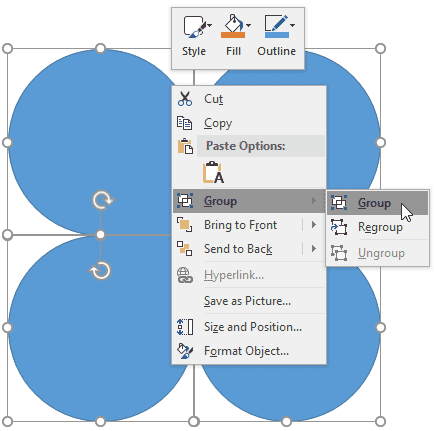
Learn how to group, ungroup, and regroup shapes in PowerPoint 2016 for Windows.
Filed Under:
PowerPoint 2016
Tagged as: Group, Microsoft Windows, Office 2016, PowerPoint 2016, Regroup, Shapes, Tutorials, Ungroup
Comments Off on Group, Ungroup, and Regroup Shapes in PowerPoint 2016 for Windows
We have already explored aligning shapes in PowerPoint. However, for alignment to work in the first place, you need to have more than one shape or slide object selected so that they can align with each other. However, what if you want to align one shape, or even a single group of shapes to the exact center of your slide. Fortunately, that is easy to achieve.

Learn how to center a shape on a PowerPoint 2016 for Windows.
Filed Under:
PowerPoint 2016
Tagged as: Align, Microsoft Windows, Office 2016, PowerPoint 2016, Shapes, Tutorials
Comments Off on Align Shapes to Center of Slide in PowerPoint 2016 for Windows
By Kurt Dupont
A PowerPoint timer functions as a common everyday timer in your presentation. But there are other uses too for a timer such as displaying it on an information screen or even showing real-time, dynamic information on your slide using a timer:
In this article, we will show you an easy way to create a timer presentation in PowerPoint. We will then show you how to use Dynamic TIME, a special timer add-in for PowerPoint so that the user can use to create timers much easier and with more efficiency.
Visualize that we will use a timer of 10 minutes. Create your first slide and insert a text box. Type some static text within the text box, say “10 min” (see the figure below). Now duplicate the slide 10 times to end up with 11 similar slides. Change the text box content every time and slide for every minute you have. And for the last, an ending slide with your text.

Click to open the Transitions tab. In the Timing group, uncheck the Advance Slide On Mouse Click option. Check the option After and set its value to 01:00:00 for a one-minute wait. Click the Apply To All button.
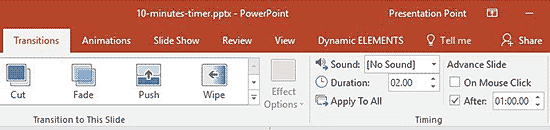
The user can now start the Slide Show. This technique will display every slide for 1 minute, and perform a countdown until the end.
These are two advantages of this method:
These are the two disadvantages of this method:
For dynamic time functions in PowerPoint, we have our Dynamic TIME add-in. Dynamic timer is one of the features of Dynamic TIME. After installation within the PowerPoint Ribbon, the user will find a Dynamic ELEMENTS tab.

Now, follow these steps using Dynamic TIME:
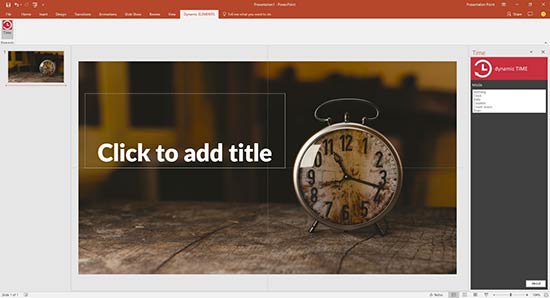

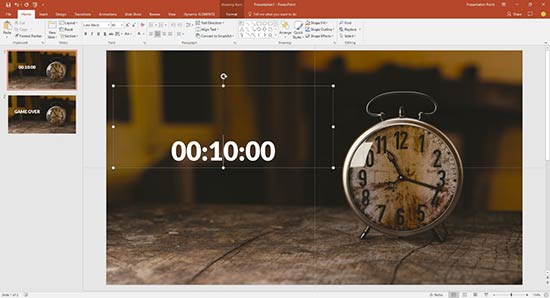

These are the multiple advantages of using this method:
The only disadvantage of this method compared to the earlier method, is that you have to pay for this add-on. But that is an investment for so many years.
See Also: Dynamic TIME: The Indezine Review
The views and opinions expressed in this blog post or content are those of the authors or the interviewees and do not necessarily reflect the official policy or position of any other agency, organization, employer, or company.
Filed Under:
Guest Posts
Tagged as: Add-in, Animation, Guest Post, Kurt Dupont, PowerPoint, PresentationPoint, Timer, Tutorials
Comments Off on How to Use a Timer in PowerPoint
Do you want to create a triangular table? Even better, don’t you want to use a process that not only makes the table completely editable but which ends up with a shape that is not limited to just a triangle? We are going to use two PowerPoint techniques to achieve this trick.

Learn how to make cookie cutter shapes in PowerPoint 2016 for Windows.
Filed Under:
PowerPoint 2016
Tagged as: Cookie Cutter, Microsoft Windows, Office 2016, PowerPoint 2016, Shapes, Tutorials
Comments Off on Cookie Cutter Shapes in PowerPoint 2016 for Windows
Microsoft and the Office logo are trademarks or registered trademarks of Microsoft Corporation in the United States and/or other countries.