
This is the print version of this page. All content is copyright Indezine.com 2000-2026.
Thoughts and impressions of happenings in the world of PowerPoint and presentations, continuously updated since 2003.
See Also:
PowerPoint and Presenting Notes
PowerPoint and Presenting Glossary

Tim Stumbles is the co-founder of Office Timeline, a start-up focused on making project presentations simple. Office Timeline offers timeline maker and Gantt chart software, natively built for Microsoft PowerPoint. With Office Timeline, over 500,000 PowerPoint users easily create impressive project presentations for important client and executive meetings.
In this conversation, Tim talks about Office Timeline’s integration with Wrike.
Geetesh: Tim, can you introduce us to both Wrike and also the integration that Office Timeline provides with Wrike?
Tim: The challenge in the project planning and project management space is project visuals. Project applications create very detailed and complex visuals that are intended for the project teams, but which are difficult for non-project audiences to understand. Our users tell us that their clients and executives don’t want to see complicated Gantt charts and timelines, but rather want to these in a simple, visual way that is familiar to them. In many organizations across the world, PowerPoint is the familiar standard for client and executive presentations. Office Timeline is a PowerPoint add-in that solves the challenge of complicated project visuals. It creates simple, impressive high-level timelines and Gantt charts that are suitable for executive communications.
Wrike is a powerful online project management and work collaboration solution. Wrike users depended on it to streamline important workflow processes and manage massive projects. We teamed with them to build integration so users can instantly create impressive Executive Gantts and timeline slides in PowerPoint by importing their existing Wrike data.

Geetesh: How is the Office Timeline – Wrike integration useful for users of both products, and how does this work within PowerPoint? Can resultant timelines be updated as well?
Tim: Users across the enterprise are under pressure to do more and they are constantly looking for productivity boosts to help them. Our users were asking for tighter connections from Office Timeline to their project tools so they could be more productive and effective. We have completed a wave of integrations with project tools like Microsoft Project, Excel, Wrike, and others. These integrations bring huge productivity gains to anyone who is communicating a project. What used to take them hours to do before can now be done in a few clicks.
Office Timeline’s integration with Wrike is our most recent development in this wave. The actual integration happens natively, right inside PowerPoint via Office Timeline Plus edition. Users log into Wrike from the Office Timeline import wizard in PowerPoint. They select their project and choose which parts of it they want to present. Once the project details have been selected, Office Timeline instantly transforms the data into a graphical PowerPoint visual that can easily be shared, edited, and presented. Any Wrike user can download the free version of Office Timeline from our website and try this immediately.
See Also: Office Timeline Plus Edition: Conversation with Tim Stumbles
The views and opinions expressed in this blog are those of the authors and do not necessarily reflect the official policy or position of any other agency, organization, employer, or company.
Filed Under:
Interviews
Tagged as: Add-in, Interviews, Office Timeline, PowerPoint, Tim Stumbles, Wrike
Comments Off on Office Timeline’s Integration with Wrike: Conversation with Tim Stumbles
PowerPoint allows you to save your slides to many graphic file formats, which can later be used in other applications as required. One of the most popular graphic formats that you can export your slides to is PNG. This tutorial will show you how you can export slides to PNG, but using the same process, you can also export to other graphic file formats such as JPG, GIF, TIF, BMP, WMF, EMF, etc.

Filed Under:
PowerPoint 2010
Tagged as: Export, Graphics, Office 2010, PNG, PowerPoint 2010, Tutorials
Comments Off on Exporting PNGs and other Graphic File Formats (JPG, TIFF, WMF, EMF) in PowerPoint 2010 for Windows
In your presentation, a Slide Master is the element that influences everything — be it the slide background or the fonts used for text. Despite having different layouts, all slides in a presentation share a common look, which is provided by the Slide Master. There will be at least one Slide Master in every presentation. However, while adding slides from other presentations, you may end up adding more Slide Masters inadvertently to your presentation. So how do you know how many Slide Masters your presentation contains? And how do you add another one? In fact, why do you need another Slide Master at all?

Learn how to add and rename Slide Masters in PowerPoint 2016 for Windows.
Filed Under:
PowerPoint 2016
Tagged as: Microsoft Windows, Office 2016, PowerPoint 2016, Slide Masters, Tutorials
Comments Off on Add and Rename Slide Masters in PowerPoint 2016 for Windows
Widescreen slides are everywhere, but are you choosing the correct Widescreen values in PowerPoint? Explore more in Widescreen Implementations article. Also, we look at whether you should create Widescreen slides? Renowned speaker TJ Walker answers queries from Indezine users in a special series of video tutorials. We then get you some Op-Art heart shapes!
PowerPoint 2016 for Windows users can learn more about formatting Picture placeholders and creating custom-shaped Picture placeholders. Also learn how you can change the default slide aspect ratio from Widescreen to Standard. Sway users can explore the cool Remix option. Finally, do not miss the new discussions and templates of this week!

Read Indezine’s PowerPoint and Presenting News.
Filed Under:
Ezine
Tagged as: Ezine, Indezine, News, PowerPoint
Comments Off on PowerPoint and Presenting News: March 29, 2016
You may have observed an omnipresent company logo in many slides — and that raises a question: do you really need to have a company logo on all your slides? First, it takes a fair amount of space. Secondly, the audience knows which company the speaker belongs to since that information is almost always placed on the first slide. Also, speakers do introduce themselves and their companies — so do all slides need that extra branding? All these questions are fair, and there are equally fair answers for them. You should certainly add a company logo to your first slide, and then place a more subtle or watermarked logo on the rest of the slides — or even no logo at all. Fortunately, PowerPoint makes it easy to add a logo to all your slides — and then you can make it sure that some slides have no logo at all or even a more understated version of the logo.
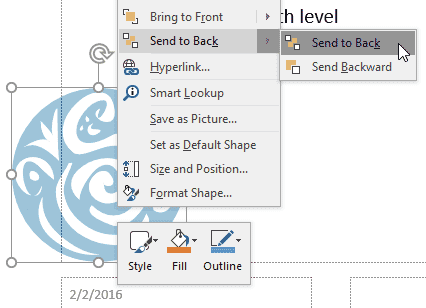
Learn how to add a logo or another graphic to the Slide Master in PowerPoint 2016 for Windows.
Filed Under:
PowerPoint 2016
Tagged as: Design, Logo, Microsoft Windows, Office 2016, PowerPoint 2016, Slide Layouts, Slide Masters, Templates, Themes, Tutorials
Comments Off on Add Your Logo or Graphic to the Slide Master in PowerPoint 2016 for Windows
Microsoft and the Office logo are trademarks or registered trademarks of Microsoft Corporation in the United States and/or other countries.