
This is the print version of this page. All content is copyright Indezine.com 2000-2026.
Thoughts and impressions of happenings in the world of PowerPoint and presentations, continuously updated since 2003.
See Also:
PowerPoint and Presenting Notes
PowerPoint and Presenting Glossary
Collections in Docs.com are essentially exactly what the name suggests! These are “Collections” that enable you to gather various files as well as content created from around the web which interests you and group them all together. Collections work as virtual folders that store all sorts of content. This is great if you are doing a project and want all the content to be placed in a Collection without actually moving all the content to the Collection itself!

Explore how you can create Collections within Docs.com
Filed Under:
PowerPoint for the Web
Tagged as: PowerPoint for the Web, Tutorials
Comments Off on Create Collections in Docs.com
We explored how to search and browse content available on Docs.com, a file sharing site from Microsoft. Rather than just search, you can additionally filter search results to show only files of a particular type, license, or language. In this tutorial, we’ll show you how you can open a PowerPoint file. You might be wondering about what’s so special about opening a PowerPoint file and how it is different than opening any other file type on Docs.com? The difference is not really in opening — but within the many options you see after you open your file. We will walk you through these options within this tutorial.

Learn how to open PowerPoint files on Docs.com.
Filed Under:
PowerPoint for the Web
Tagged as: PowerPoint for the Web, Tutorials
Comments Off on Opening PowerPoint Files on Docs.com
Search for resources on Docs.com and you may end up with so many results, that you may be bewildered. Fortunately, you can filter these search results to show only files of a particular type, license, or language — in this tutorial we’ll explore how to filter search result in Docs.com.

Learn how to filter search results in Docs.com site.
Filed Under:
PowerPoint for the Web
Tagged as: PowerPoint for the Web, Tutorials
Comments Off on Filter Search Results in Docs.com
Have you heard about isometric images? And how are they different from perspective images? Billy Schlotter of Presenter Media explains it all in this exclusive conversation. We also get you a new Bucket Graphics series with Money flowing instead of Water! There’s also a review of Xara’s Designer Pro X11, which works as a great graphic companion program for PowerPoint users.
We begin a new tutorial series on Docs.com, Microsoft’s file sharing, curating, and viewing site. We complete last week’s series on the HSL color model with a detailed article explaining Hue. You also learn about implementing HSL in PowerPoint 2013 and 2010 for Windows. And we have more retrospective stuff — PowerPoint 2003 for Windows users can explore editing points in shapes. Finally, don’t miss the new discussions and templates of this week!

Read Indezine’s PowerPoint and Presenting News.
Filed Under:
Ezine
Tagged as: Ezine, Indezine, News, PowerPoint
Comments Off on PowerPoint and Presenting News: August 11, 2015
Once you visit Docs.com in any browser, you will have to sign into Docs.com to really achieve anything useful on this site. However, there’s one important task that you can perform even without signing in — and that is to search and browse existing content that other users have uploaded to this site. Note that while you need not be signed into Docs.com to search and browse the content, signing in can still be useful if you want to comment or even download a file.
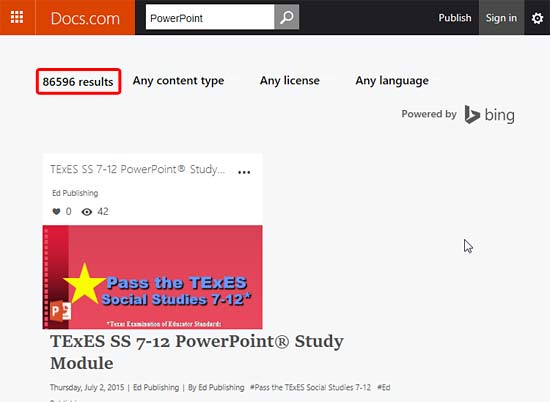
Learn how to search and browse content on the Docs.com site.
Filed Under:
PowerPoint for the Web
Tagged as: PowerPoint for the Web, Tutorials
Comments Off on Search and Browse Content on Docs.com
Microsoft and the Office logo are trademarks or registered trademarks of Microsoft Corporation in the United States and/or other countries.