
This is the print version of this page. All content is copyright Indezine.com 2000-2026.
Thoughts and impressions of happenings in the world of PowerPoint and presentations, continuously updated since 2003.
See Also:
PowerPoint and Presenting Notes
PowerPoint and Presenting Glossary
How many times have you seen a picture of a light bulb on a slide? Your answer may be “many times”, and so we get you some thoughts on alternatives to overcoming this visual cliché. Claudyne Wilder then explores ways in which you can hold the attention of your audience. We also bring you the Bucket diagrams offer.
PowerPoint for iPad users will enjoy learning about removing Places and the AutoSave option. You can also explore how you can open files in PowerPoint Online. PowerPoint 2007 for Windows users can meanwhile look at altering between Curved and Straight line segments. Finally, don’t miss the new discussions and templates of this week!

Read Indezine’s PowerPoint and Presenting News.
Filed Under:
Ezine
Tagged as: Ezine, Indezine, News, PowerPoint
Comments Off on PowerPoint and Presenting News: July 28, 2015
You have learned what the Edit Points option in PowerPoint is, and how it works. The Points you see and edit give you control over how you want a shape to look appearance-wise. Even then, sometimes you might find it difficult to edit a certain segment (a part of the line between two points) in a shape because there are no points available to manipulate — or maybe there are far too many points! PowerPoint provides a simple solution for this problem — you can add and delete points in a shape.

Learn how to add or delete points (vertexes) for a shape in PowerPoint 2003 for Windows.
Filed Under:
PowerPoint 2003
Tagged as: PowerPoint 2003, Shapes, Tutorials
Comments Off on Learn PowerPoint 2003 for Windows: Add or Delete Points (Vertexes) for Shapes

Yury Uskov is the founder and CEO of iSpring Solutions Inc., an international software company focused on providing professional e-Learning authoring tools based in PowerPoint. iSpring products are widely recognized as robust, effective, and extremely easy-to-use software with an outstanding price/quality ratio. iSpring is headquartered in Alexandria, VA.
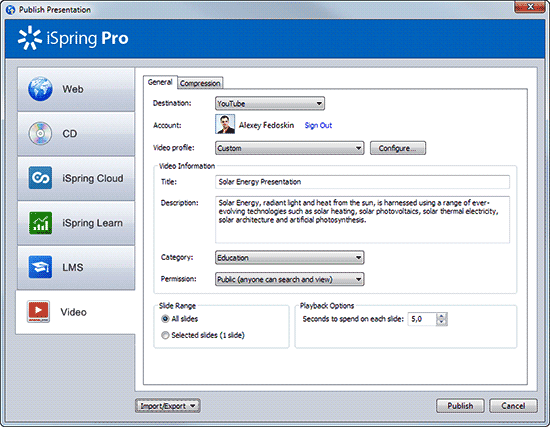
In this conversation, Yury discusses the new publish to YouTube feature in iSpring Pro 7.1
Geetesh: iSpring Pro 7.1 now publishes directly to YouTube. How does this capability strengthen iSpring Pro’s position as the leading PowerPoint conversion tool?
Yury: Direct publishing to YouTube right from PowerPoint is a capability that iSpring first pioneered with iSpring SlideAlloy. Now that this option has been included with iSpring Pro, users have an entire arsenal of publishing options available for any level of presentation interactivity on any device.
iSpring helps PowerPoint users easily create professional-quality video presentations in the environment they already know, then convert their slides to video and publish them directly to YouTube in one click. The conversion and upload process is performed in a single step, making it a truly hands-off procedure. iSpring can even publish with the YouTube quality profile 1920×1080 HD, to ensure the best possible viewing experience for your video presentation.
Geetesh: How good is the video conversion as far as the fidelity of the output is concerned? Can you share some thoughts?
Yury: The iSpring conversion engine captures video information directly from PowerPoint. Since the conversion process utilizes a direct capture, rather than a deconstruction/reconstruction process, all your vector graphics, animations and transitions will be perfectly preserved in the output video with the same quality as the original PowerPoint content.
iSpring enables fine-tuning of video resolution and compression settings right within PowerPoint. The iSpring engine utilizes the MP4 container and the H.264 codec for the optimal balance of compatibility, quality, and download/streaming speed. Whether publishing to an .MP4 video or directly to YouTube, all your work will look the same as you created it in PowerPoint. If you have a specific device in mind, you can select the resolution that best suits that device.
With this new upgrade, iSpring Pro is the easiest and most powerful PowerPoint-based tool for creating video presentations and rich-media mashups. That’s why thousands of customers worldwide choose iSpring, thanks to the unique combination of reliability, quality, and all these new features.
You May Also Like: iSpring Converter’s PowerPoint to HTML5 Conversion: Conversation with Yury Uskov | Brandon Hall Award for iSpring: Conversation with Yury Uskov
The views and opinions expressed in this blog post or content are those of the authors or the interviewees and do not necessarily reflect the official policy or position of any other agency, organization, employer, or company.
Filed Under:
Interviews
Tagged as: Add-in, Interviews, Online Presentations, PowerPoint, Yury Uskov
Comments Off on iSpring Pro’s Publish to YouTube: Conversation with Yury Uskov
When you use any of the shapes available in PowerPoint, you are not limited to what their default appearance looks like. You may want to change a rectangle to a rhombus, or even edit a curved or freeform line differently. The good news is that you can do this by using the Edit Points option — this almost makes PowerPoint a drawing program that provides you the option to play with vertexes (points), handles, etc. — very similar to what you would do in Adobe Illustrator or CorelDRAW.

Learn how to change the appearance of a shape in PowerPoint 2003 using the Edit Points option.
Filed Under:
PowerPoint 2003
Tagged as: PowerPoint 2003, Shapes, Tutorials
Comments Off on Learn PowerPoint 2003 for Windows: Edit Points for Shapes
Desktop versions of PowerPoint let you choose where you want to save your files. They also prompt you to save your files if you close PowerPoint without saving your changes. Well, there is no such Save option within PowerPoint for iPad. Why? That’s because most of the time, PowerPoint on the iPad will continuously auto-save your file as you make changes. It will also push these updated, saved versions to your cloud location. So essentially you open a file, make changes, and then open a second file. You may not be aware, but the first file is saved on its own when you open the second file! Would you like a more conventional approach where you are prompted to save your file? You can do that by turning off the AutoSave option that is enabled by default.

Explore how AutoSave works in PowerPoint for iPad.
Filed Under:
PowerPoint for iPad
Tagged as: iPad, PowerPoint, Tutorials
Comments Off on Learn PowerPoint for iPad: AutoSave
Microsoft and the Office logo are trademarks or registered trademarks of Microsoft Corporation in the United States and/or other countries.