
This is the print version of this page. All content is copyright Indezine.com 2000-2026.
Thoughts and impressions of happenings in the world of PowerPoint and presentations, continuously updated since 2003.
See Also:
PowerPoint and Presenting Notes
PowerPoint and Presenting Glossary
Our next option within the Insert Online Video series is inserting video from OneDrive (previously known as SkyDrive). OneDrive is an online service which allows you to store files online – it also allows you to work on Microsoft Office web applications such as PowerPoint Online, where you can create and edit presentations. Remember that you will have to first sign in with your Microsoft account. Learn more in our Sign In to a OneDrive Account tutorial.
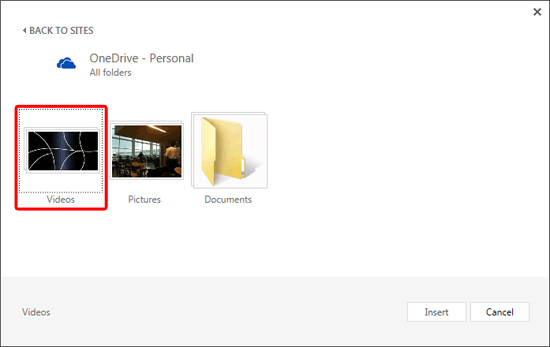
Learn how to insert video using OneDrive in PowerPoint 2013 for Windows.
Filed Under:
PowerPoint 2013
Tagged as: OneDrive, PowerPoint 2013, Tutorials, Video
Comments Off on Learn PowerPoint 2013 for Windows: Insert Video from OneDrive
The Online Video option in PowerPoint 2013 has been greatly enhanced. This feature is very helpful as you are not limited to just the video available on your system. You can choose from a variety of other video sources. And all this happens within PowerPoint — there’s no need to open your web browser.

Learn how to insert online videos in PowerPoint 2013 for Windows.
Filed Under:
PowerPoint 2013
Tagged as: PowerPoint 2013, Tutorials, Video
Comments Off on Learn PowerPoint 2013 for Windows: Insert Online Video Clips
When you select an audio clip in PowerPoint 2013, you will see two extra contextual tabs on the Ribbon. One of these tabs is the Audio Tool Playback tab that provides options to configure properties that define how your inserted audio will play. Whether it will play automatically, or will it play audio across slides? Let’s assume that you want your audio to play as a background score across multiple slides — typically you would have to make four separate choices — but PowerPoint 2013’s new Audio Styles feature lets you automatically apply these four settings at once!

Explore Audio Styles in PowerPoint 2013 for Windows.
Filed Under:
PowerPoint 2013
Tagged as: PowerPoint 2013, Sounds, Tutorials
Comments Off on Learn PowerPoint 2013 for Windows: Audio Styles
When you insert a shape within PowerPoint, you are not limited to what their default appearance looks like. You may want to change a rectangle to a rhombus, or even edit a curved or freeform line differently. The good news is that you can do this using the Edit Points option — this almost makes PowerPoint a drawing program that provides you the option to play with vertexes (points), handles, etc. — very similar to what you would do in Adobe Illustrator or CorelDRAW.

Learn how to edit the structure of a shape in PowerPoint 2007 using the Edit Points option.
Filed Under:
PowerPoint 2007
Tagged as: PowerPoint 2007, Shapes, Tutorials
Comments Off on Learn PowerPoint 2007 for Windows: Edit Points for Shapes
While you can access your PowerPoint files saved on a cloud location such as iCloud Drive – or even from a saved Place such as OneDrive or Dropbox, there’s a little known option that also lets you access your PowerPoint files from other cloud services such as Box, Google Drive, etc. within PowerPoint for iPad.

Learn how to work with various cloud locations in PowerPoint for iPad.
Filed Under:
PowerPoint for iPad
Tagged as: iPad, iPhone, PowerPoint, Tutorials
Comments Off on Learn PowerPoint for iPad: Access Files from Cloud Locations
Microsoft and the Office logo are trademarks or registered trademarks of Microsoft Corporation in the United States and/or other countries.