
This is the print version of this page. All content is copyright Indezine.com 2000-2026.
Thoughts and impressions of happenings in the world of PowerPoint and presentations, continuously updated since 2003.
See Also:
PowerPoint and Presenting Notes
PowerPoint and Presenting Glossary
One of the most important parts of the interface within PowerPoint for iPad is the Ribbon – a typically orange area that sports Tabs with options and commands. Now this Ribbon works almost the same in PowerPoint for iPad as it does in PowerPoint instances anywhere. The main difference here is that you will have to tap to make something happen rather than click! Of course, since the options available on the iPad are fewer, you end up with a thinner, more compact Ribbon as well.

Explore the Ribbon in PowerPoint for iPad.
Filed Under:
PowerPoint for iPad
Tagged as: iPad, PowerPoint, Tutorials
Comments Off on Learn PowerPoint for iPad: Ribbon and Tabs
Whenever you save a file, or open an existing file within PowerPoint for iPad, you access what is called a “Place”. Thus a “Place” is a location to save and access files. The question then is why do you need a Place? Can’t you just navigate a file structure and save files? No, you cannot because the iPad does not expose its file structure. In addition, some Places you access on an iPad are cloud locations such as OneDrive, SharePoint, Dropbox, iCloud, etc. that are not part of the iPad’s storage. So in other words, a Place is a determined and established location.

Learn how you can add Places in PowerPoint for iPad.
Filed Under:
PowerPoint for iPad
Tagged as: iPad, PowerPoint, Tutorials
Comments Off on Learn PowerPoint for iPad: Add Places
We bring you a new group on LinkedIn for all of you who use PowerPoint on an iPad or iPhone. Josh Leskar of Udemy discusses some amazing public speaking resources. These are videos, and you don’t have to buy anything to see them. We then bring you an easy Photoshop technique that allows you to apply the Reticulate effect to good use.
PowerPoint 2010 users can learn about the Pen and Highlighter tools in Slide Show view. We also look at how you can thereafter edit these annotations. PowerPoint 2011 for the Mac users can explore working with Picture Slide Layouts. And PowerPoint for the iPad users can learn about getting started with the app. Finally, don’t miss the new discussions and templates of this week!

Read Indezine’s PowerPoint and Presenting News.
Filed Under:
Ezine
Tagged as: Ezine, Indezine, News, PowerPoint
Comments Off on PowerPoint and Presenting News: June 23, 2015
When you insert Slide Numbers on your slides, you may discover that the location of the Slide Number changes depending upon the active Theme of your slides. With some Themes, the Slide Number may be placed at the bottom right — with other Themes, it may be located at the top right, or even in some other place. The location of the Slide Number may seem to be influenced by the Theme — and that’s almost true. However, a Theme is a larger concept — it’s only the Slide Master, a subset of your Theme that’s influencing the position of your Slide Numbers.
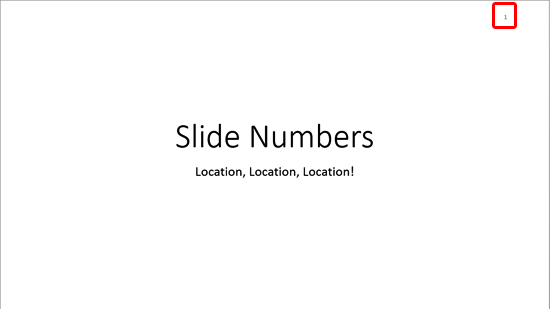
Learn how to change the location of Slide Numbers in PowerPoint 2013 for Windows.
Filed Under:
PowerPoint 2013
Tagged as: Masters, PowerPoint 2013, Templates, Tutorials
Comments Off on Learn PowerPoint 2013 for Windows: Changing Location of Slide Numbers
Adding a new Slide Master to your presentation is easy — and an even easier way is to possibly duplicate an existing Slide Master. You can then format it to change its look by applying a Background Style or by adding a custom background. You can also add new Slide Layouts, etc. But why would you do all these tasks in the first place? There needs to be a compelling reason to do so. This reason leads us to the next logical step — that is to apply the new Slide Master you created to selected slides within your presentation.

Learn how to apply Slide Masters to individual slides in PowerPoint 2013 for Windows.
Filed Under:
PowerPoint 2013
Tagged as: Masters, PowerPoint 2013, Templates, Tutorials
Comments Off on Learn PowerPoint 2013 for Windows: Applying Slide Masters to Individual Slides
Microsoft and the Office logo are trademarks or registered trademarks of Microsoft Corporation in the United States and/or other countries.