
This is the print version of this page. All content is copyright Indezine.com 2000-2026.
Thoughts and impressions of happenings in the world of PowerPoint and presentations, continuously updated since 2003.
See Also:
PowerPoint and Presenting Notes
PowerPoint and Presenting Glossary
Pictures have an important role in presentation slides since they add imagination and visualization to your slides. To make pictures more impactful, you can even apply borders and effects to them, and also try some Picture Styles that PowerPoint offers. Other than these options, there is one more option that works in the same way as how you convert text to SmartArt — this is the Picture Layout option that similarly converts selected pictures into SmartArt.

Filed Under:
PowerPoint 2013
Tagged as: Pictures, PowerPoint 2013, SmartArt, Tutorials
Comments Off on Learn PowerPoint 2013 for Windows: Picture Layouts
We begin with an exclusive conversation with Rick Altman, who talks about the upcoming Presentation Summit to be held in New Orleans this September. We then look at Globes as a theme in our Clichéd Pictures series. We also have Claudyne Wilder discussing how you should cover everything and plan ahead before you deliver your presentation. PowerPoint 2013 users can learn about text transforms, spell checks, and AutoCorrect proofing options. Finally, don’t miss the new discussions and templates of this week!

Read Indezine’s PowerPoint and Presenting News.
Filed Under:
Ezine
Tagged as: Ezine, Indezine, News, PowerPoint
Comments Off on PowerPoint and Presenting News: May 5, 2015
As you type, the PowerPoint AutoCorrect feature automatically corrects common typos and spelling errors. How does PowerPoint know that a particular word is spelled wrong? Does it refer to some resource as a reference? Also do you find some AutoCorrect options such as the capitalization of some words unnecessary? Several researchers working in different scientific fields actually have to use some words that cannot start with a capital letter, and the first thing they want to do is turn off the automatic capitalization. Yes, it’s possible to make AutoCorrect work just the way you want it to — as long as you know where to change these options.
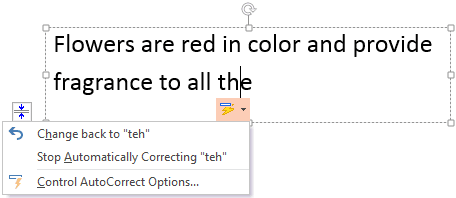
Explore AutoCorrect options in PowerPoint 2013 for Windows.
Filed Under:
PowerPoint 2013
Tagged as: PowerPoint 2013, Text, Tutorials
Comments Off on Learn PowerPoint 2013 for Windows: AutoCorrect Options

Dave McKinsey is the pen name for Jeremey Donovan who is Chief Marketing Officer of American Management Association International. He is also the author of four books including the international public speaking best seller How to Deliver a TED Talk.
In this conversation, Jeremey discusses his new book, Strategic Storytelling: How to Create Persuasive Business Presentations.
Geetesh: In your new book, Strategic Storytelling: How to Create Persuasive Business Presentations you mention that most presenting books are authored for keynote style deliveries, rather than everyday business situations. Tell us more about this gap you observed?
 Jeremey: I have an entire row of my bookshelf at home devoted to public speaking books. I love them all. Some of my favorites are slide:ology by Nancy Duarte, Presentation Zen by Garr Reynolds, and World Class Speaking by Craig Valentine. Each one of these books, and the ones next to them on the shelf, does an outstanding job of covering the nuances of content, delivery, and design. The issue with these books is that they are written by thought-leading gurus and professional speakers. Most of the work they do for others is for very large audiences who are looking for inspiration and entertainment as much as they are looking for information.
I felt there was a gap with respect to the kinds of presentations business people give everyday when trying to persuade their boss to approve a recommendation. This all happens through conversation sitting in chairs around a table rather than standing on a stage. You get that kind of training if you work for certain management consulting firms such as McKinsey, Accenture, or Boston Consulting Group. For the rest of us, until now, we needed to reach books about keynote speaking and try to pull out the pieces we can use at work.
Geetesh: Storytelling is synonymous with presenting these days – but how are stories different in the world of business compared to stories we see or read? And how are they similar?
Jeremey: At the end of the day, all stories share a common foundation. I rely on the Pixar Pitch for story construction. It is a story in three acts, with two parts per act. Act 1, Part 1 = “Once upon a time and every day…” Act 1, Part 2 = “Until one day…” Act 2, Part 1 = “And because of that…” Act 2, Part 2 = “Until finally…” Act 3, Part 1 = “And after that…” Act 3, Part 2 = “And the moral of the story is…”
Of course people can and do embed classic stories inside business presentations. However, that is pretty rare in day to day settings. What I talk about in the book is a little different. It is all about apply story frameworks to business persuasion. Specifically, I recommend another variation on the three act structure called situation, complication, resolution, or SCR for short. The situation maps to Act 1 in the Pixar Pitch, the complication to Act 2, and the resolution to Act 3. The main difference is that the characters are business strategies, processes, and technologies rather than people.
The views and opinions expressed in this blog post or content are those of the authors or the interviewees and do not necessarily reflect the official policy or position of any other agency, organization, employer, or company.
Filed Under:
Interviews
Tagged as: Books, Interviews, Opinion, Presentation Skills
Comments Off on Strategic Storytelling: Conversation with Jeremey Donovan
The AutoCorrect feature in PowerPoint fixes hundreds of common typos and spelling errors within your PowerPoint slides — automatically as you type any text. AutoCorrect also maps specific keys to a symbol, such as replacing two en dashes with an em dash the moment you hit the Enter key. The best feature within AutoCorrect is that it works so seamlessly that you may even take it for granted — conversely, AutoCorrect can also be a pain sometimes! You may for example not want the two en dashes to automatically change to an en dash — in this tutorial you will learn how you can take advantage of AutoCorrect, and also how you can override its options as required.

Explore AutoCorrect options in PowerPoint 2013 for Windows.
Filed Under:
PowerPoint 2013
Tagged as: PowerPoint 2013, Text, Tutorials
Comments Off on Learn PowerPoint 2013 for Windows: What is AutoCorrect?
Microsoft and the Office logo are trademarks or registered trademarks of Microsoft Corporation in the United States and/or other countries.